Navigating Your Sales Overview on Desktop
Steps to View and Manage Sales Overview
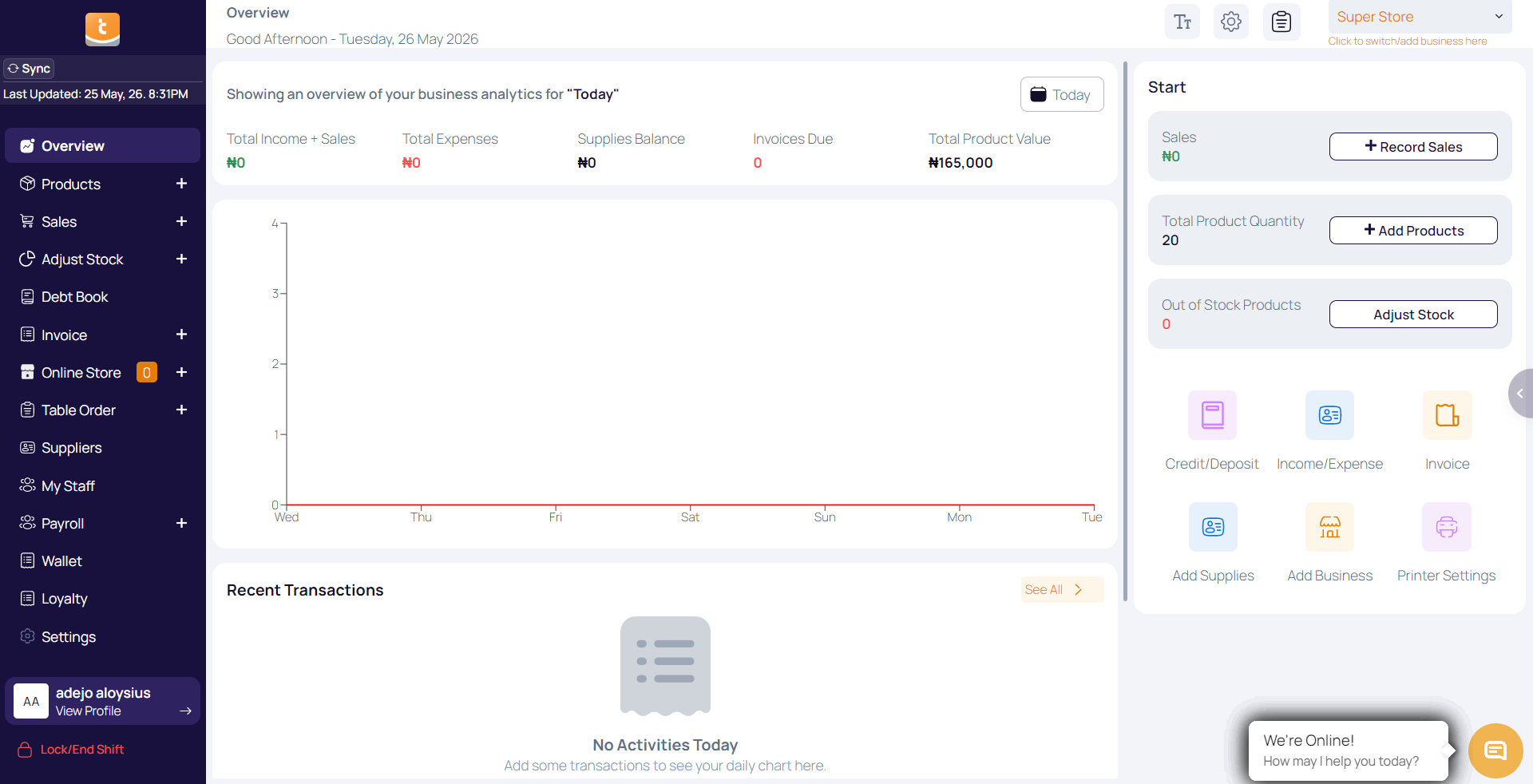
Step 1: Go to the homepage.
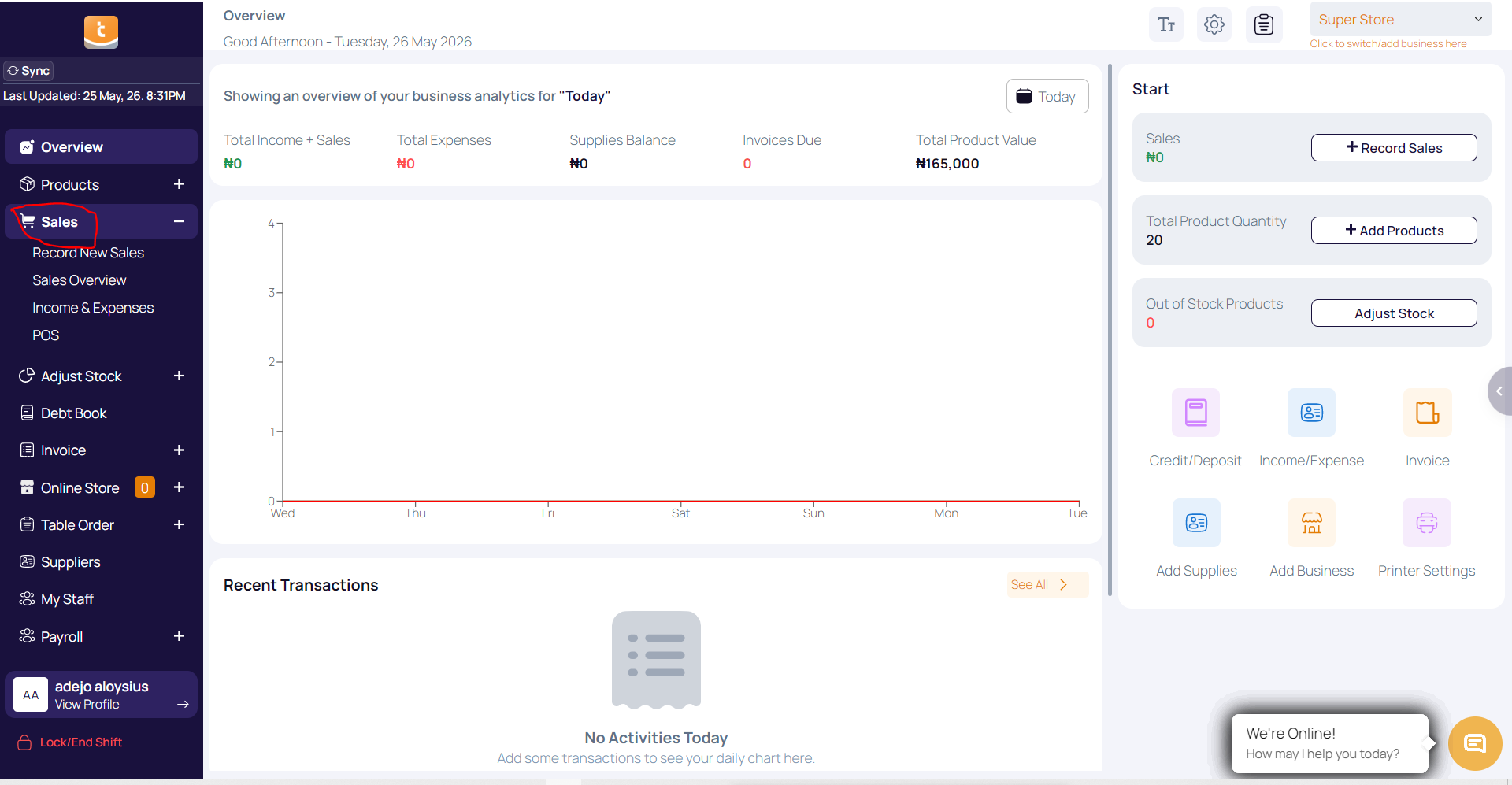
Step 2: Click Sales on the menu bar.
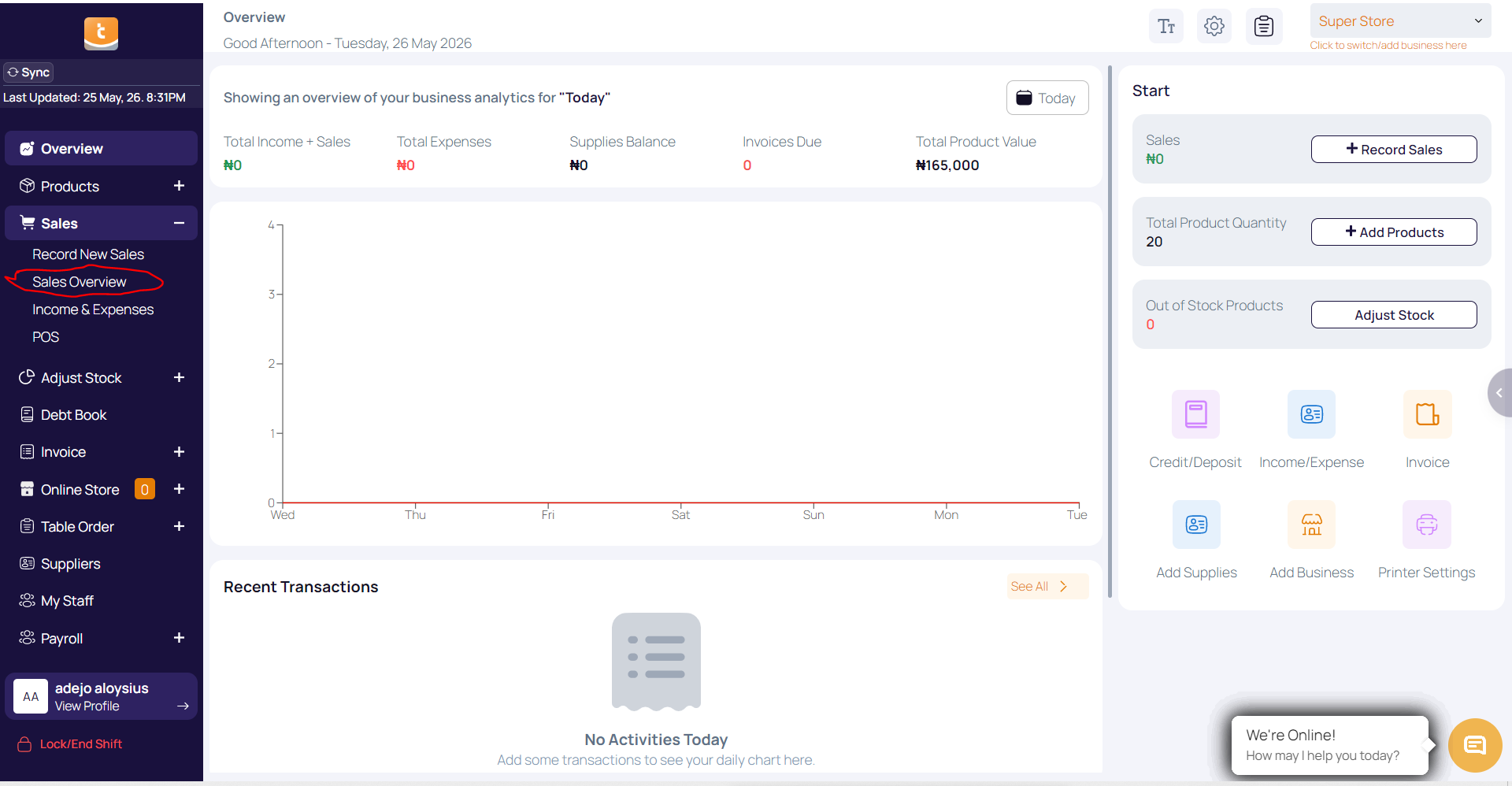
Step 3: Click Sales Overview.
Step 4: On this page, you can:
-
View an overview of all your sales.
-
Use filters at the top of the page to refine results by staff, customer, payment method (Cash, POS, Transfer, Multiple Payments), or type of sale (Discounted, Refunded, or Credit Sales).
-
Apply filters by clicking Apply Filter.
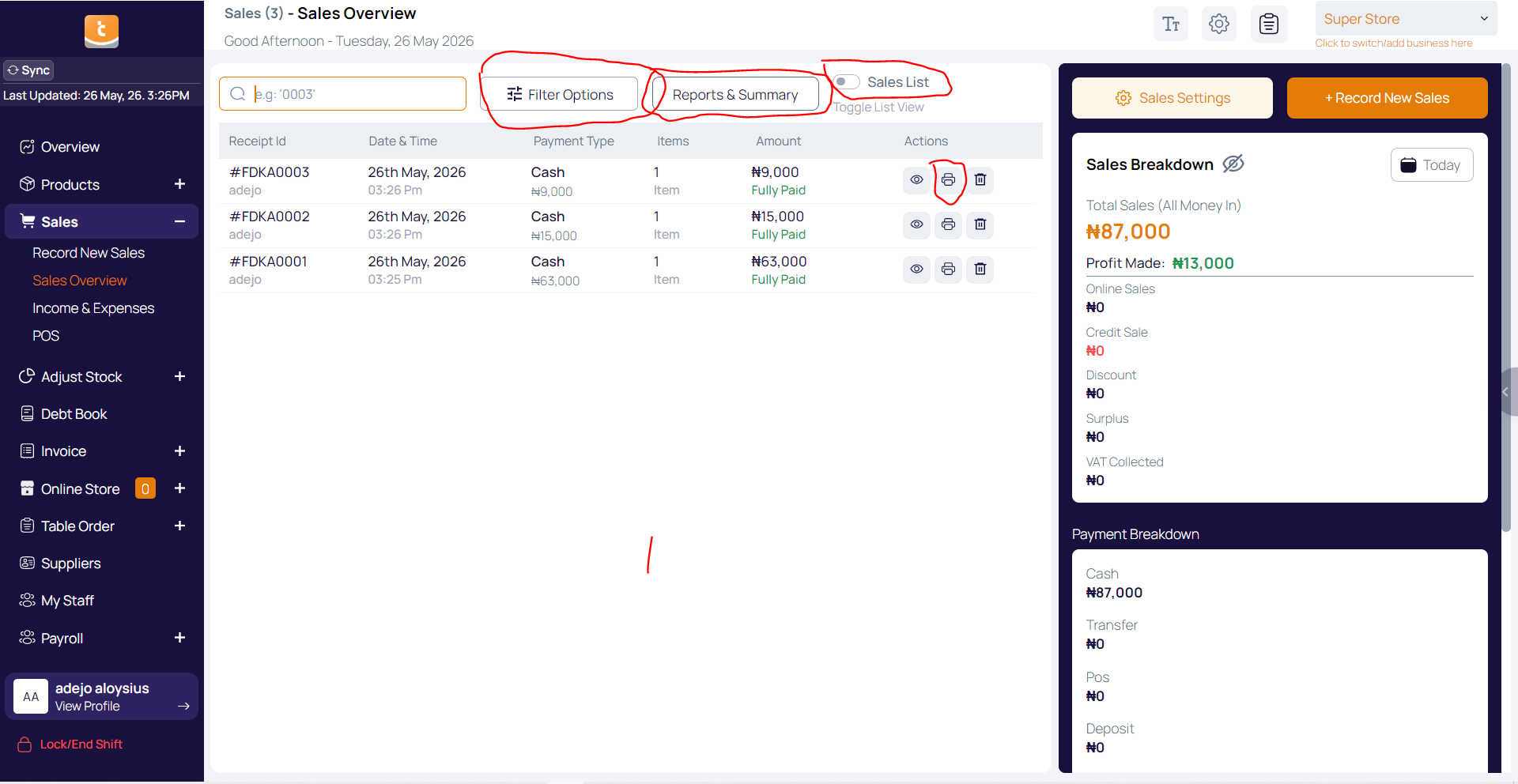
Step 5: Generate or export reports by clicking Report Summary at the top of the page.
Step 6: Switch to List View to see sales in a detailed list format.
Step 7: In the sales overview, you can:
-
Reprint sales receipts
-
Delete a sales record
-
View detailed info such as date, time, items sold, amount, and the staff who processed the sale.
Step 8: On the right-hand side, you’ll see a total breakdown of today’s sales.
-
You can adjust this to view sales by other days.
Step 9: Scroll down to view:
-
Payment breakdown
-
Sales analysis graph (helpful for tracking performance and trends).
Step 10: At the top, click Sales Settings to edit:
-
Business details
-
Tax settings
-
Printer settings
-
Theme settings
Troubleshooting
1. My sales overview is not loading.
-
Refresh the page or log out and back in.
2. The filters are not working.
-
Make sure you selected valid options (e.g., date range, payment type).
-
Clear all filters and try again.
3. I can’t see any sales data.
-
Check if sales have been recorded for the selected date.
-
Expand the filter range to include more days.
4. I can’t generate or export a report.
-
Ensure you have the required user permissions.
-
Try exporting in a different format (CSV or PDF).
5. My sales receipts are not reprinting.
-
Confirm your printer is connected and set up correctly under Printer Settings.
-
If no printer is connected, you can still download receipts as PDFs.
6. The sales graph is not displaying.
-
Refresh the page.
-
If it still doesn’t load, check your browser settings (some graphs may not display if scripts are blocked).
FAQs
Q1: Can I delete a sales record from the overview page?
Yes you can
Q2: Can I see who made each sale?
Yes. The overview shows the staff member who processed each sale.
Q3: What formats can I export my sales reports in?
You can export in PDF or CSV formats.
Q4: Can I view only credit sales in the overview?
Yes. Use the filter options and select Credit Sales.
Q5: Can I change my business details from the sales overview page?
Yes. Under Sales Settings, you can update business details, tax settings, printer preferences, and themes.
Q6: How often is the sales overview updated?
The sales overview updates in real time as sales are recorded.