How to Activate Your POS on Mobile
Connecting your POS device to the app allows you to process transactions seamlessly. Follow these steps to link your POS.
Steps to Activate Your POS
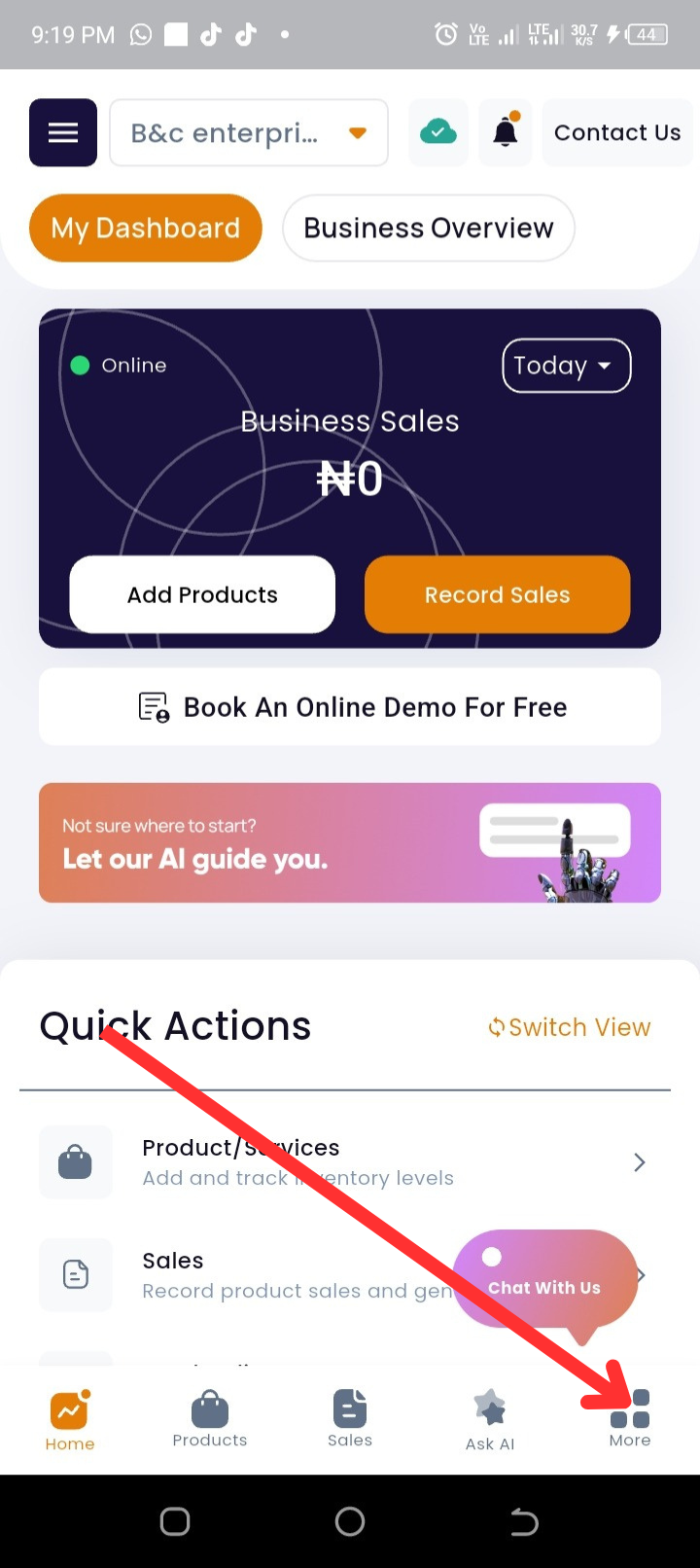
Step 1: From the Homepage, tap More at the bottom of the navigation bar.
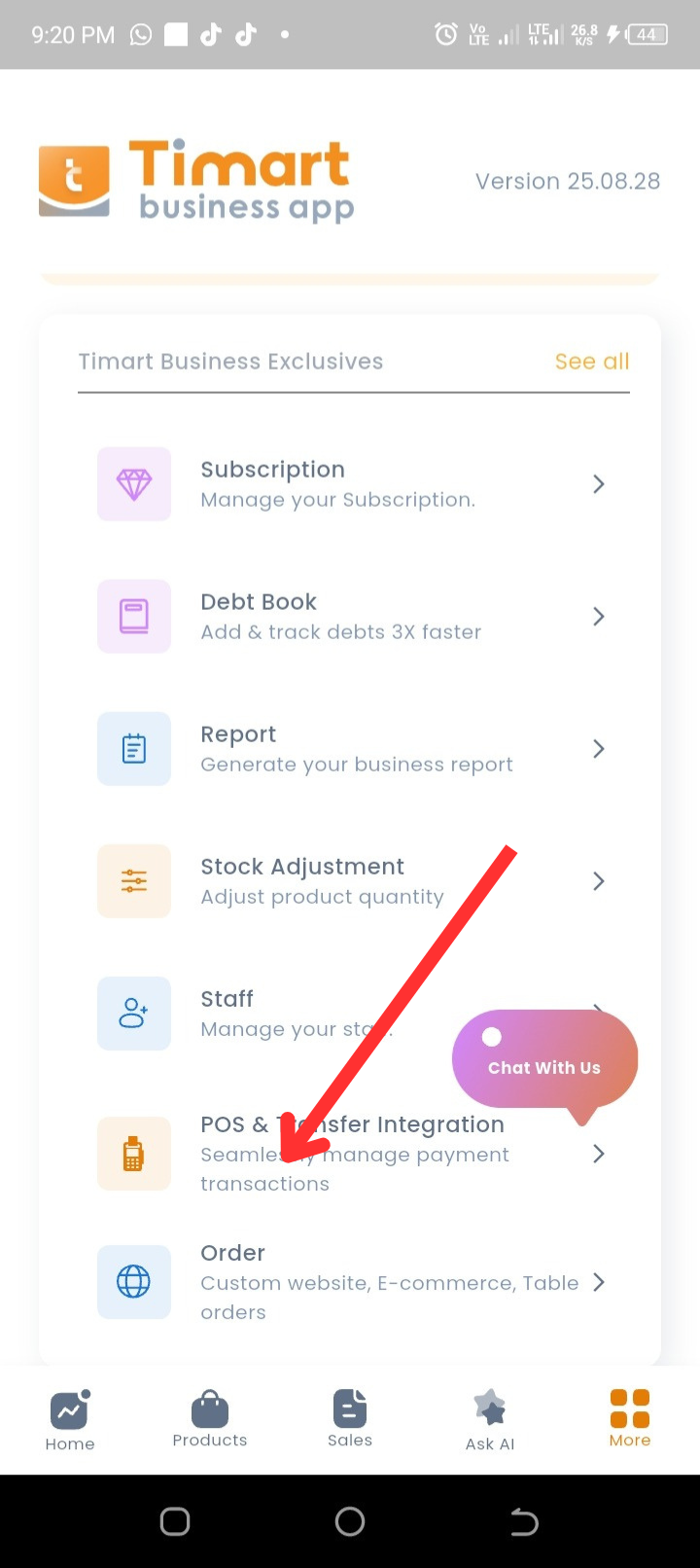
Step 2: Select POS and Transfer Integration.
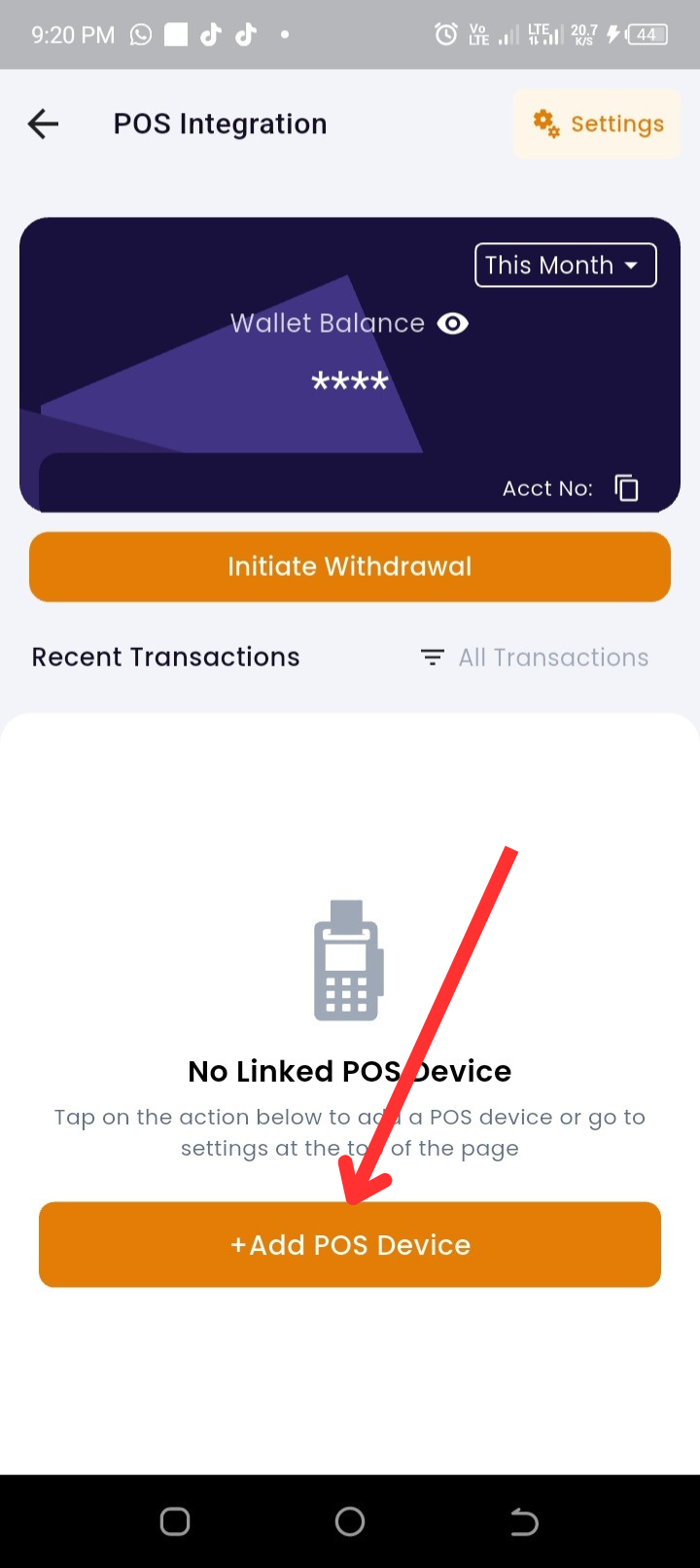
Step 3: Tap on +POS Device.
Step 4: Enter your POS serial number (the last 10 digits).
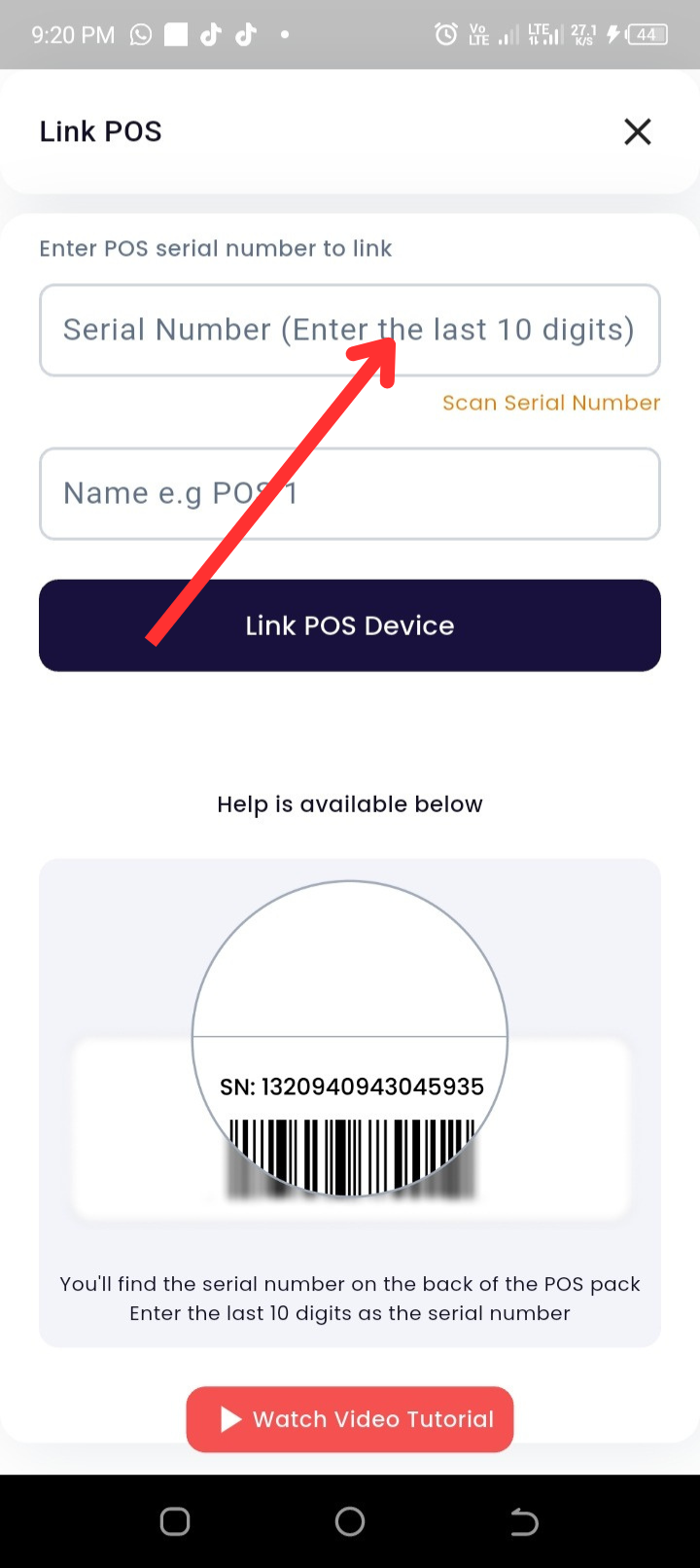
Step 5: Give your POS a name (e.g., POS 1).
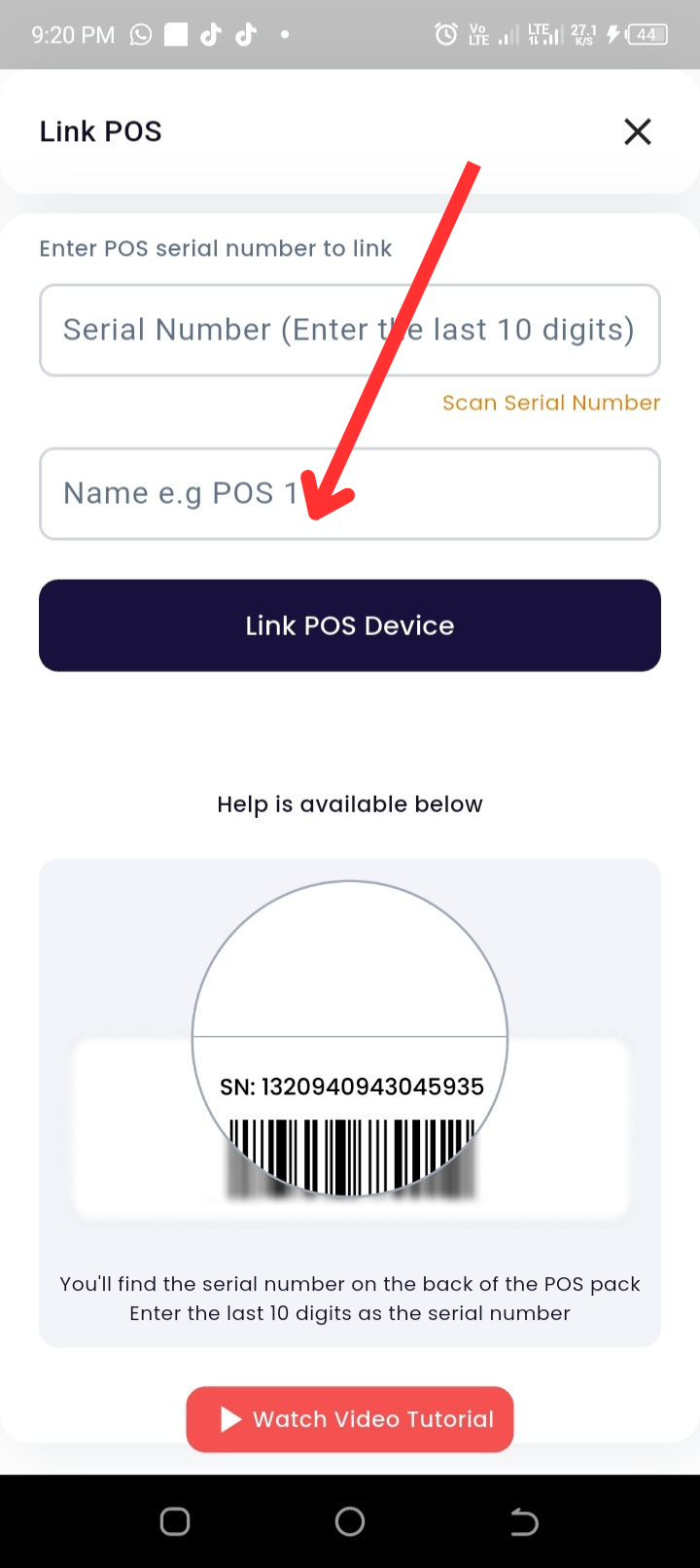
Step 6: Tap Link POS.
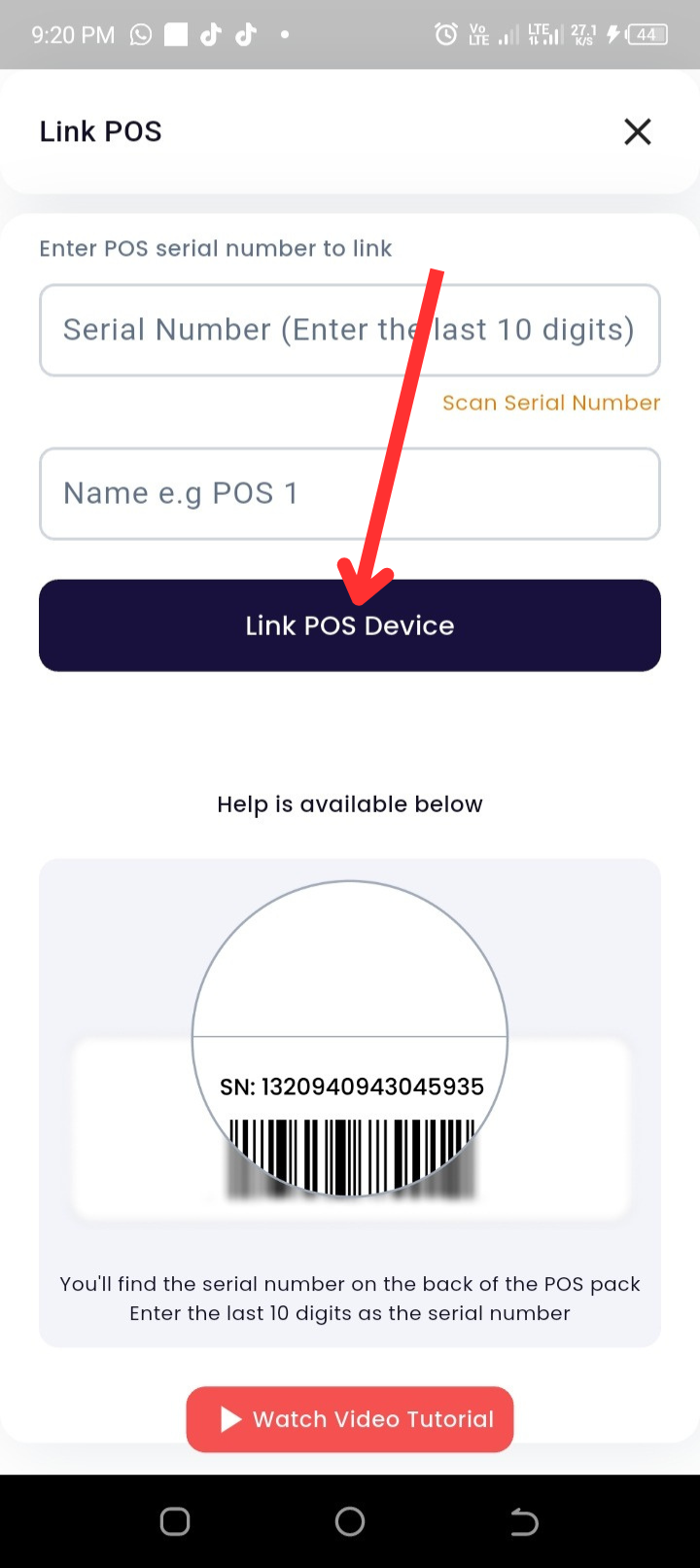
Step 7: At the bottom of the page, you can tap Watch Video Tutorial for a step-by-step video guide directly in the app.
❓ Frequently Asked Questions
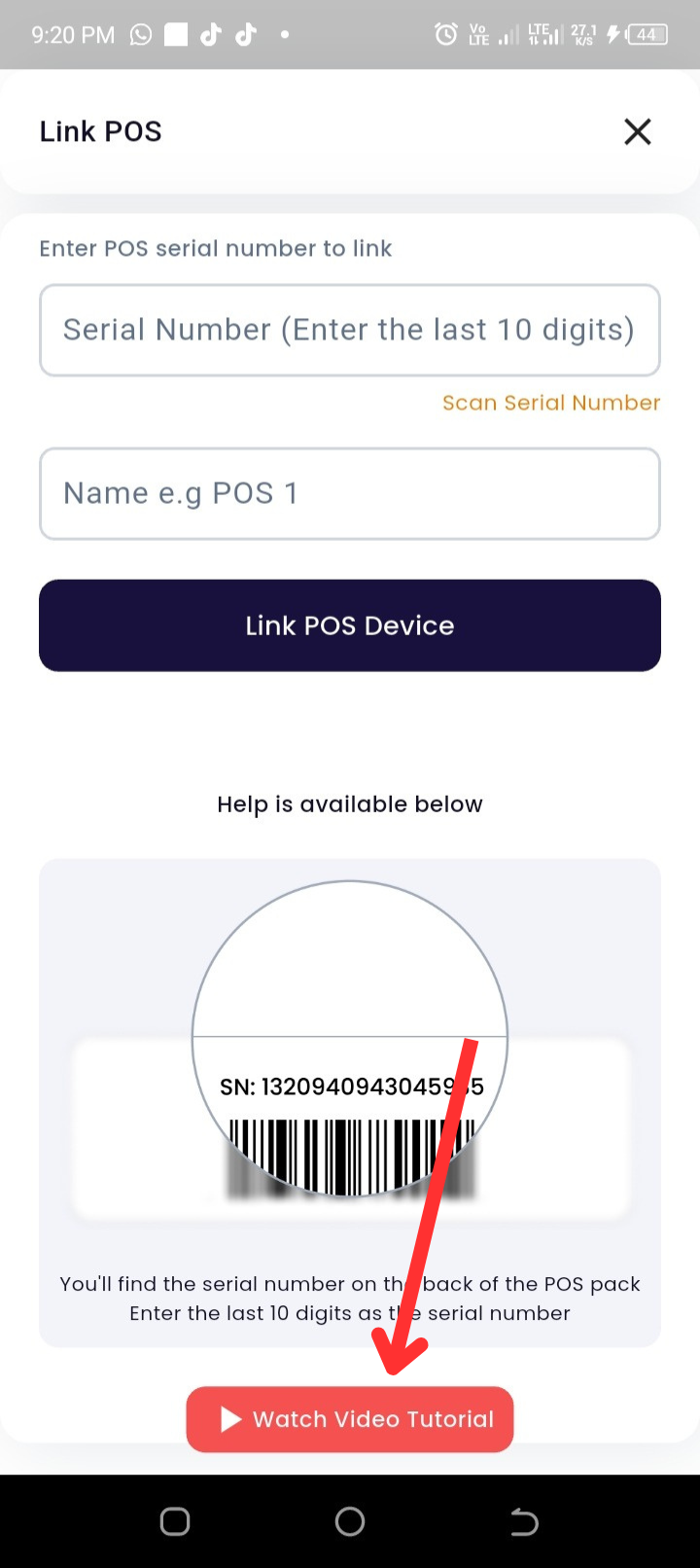
Q1: Where can I find my POS serial number?
The serial number is usually printed on a sticker on the back or side of your POS device. Use the last 10 digits.
Q2: Can I link multiple POS devices to my business account?
Yes, you can add and manage multiple POS devices under your business settings.
Q3: What if my POS fails to link?
Check that you entered the serial number correctly. If the issue persists, restart your device and try again. You can also contact support for assistance.
Q4: Can I rename my POS device later?
Yes, you can rename your POS anytime in the POS and Transfer Integration section for easier identification.
Q5: Do I need internet to link my POS?
Yes, an internet connection is required to successfully link and activate your POS.