How to Manage Your Customers via Business Settings On Mobile
You can add new customers or manage existing ones directly from your Business Settings.
📱 Steps to Manage Your Customers
Step 1: Open the App
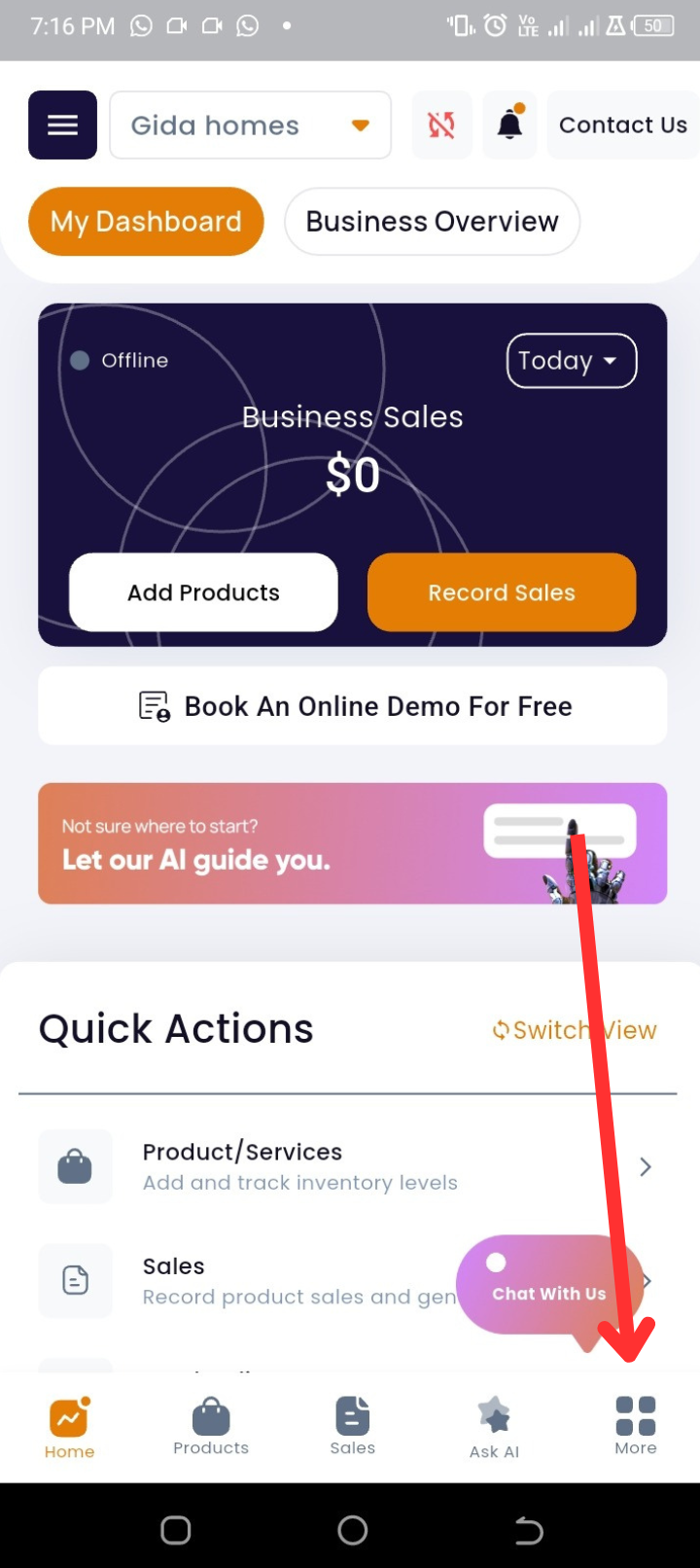
From your homepage, look at the bottom navigation bar.
Step 2: Go to More Options
Tap More (last icon on the navigation bar).
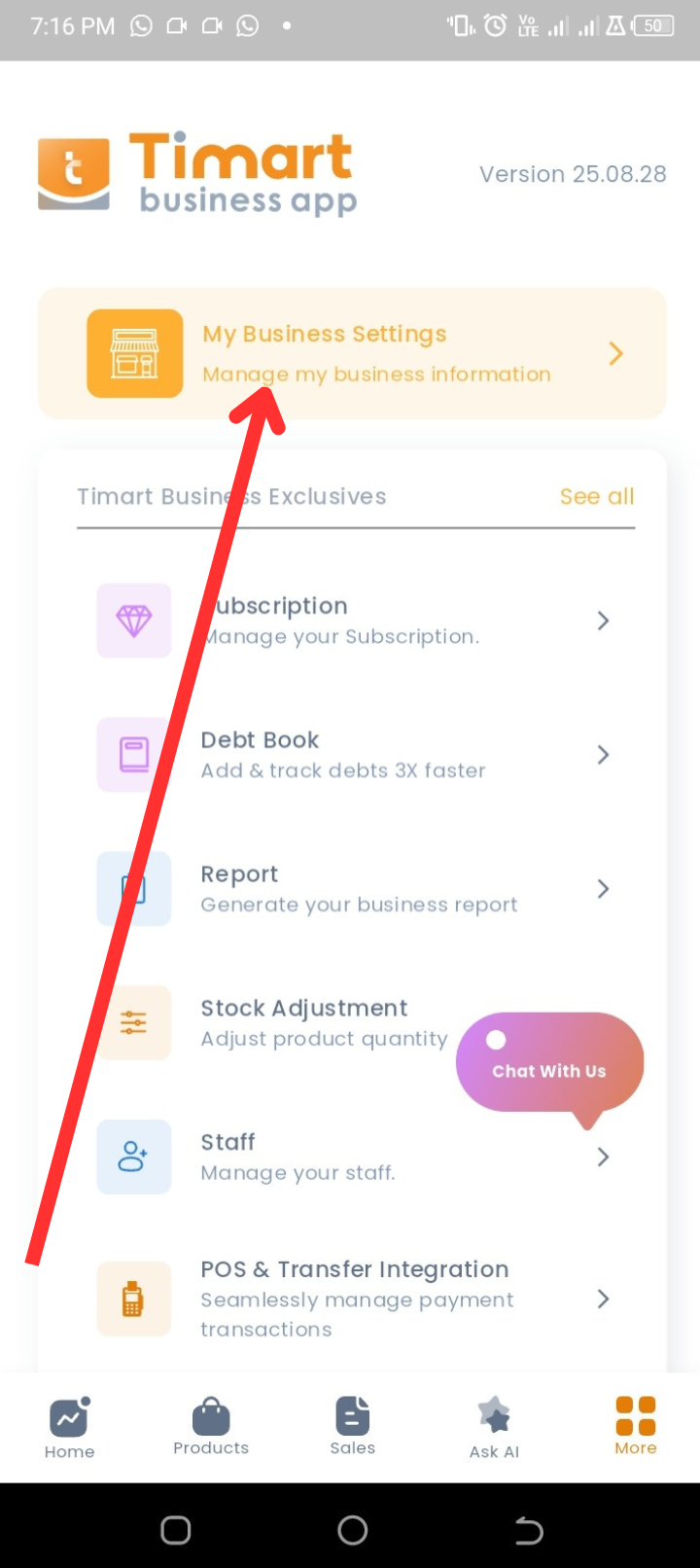
Step 3: Open Business Settings
Select My Business Settings.
Step 4: Tap on “My Customers”
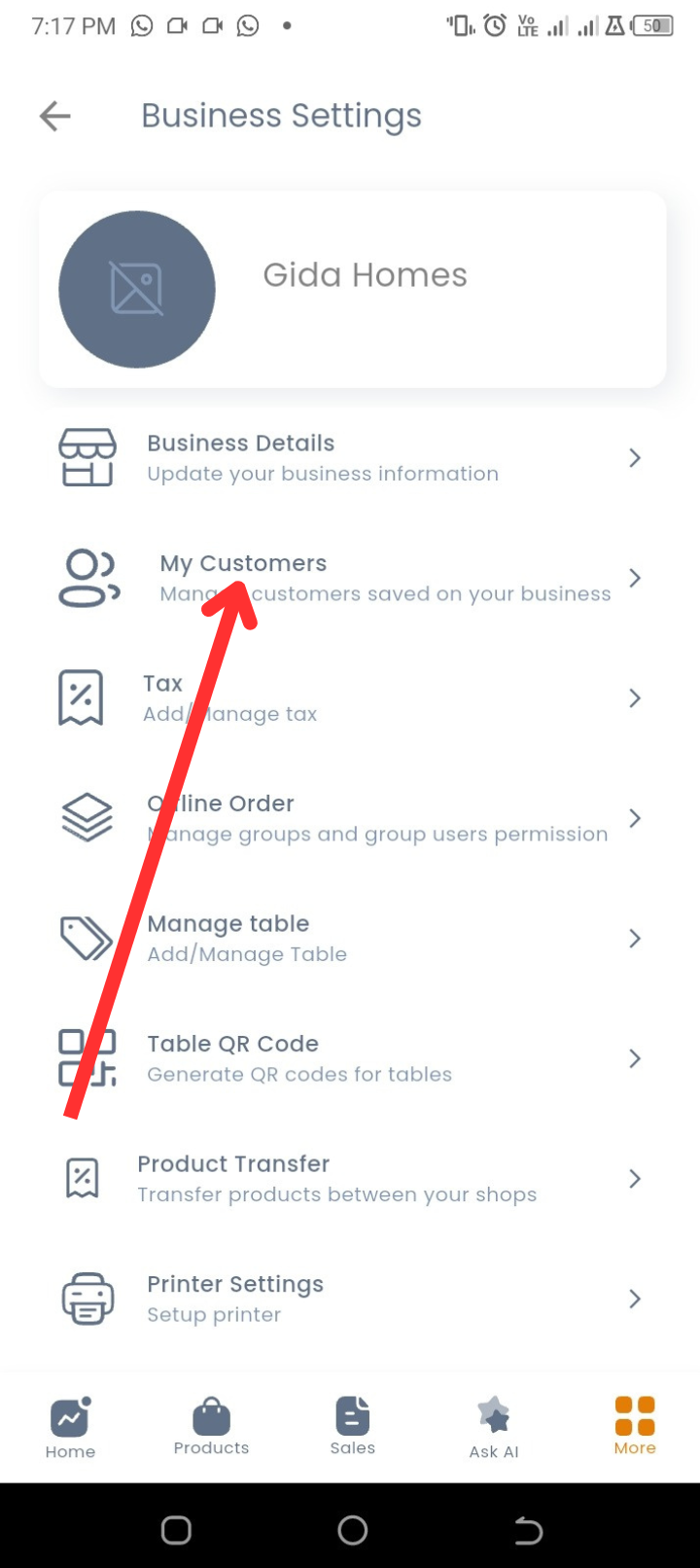
This section lets you:
-
Manage Existing Customers → Tap on a customer to view or edit their details.
-
Add Customers from Contacts → Tap Access Contact to import directly from your phonebook.
-
Add Customers Manually → Tap Add New to create a new customer within the app.
💡 Tips
-
Always add customer phone numbers — this makes it easier to send receipts and follow up on sales.
-
Use customer history to offer discounts and improve loyalty.
❓ FAQs
Q: Can I delete a customer?
A: Yes, you can remove a customer by opening their profile and selecting delete.
Q: Can I add customers without phone numbers?
A: Yes, but adding contact details helps with receipts and follow-ups.
Q: Will customers know when I add them?
A: No, they won’t be notified.
🔧 Troubleshooting
-
Can’t import contacts
→ Check that the app has permission to access your phone contacts in your phone settings. -
Customer not saving after adding
→ Ensure all required fields (like name) are filled in. -
Duplicate customers showing
→ Merge or edit customer details to avoid duplicates.