How to View and Edit Your Business Details ( On Mobile)
Your business details define how your shop is displayed in the Timart Business App. From here, you can update important information such as your business name, category, phone number, address, and even enable features like discounts, surplus, and bargaining.
📱 Steps to View & Edit Your Business Details
Step 1: Open the App
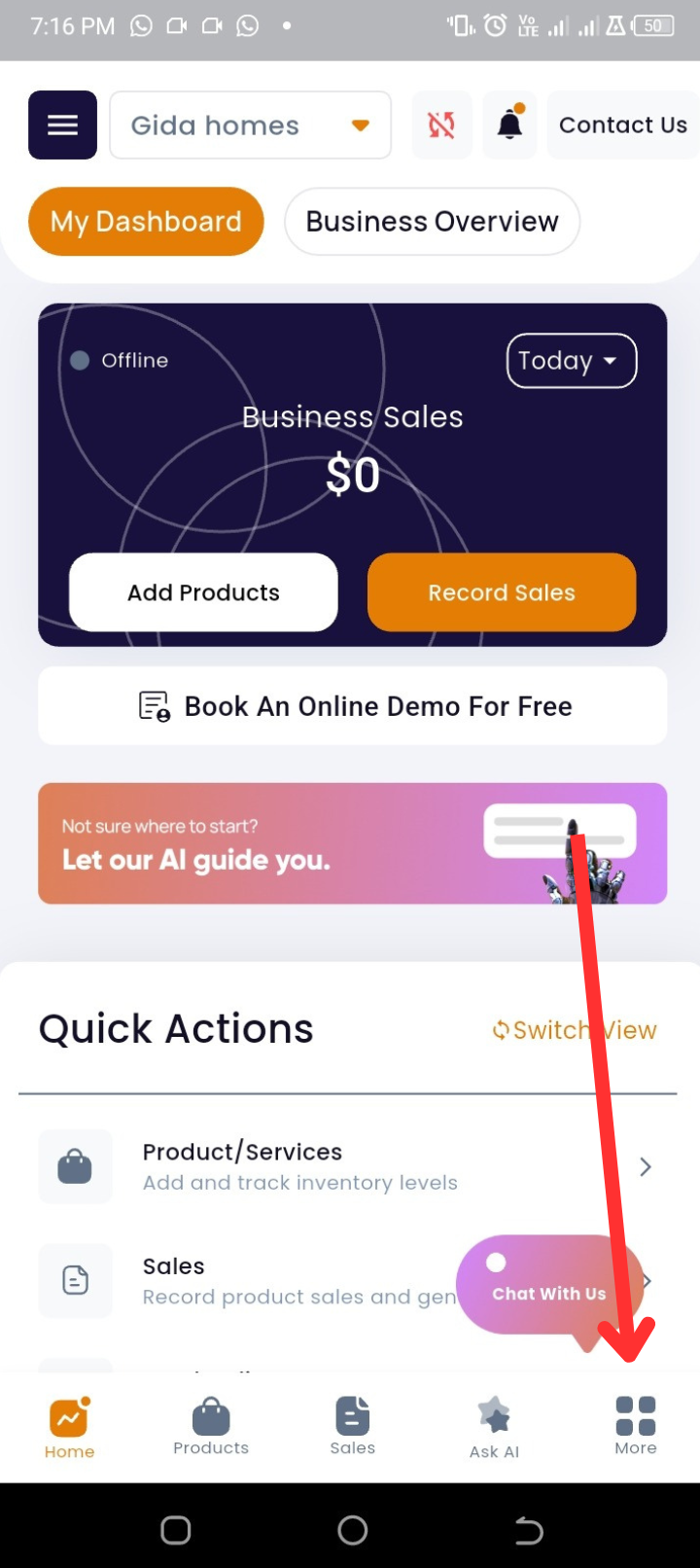
From your homepage, look at the bottom navigation bar.
Step 2: Go to More Options
Tap More (last icon on the navigation bar).
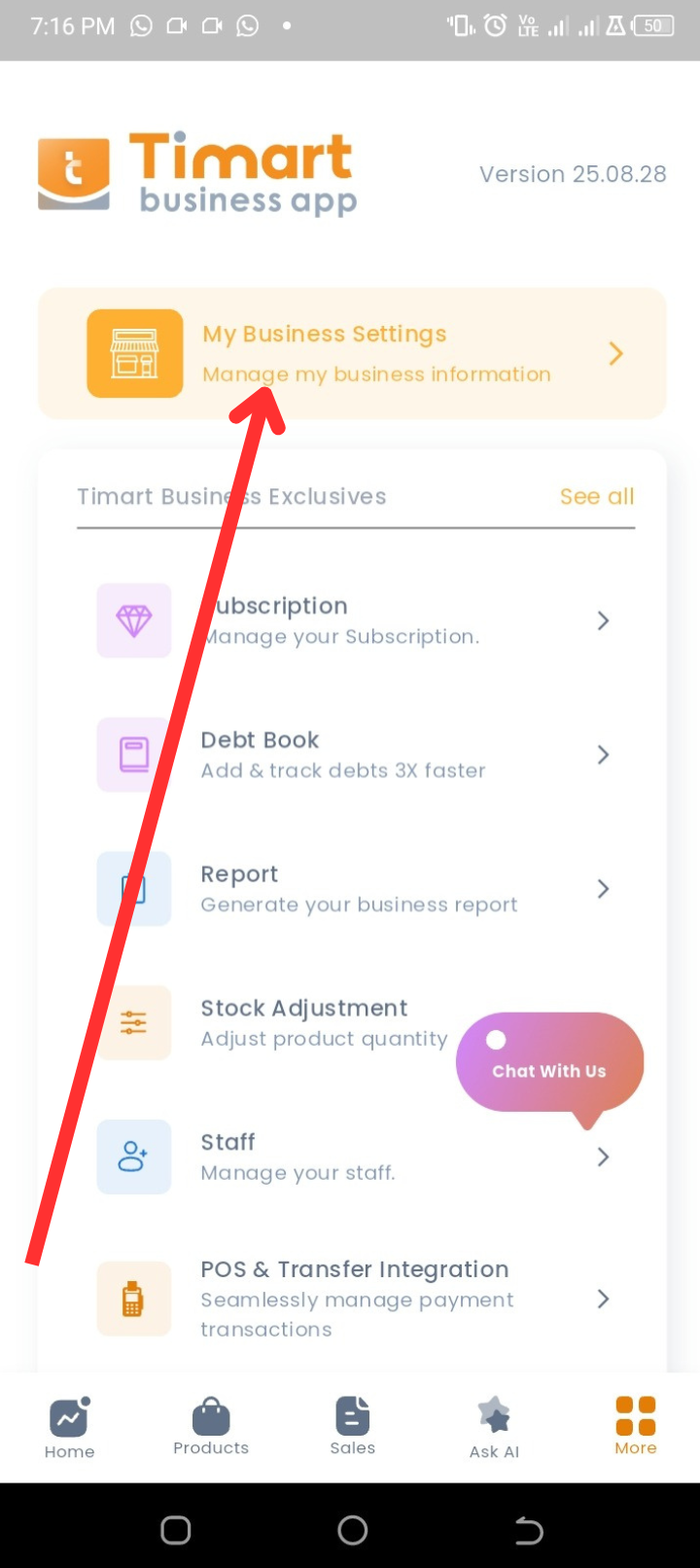
Step 3: Open Business Settings
Select My Business Settings.
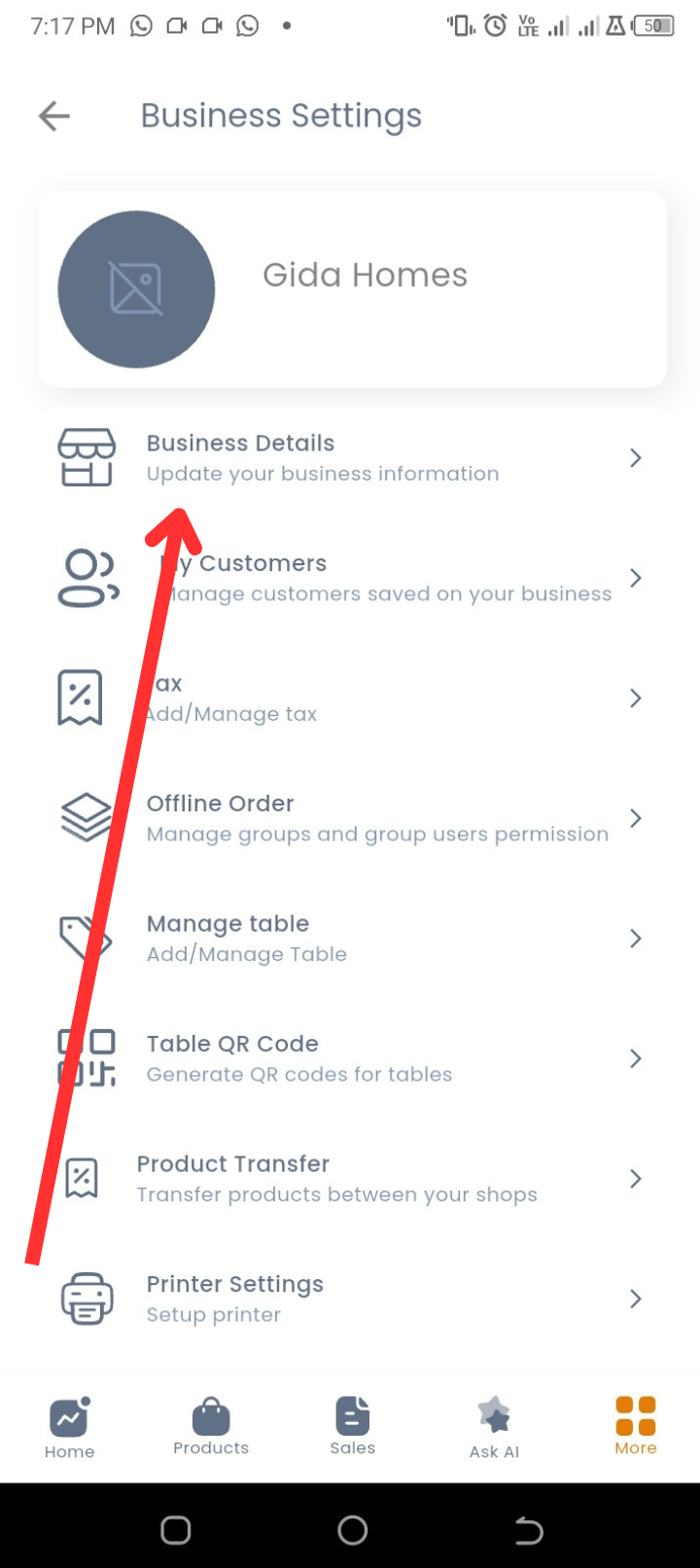
Step 4: Select Business Details
Tap on Business Details.
Step 5: Edit Your Details
Here you can view and edit:
-
Business Name
-
Category
-
Currency
-
Business Phone
-
Business Address
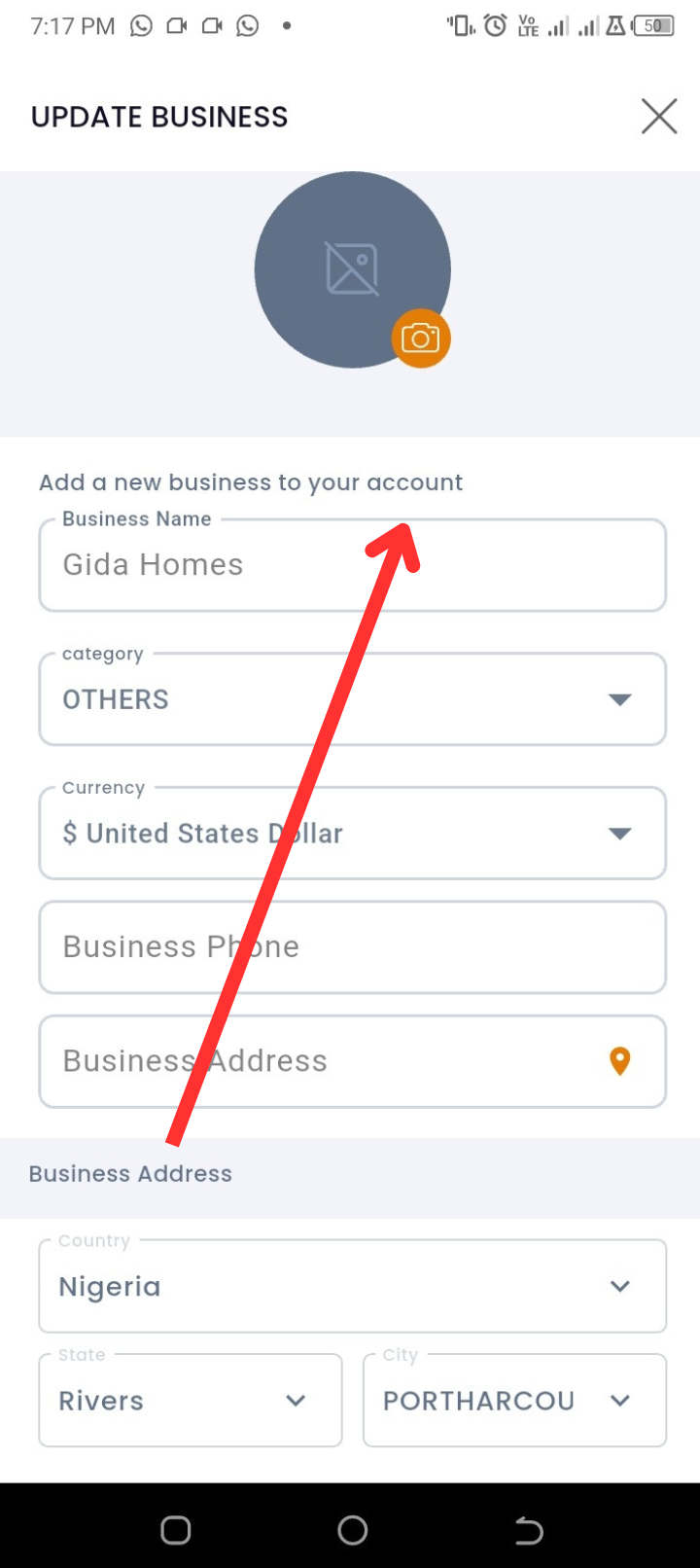
👉 Just tap on any field to edit it.
Step 6: Enable Extra Features
-
Discount → Turn on and set custom discounts for your shop.
-
Surplus → Enable surplus charges if needed.
-
Bargain → Allow customers to negotiate prices.
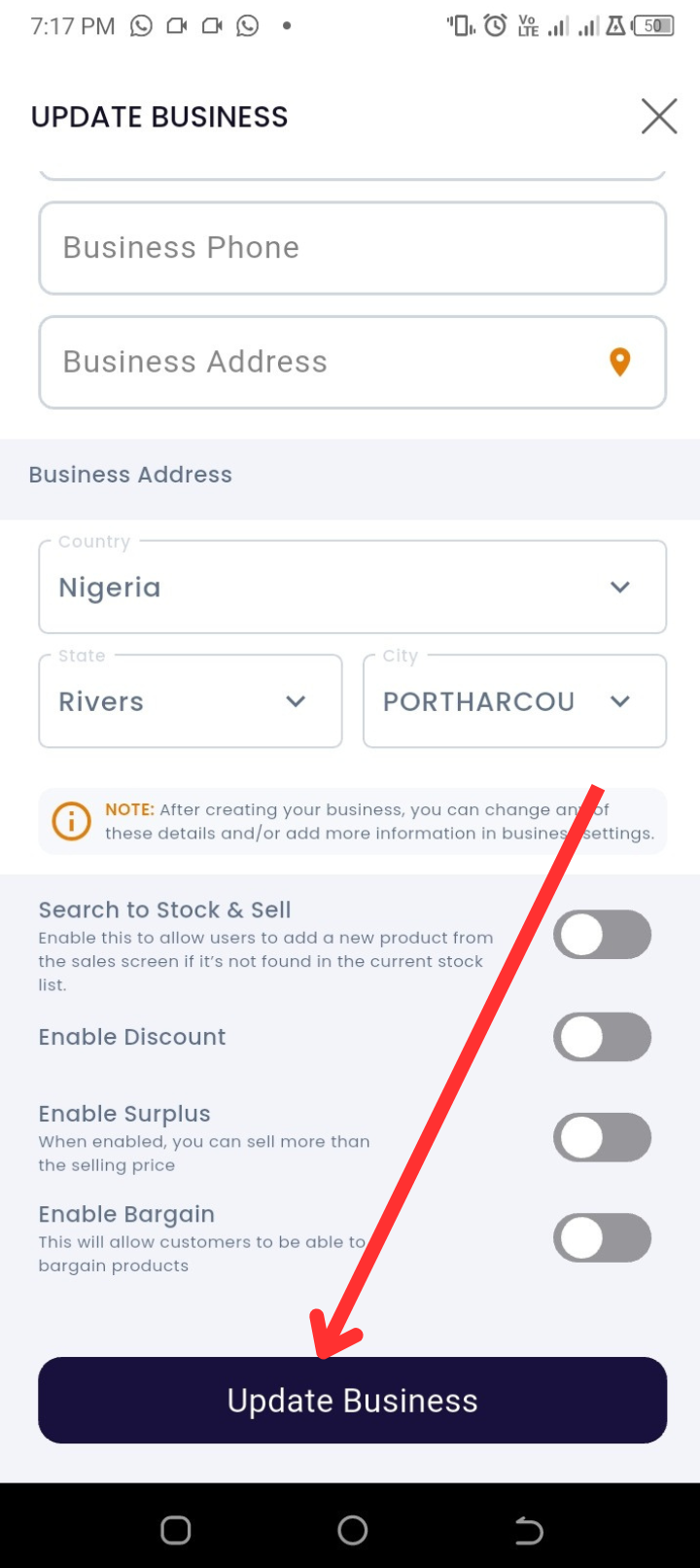
Step 7: Save Changes
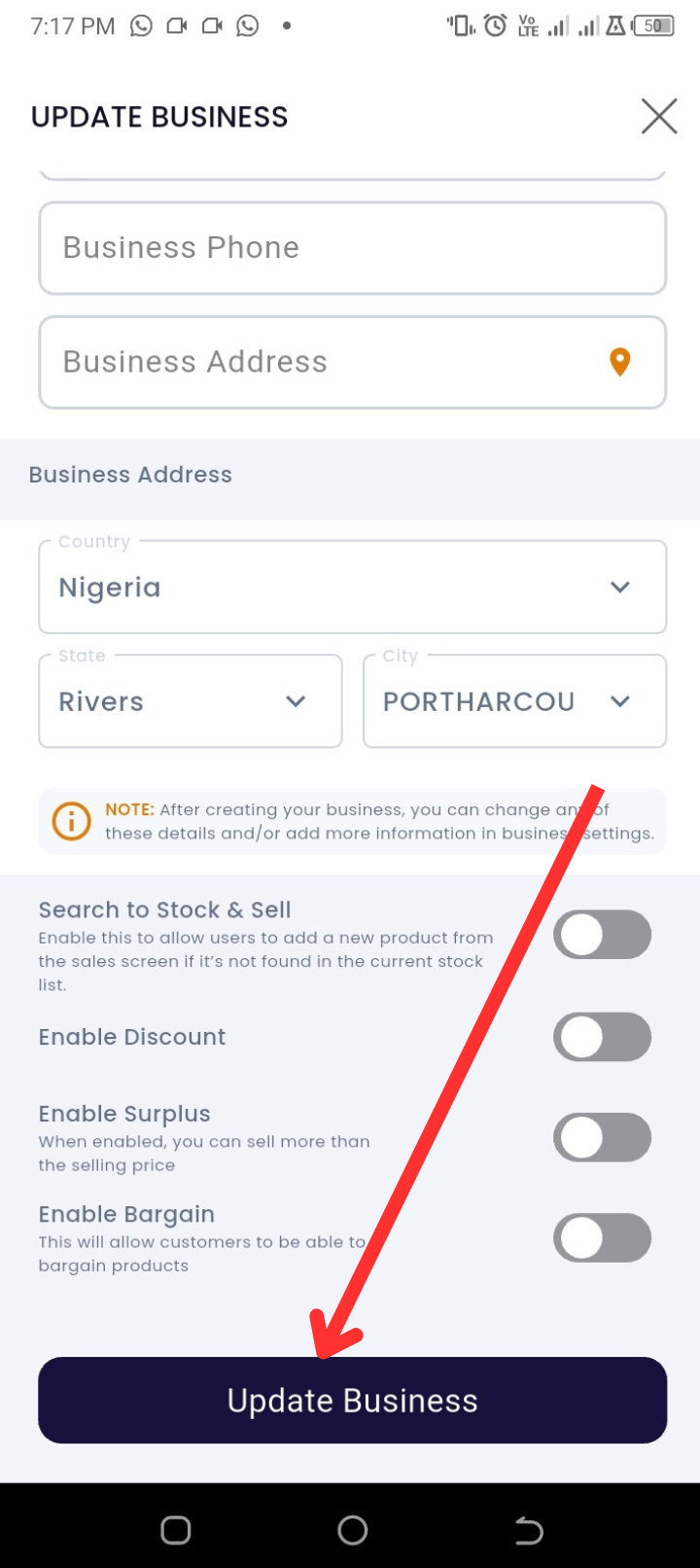
When done, tap Update Business to apply your changes.
💡 Tips
-
Keep your business name, address, and phone up to date so customers always see the correct details.
-
If you’re using bargain mode, make sure your staff knows how to respond to offers.
-
Always click Update Business before exiting to save your changes.
❓ FAQs
Q: Can I change my currency later?
A: Yes, you can update your currency anytime from Business Details.
Q: What happens if I enable surplus?
A: Surplus allows you to add extra charges to certain products or services.
Q: Will my customers see the new business name immediately?
A: Yes, changes reflect instantly once saved.
🔧 Troubleshooting
-
Business details not saving
→ Ensure you tapped Update Business. If it still doesn’t save, check your internet connection. -
Discount option not showing
→ Update your app to the latest version. -
Bargain not working
→ Confirm the feature is enabled in settings. If still not working, restart the app.