How to Check Your Product Performance (Mobile)
Steps
Step 1: Go to the homepage.
Step 2: Scroll down the Quick Actions and tap on Reports.
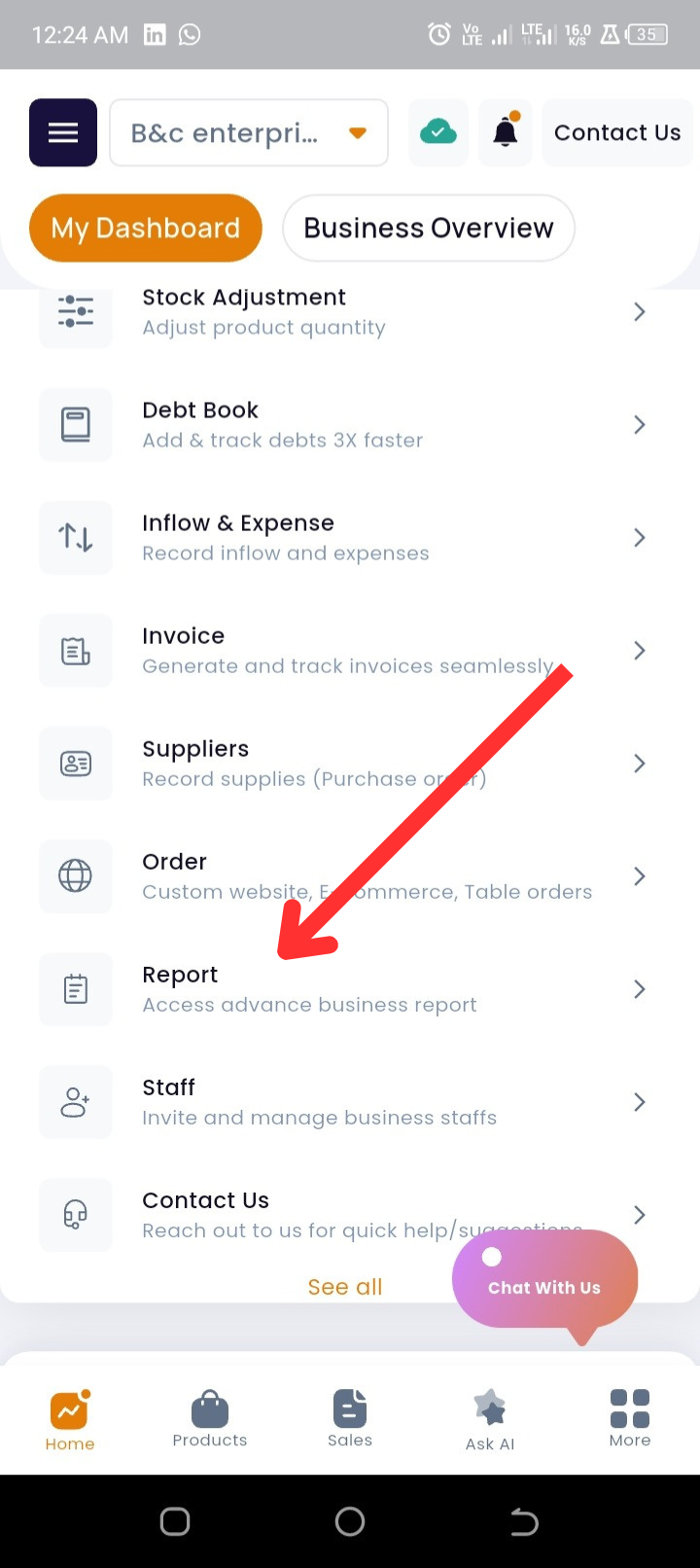
Step 3: Tap on Product Performance.
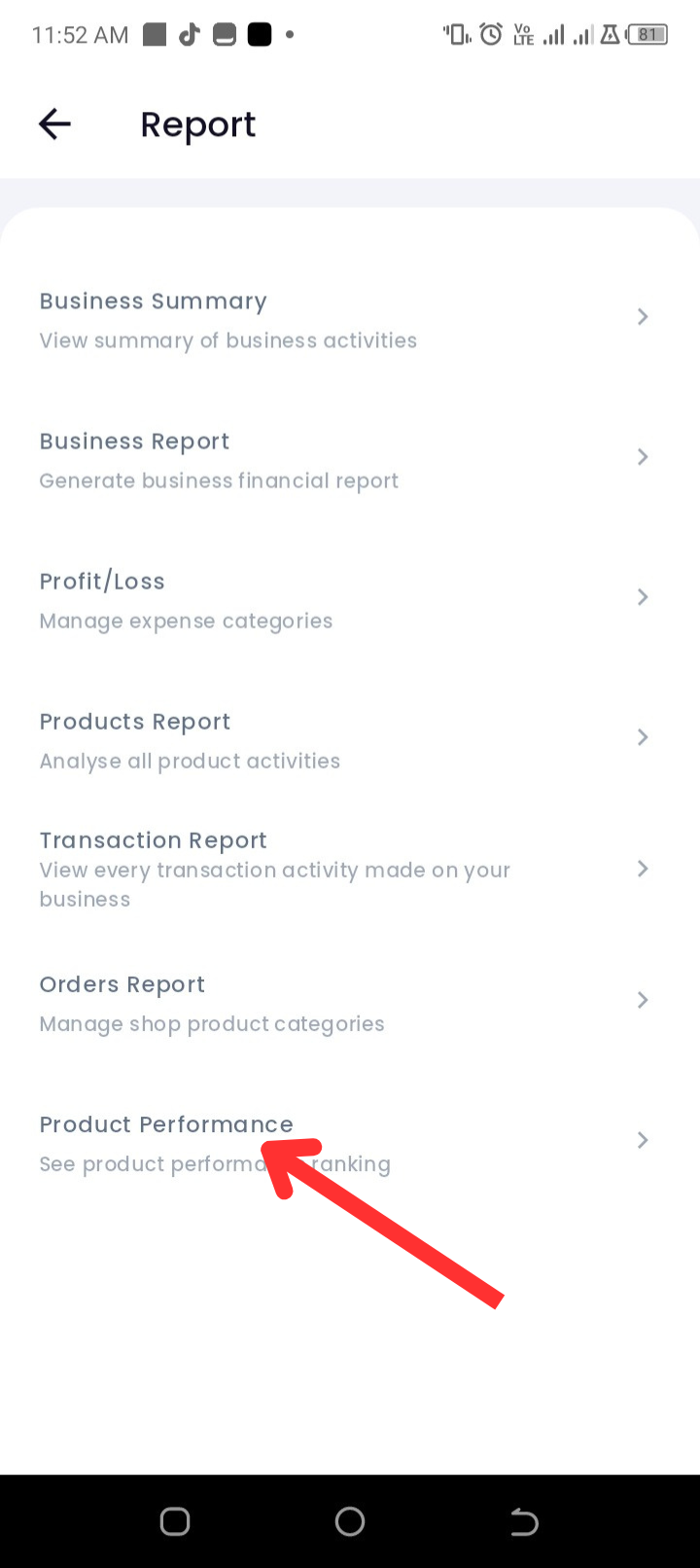
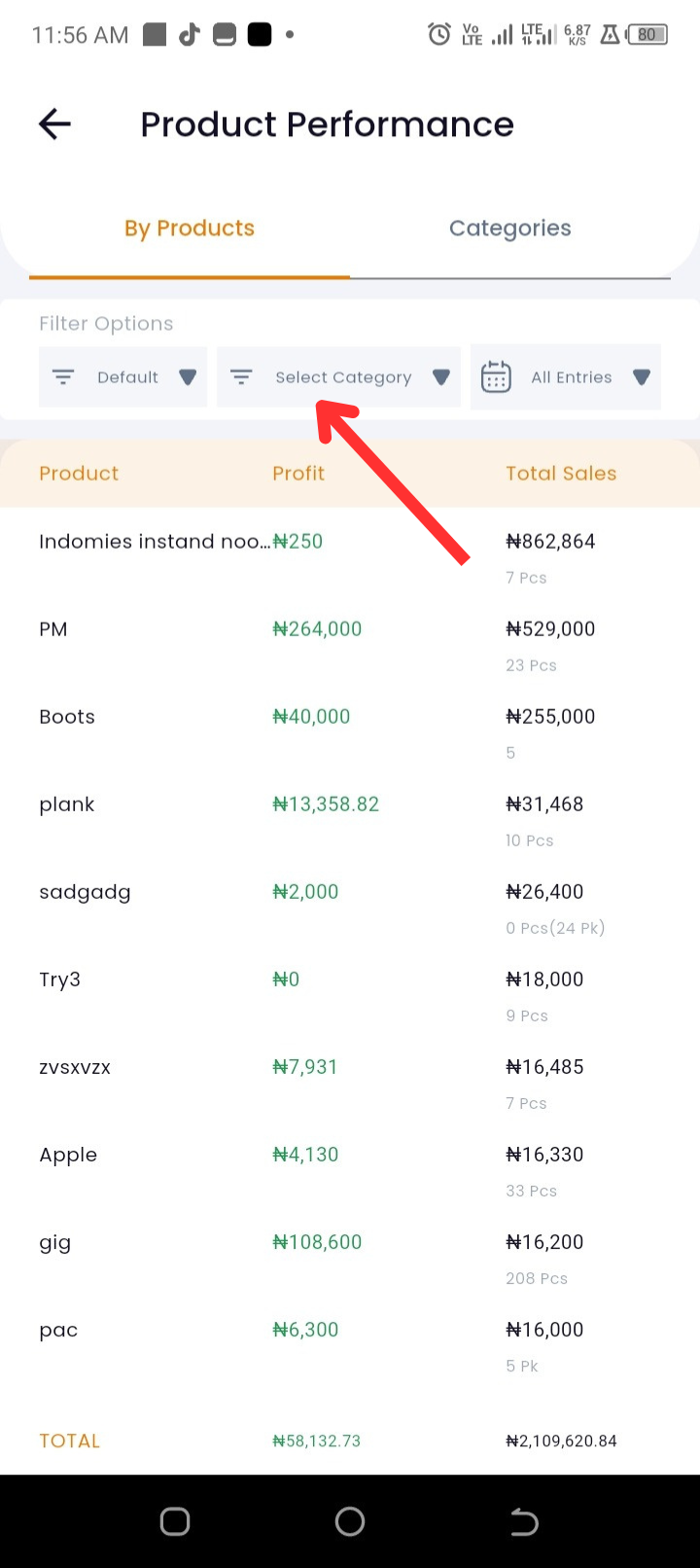
Step 4: You will now see your product performance ranking (best-selling to least-selling products).
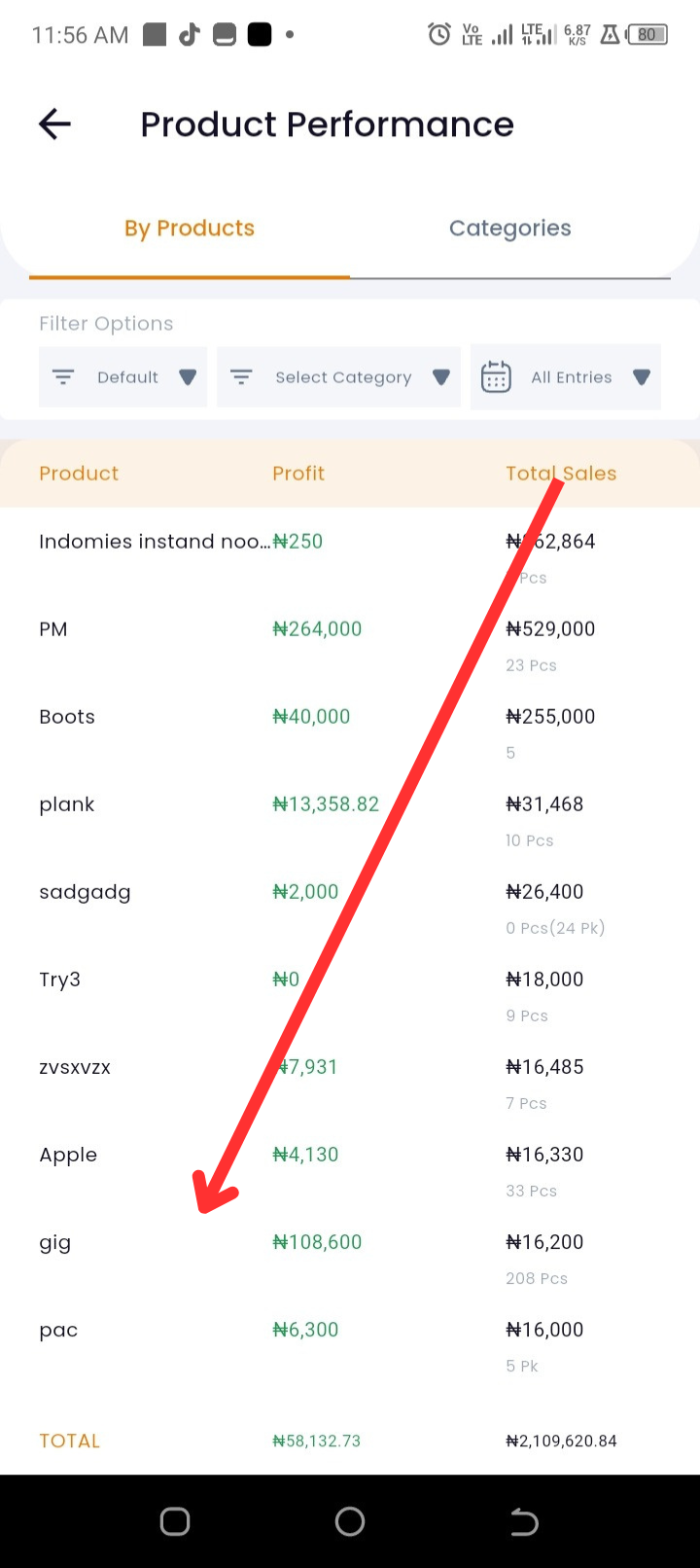
Step 5: At the top, you will see filter options where you can filter either by users or date.
Step 6: To filter by amount, name, lost products, or damaged products , tap on "Default" .
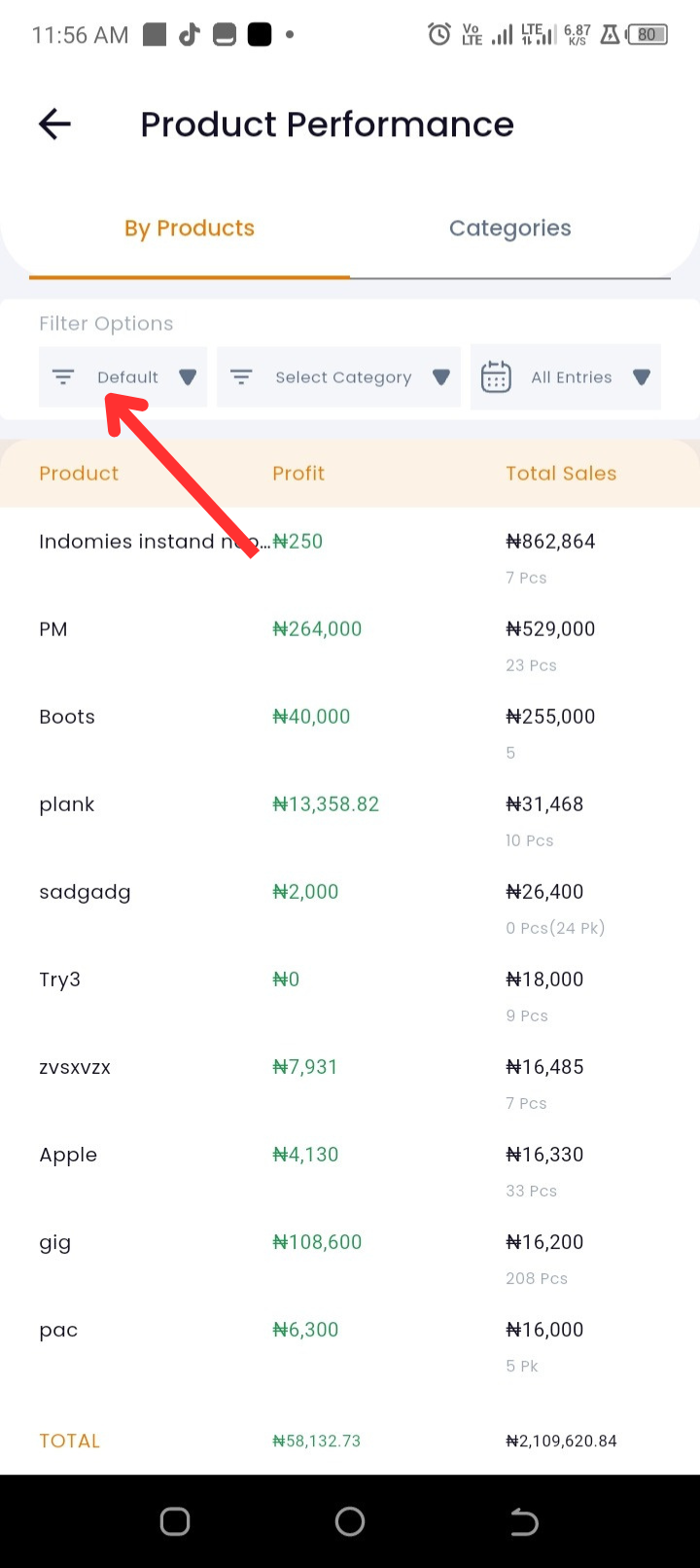
Step 7: To filter by date, tap on "All Entries".
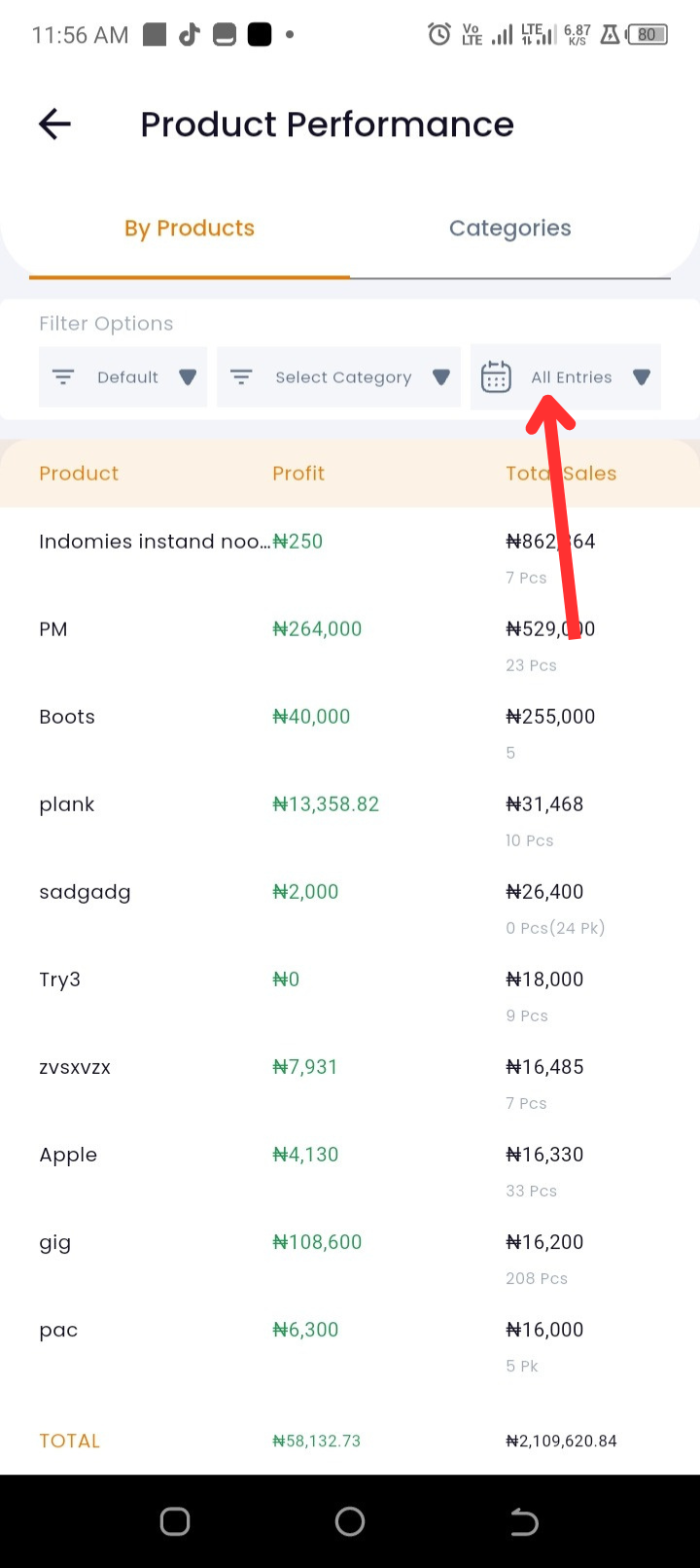
Step 8: To filter by category, tap on " Select Category"
Troubleshooting
-
Not seeing any product performance data?
Ensure you have recorded sales for your products. Without sales records, no performance ranking will display. -
Performance ranking looks outdated?
Check if the correct date filter is applied (e.g., Today, This Week, This Month). -
Some products are missing in the ranking?
Verify that those products were properly added and linked to recorded sales.
FAQs
Q: Can I filter the performance report by date?
A: Yes, you can adjust the filter at the top to see product performance within a specific timeframe.
Q: Does performance ranking update automatically?
A: Yes, every sale recorded updates the ranking in real-time.