How to Check Your Transaction Report (Mobile)
Steps
Step 1: Go to the homepage.
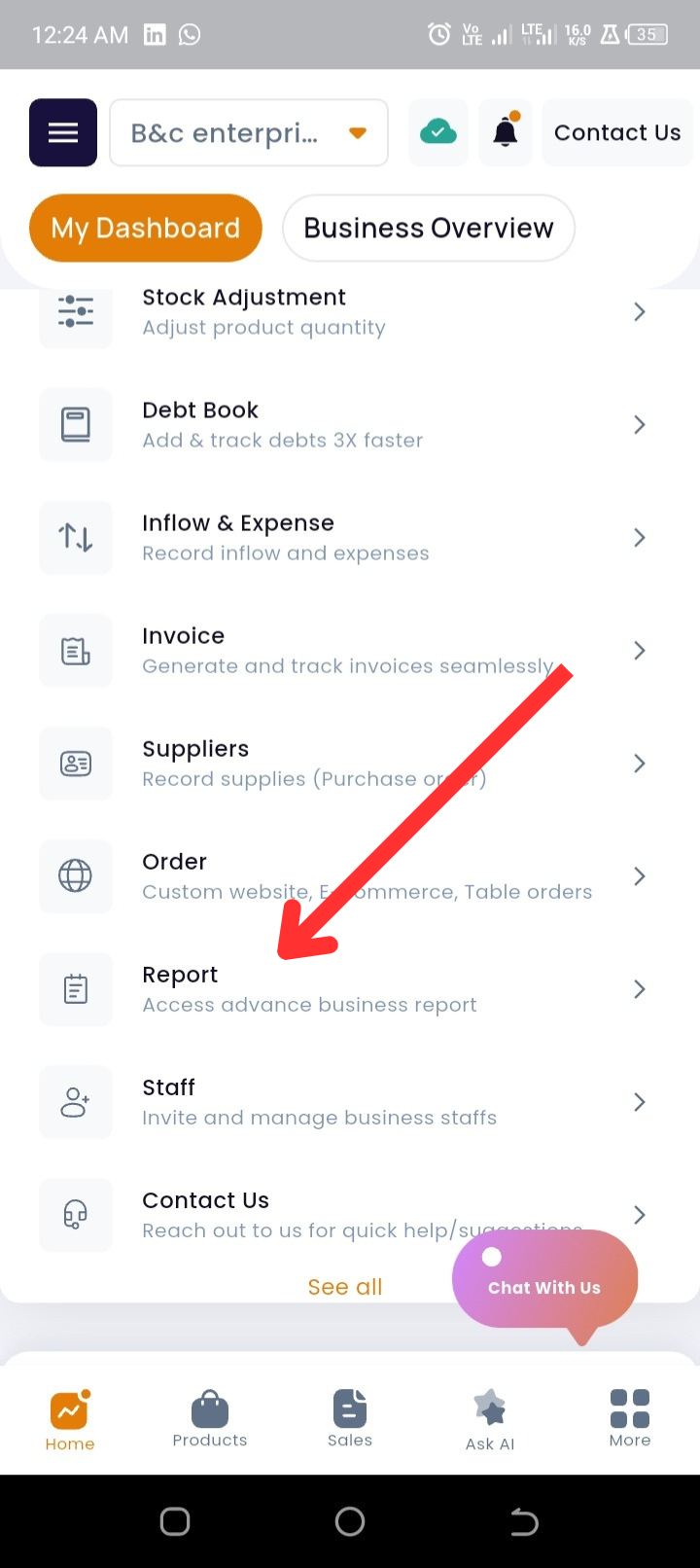
Step 2: Scroll down the Quick Actions and tap on Reports.
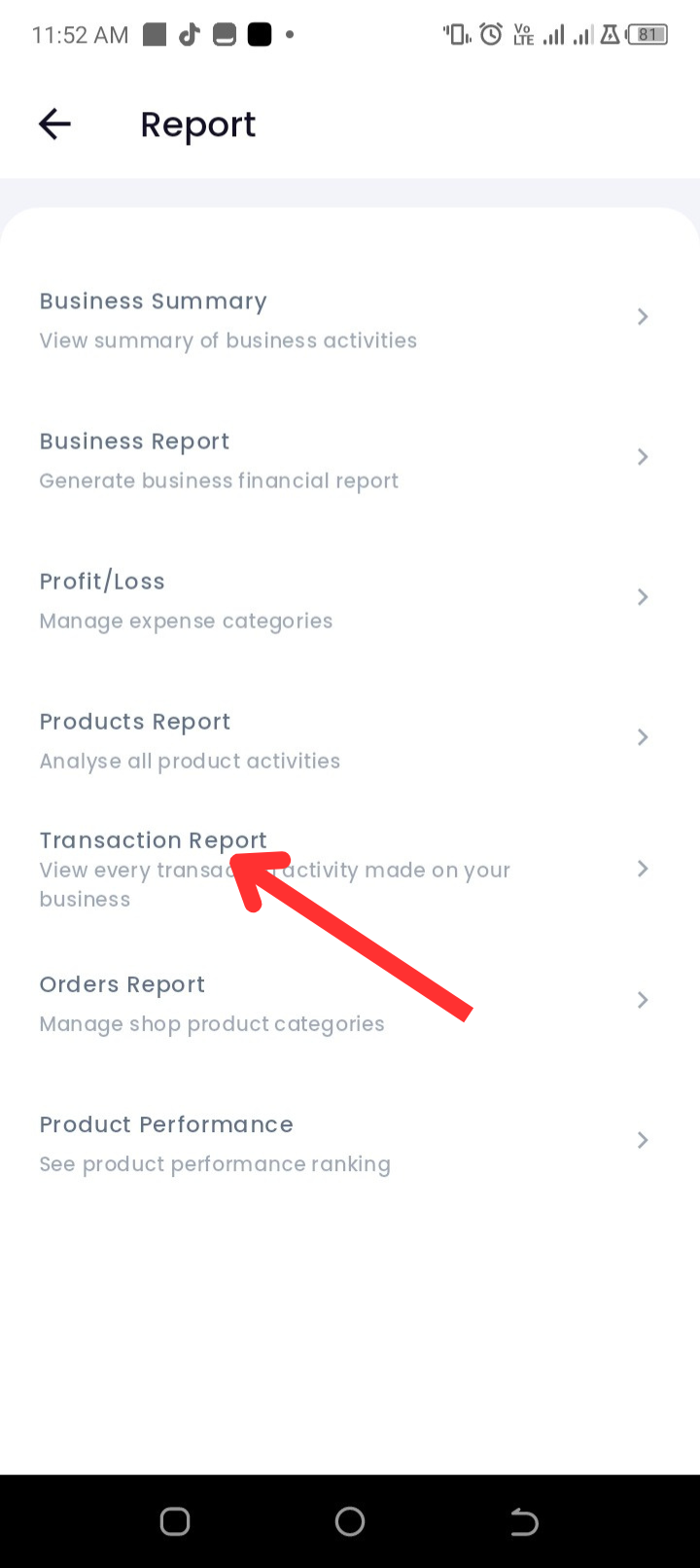
Step 3: Tap on Transaction Report.
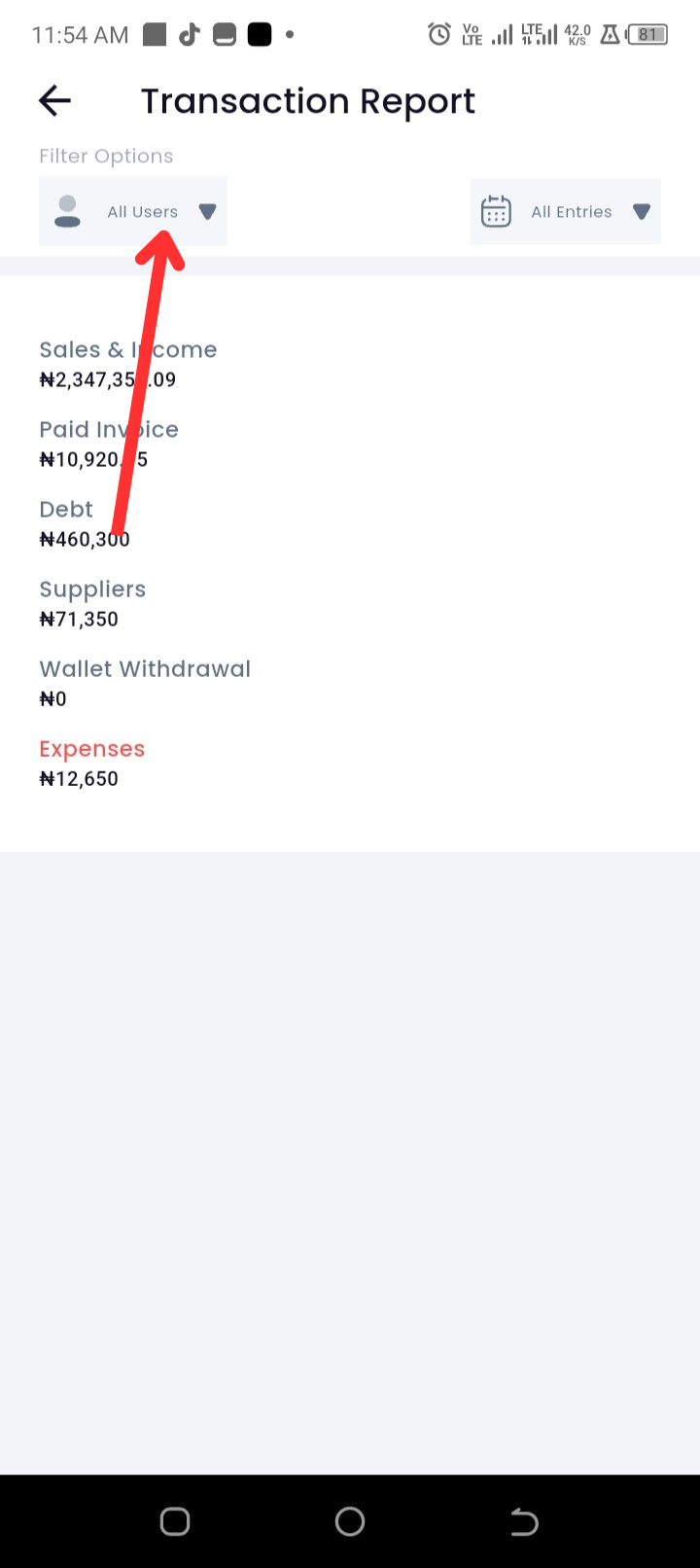
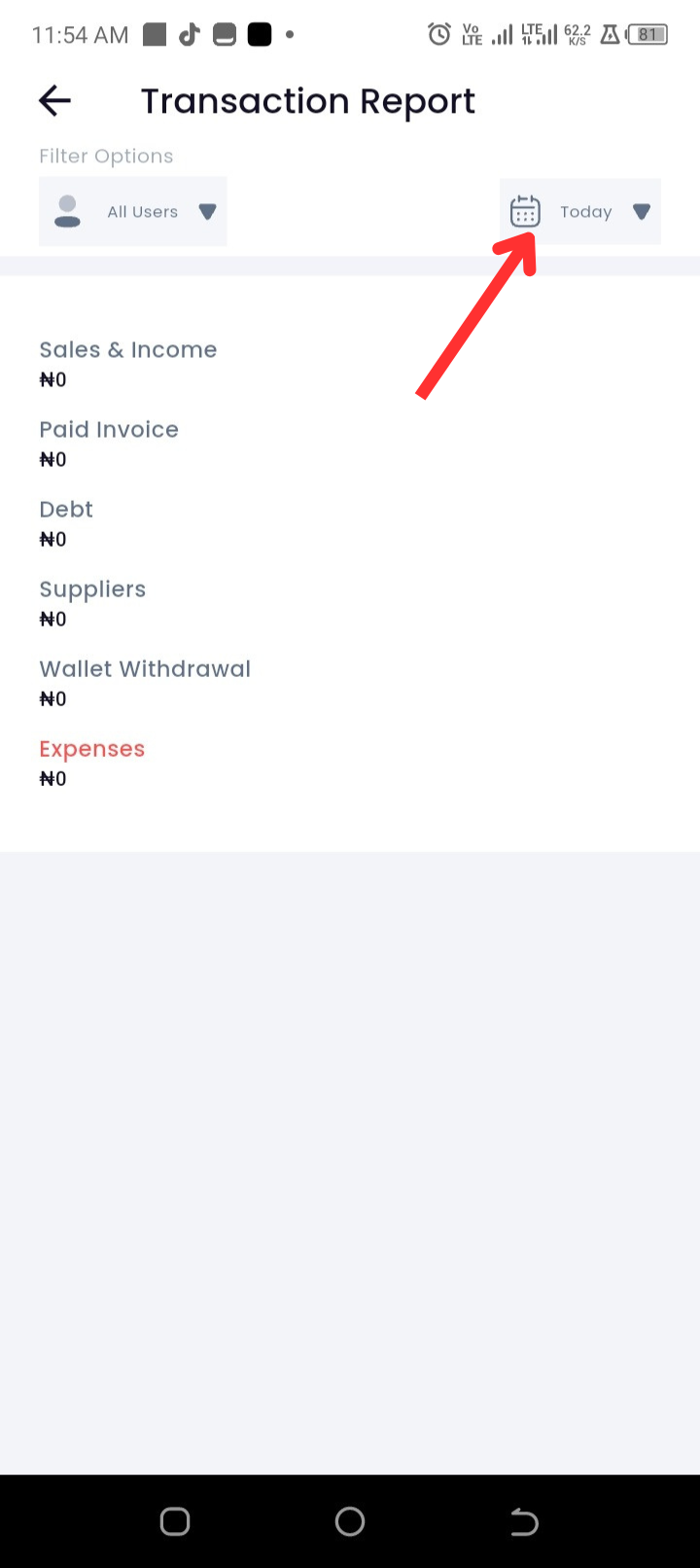
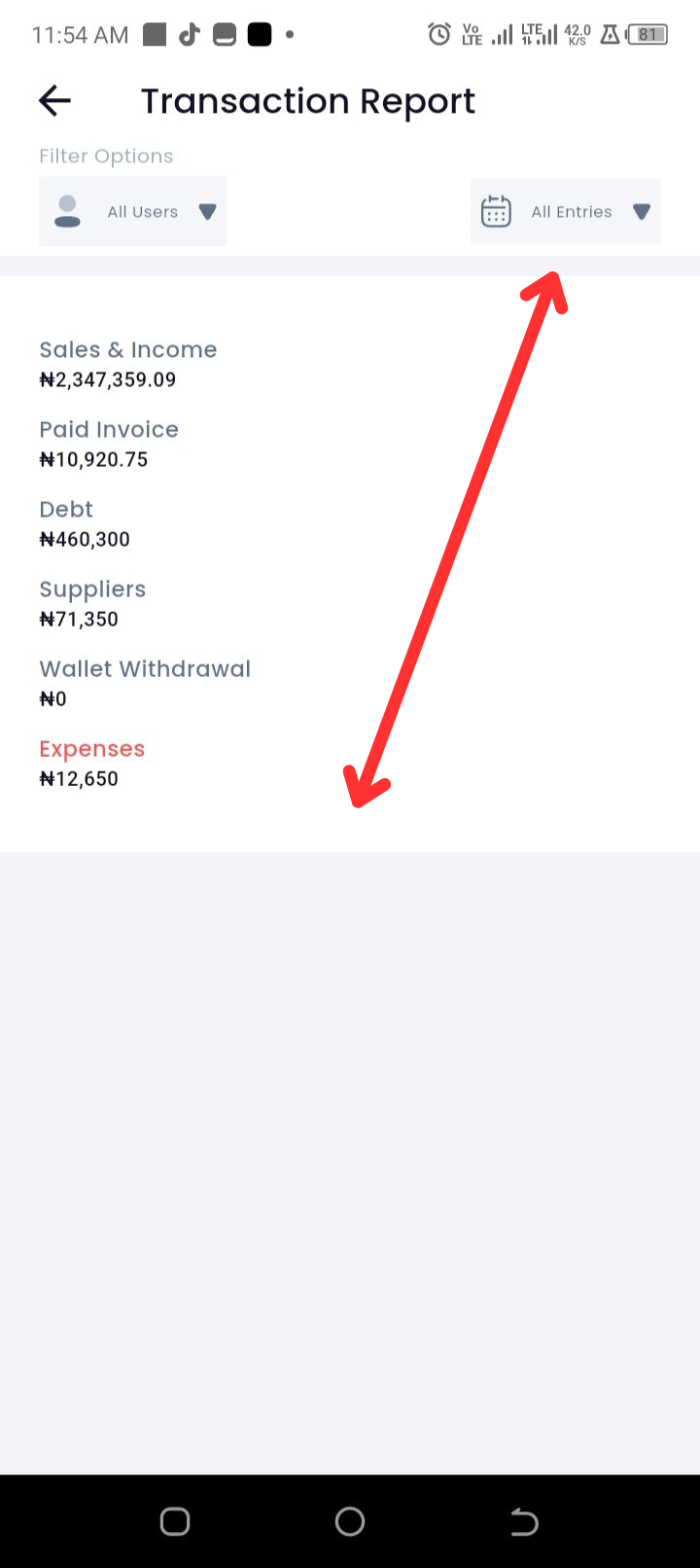
Step 4: At the top, you will see filter options where you can filter either by users or date.
-
-
To filter by users, tap on All Users.
-
-
-
To filter by date, tap on This Month.
-
Step 5: You will now see a breakdown of your transaction activities, including:
-
Sales & Income
-
Paid Invoices
-
Debt
-
Suppliers
-
Wallet Withdrawal
-
Expenses
Troubleshooting
-
Not seeing recent transactions?
Make sure the correct date filter is selected (e.g., Today, This Week, This Month). -
Transactions missing from report?
Confirm the transaction was recorded under the right category (e.g., Sale, Expense, Supplier payment). -
App not loading the report?
Refresh the page or check your internet connection. If the issue persists, log out and back in.
FAQs
Q: Can I export my transaction report?
A: Yes, after filtering, tap on View Report to export in PDF or CSV format.
Q: Can I see who recorded each transaction?
A: Yes, when you filter by users, you’ll be able to see transaction activities per staff member.
Q: Does the report update automatically?
A: Yes, every transaction recorded is updated in real-time.