How to Check Your Products Report (Mobile)
Steps to View and Export Products Report
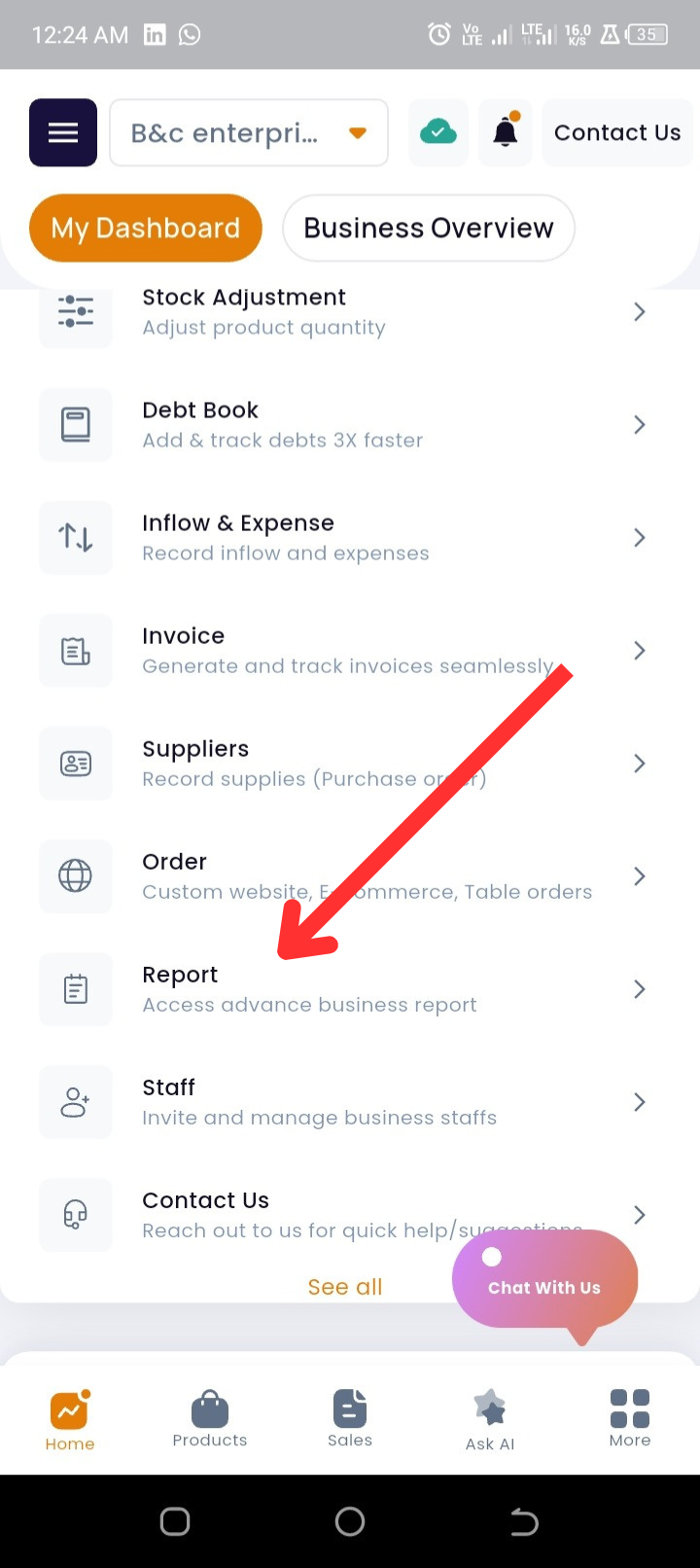
Step 1: From the homepage, scroll down to the Quick Actions section.
Step 2: Tap on Reports.
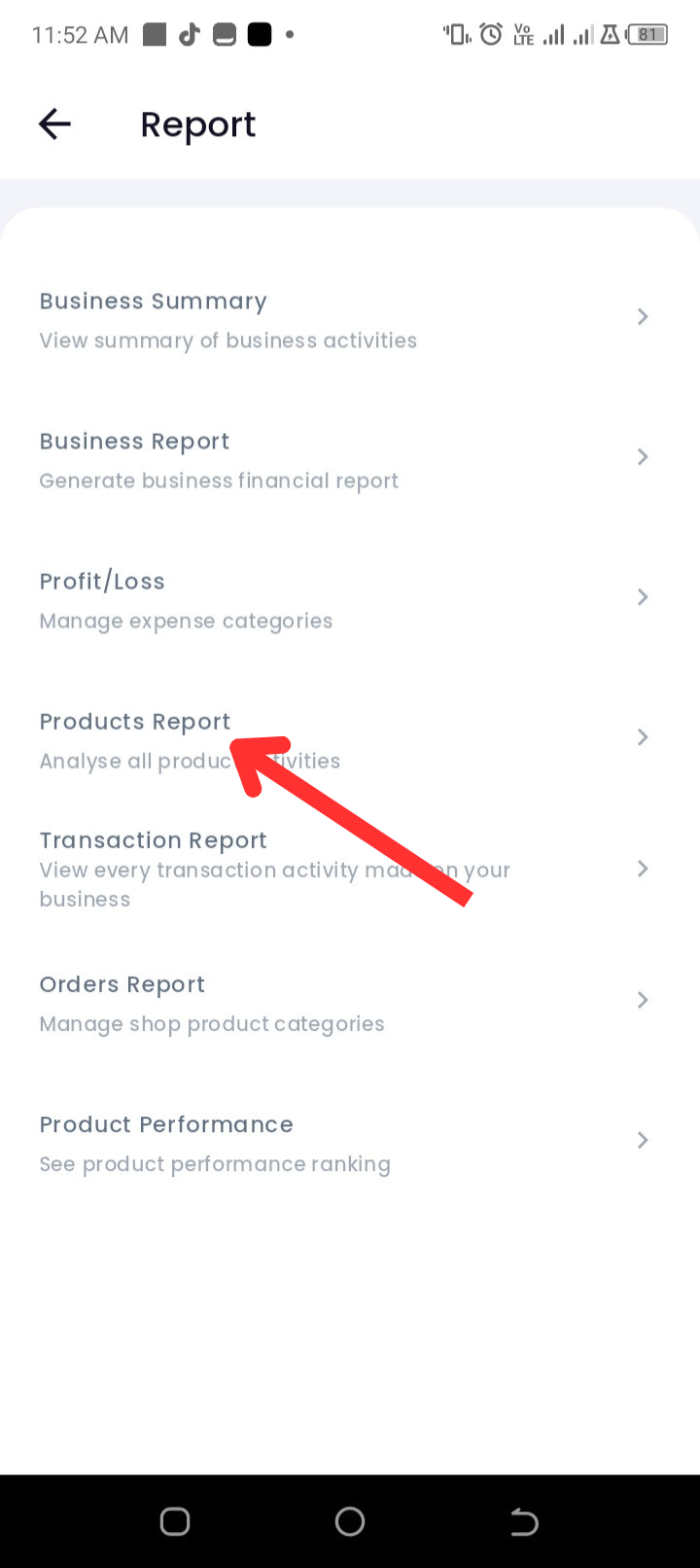
Step 3: Tap on Products Report.
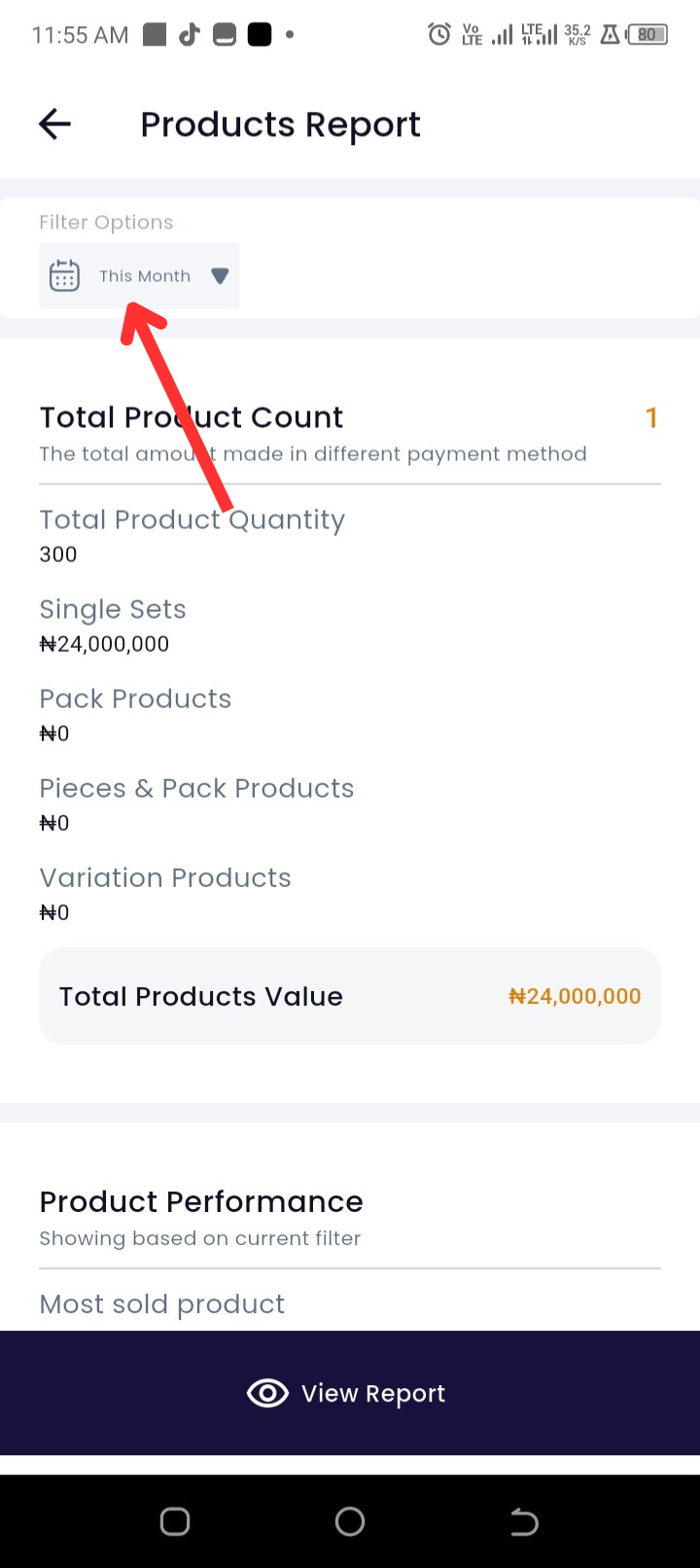
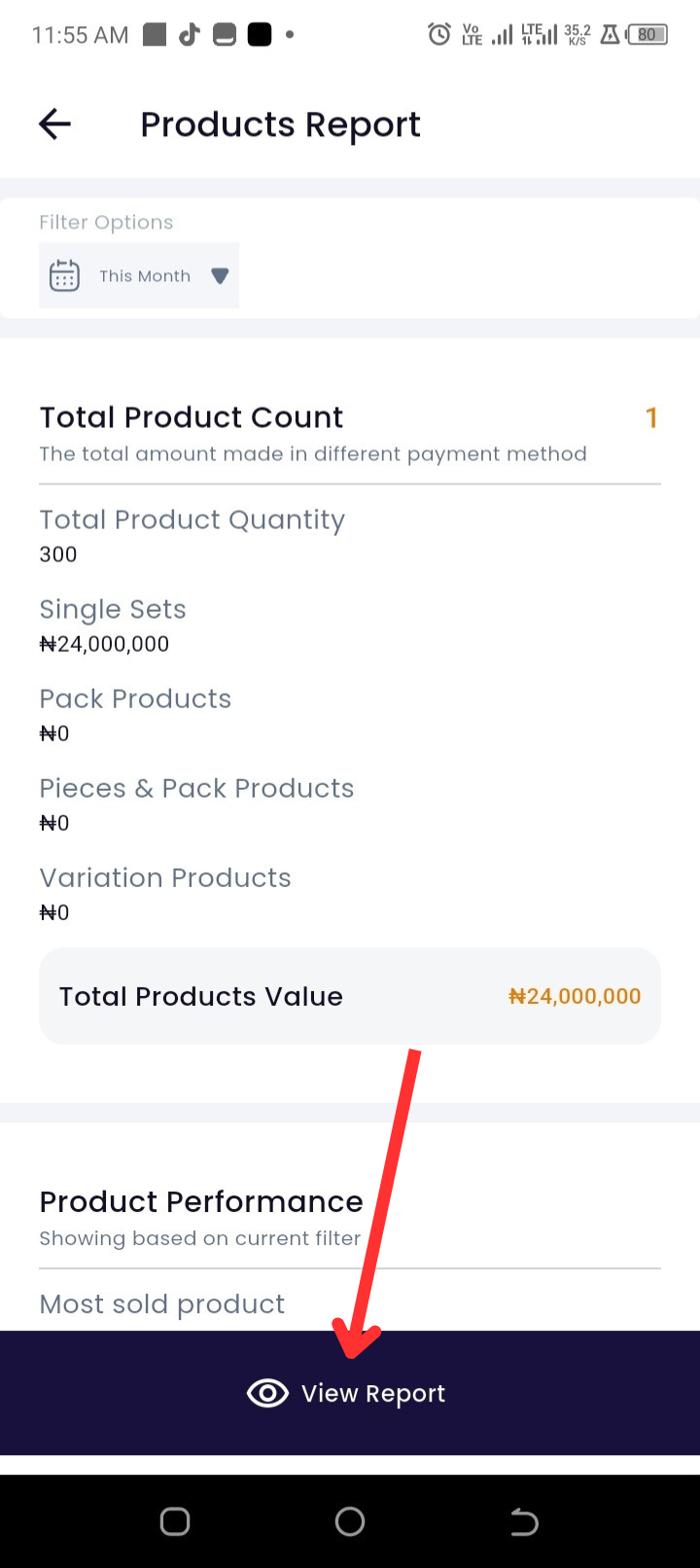
Step 4: At the top of the screen, you’ll see the filter options.
-
To filter by date, tap on This Month and select your preferred time range.
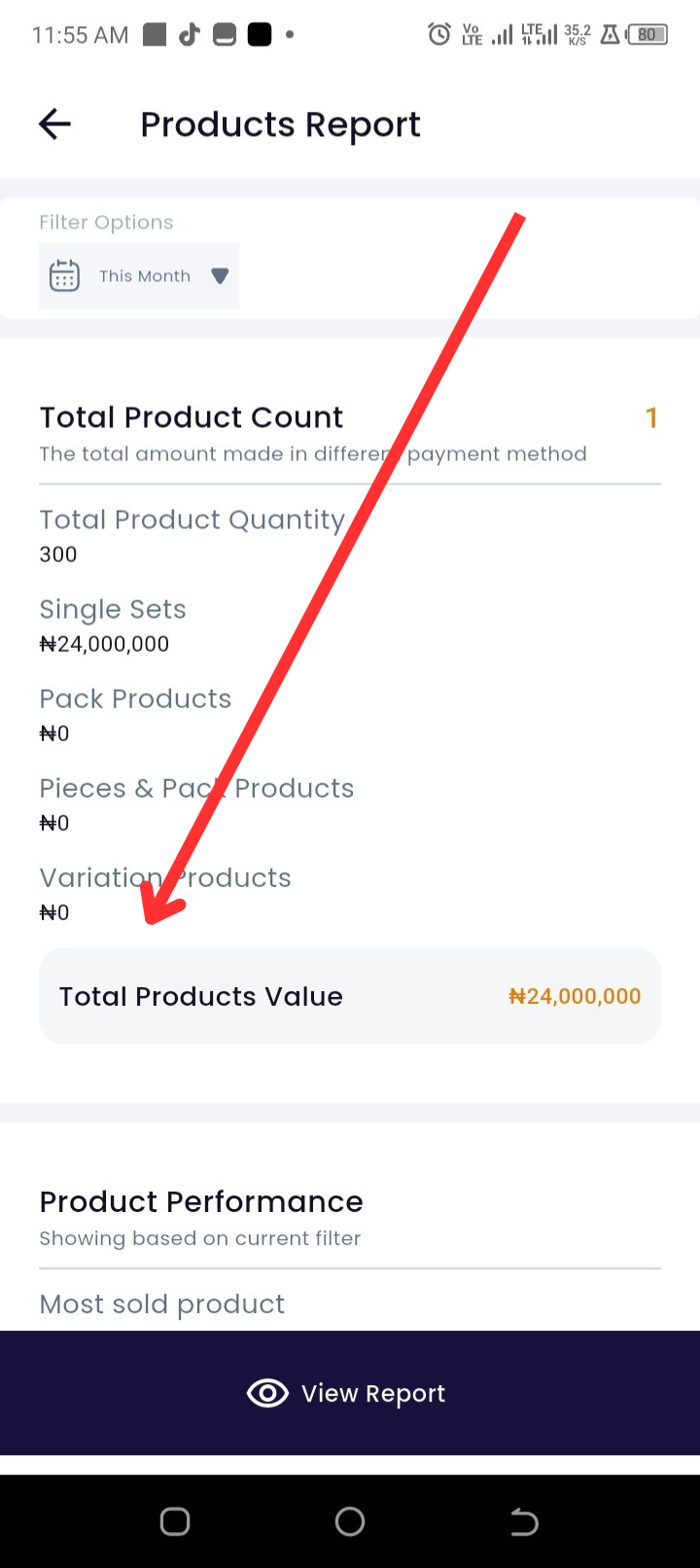
Step 5: Review the total product count, which includes:
-
Total product quantity
-
Single set products
-
Pack products
-
Variation products
-
Total product value
Step 6: Review Product Performance (based on the current filter – by default, this month).
-
Shows the most sold products.
-
Shows the least sold products.
Step 7: Review Product Availability and Expiration:
-
Products that are out of stock.
-
Products running low on stock.
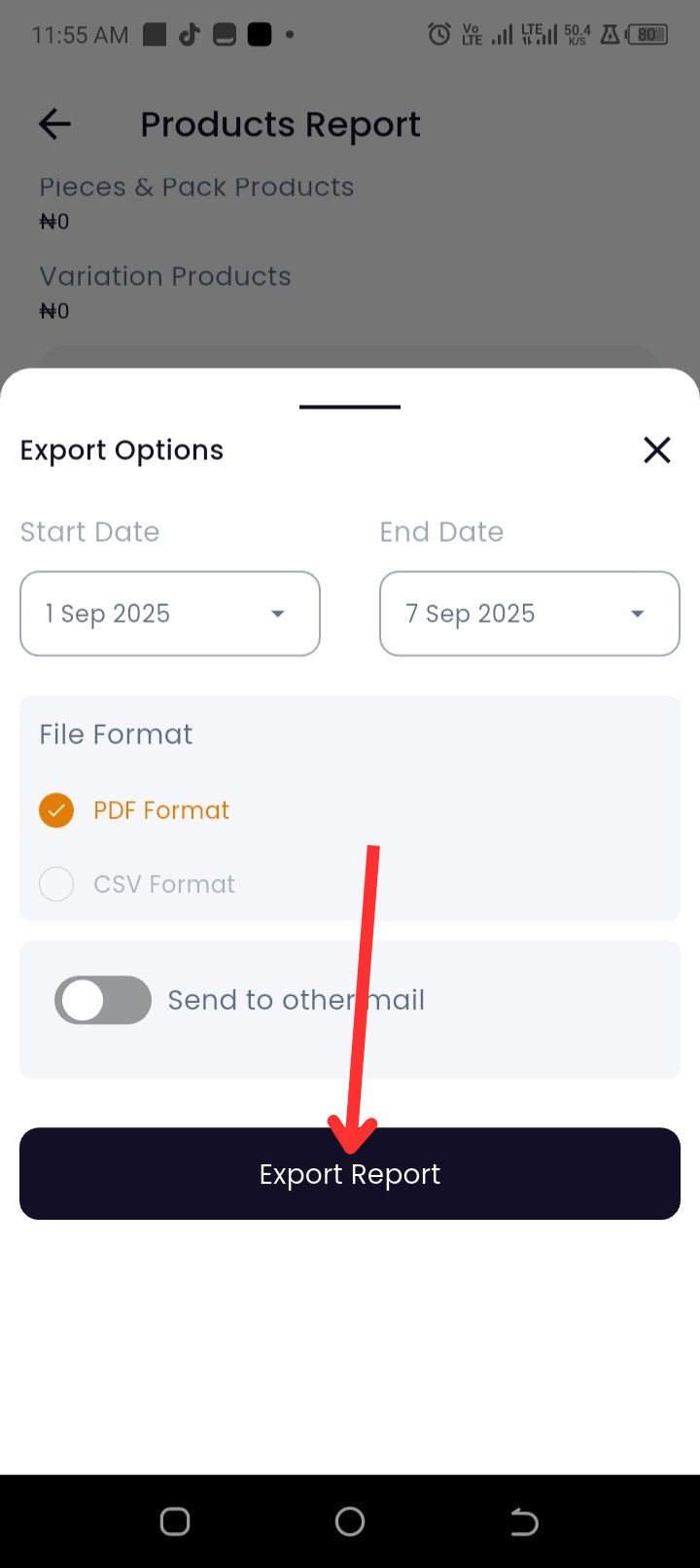
Step 8: To export the report, tap on View Report.
-
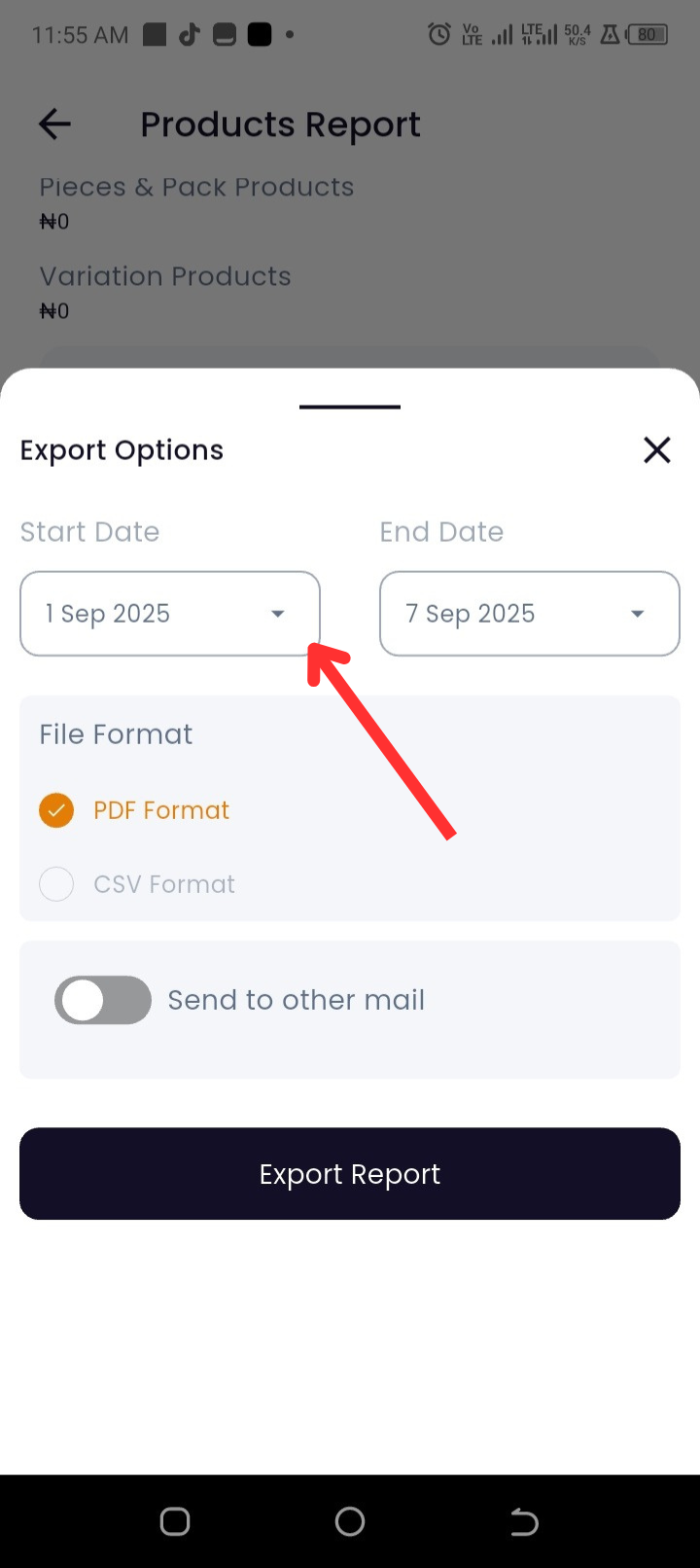
Enter the start and end date of the report.
-
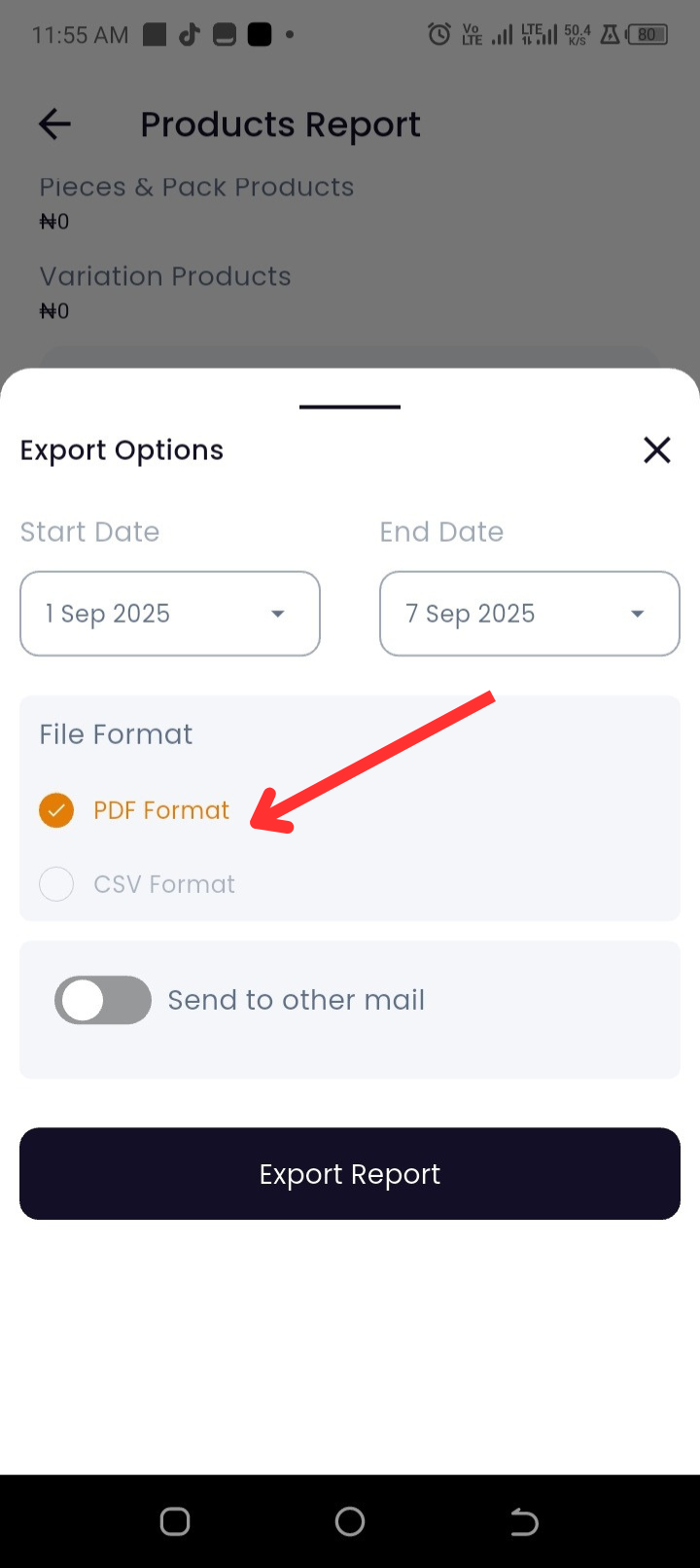
Select the format you want to export in (CSV or PDF).
Step 9: To share or send the report:
-
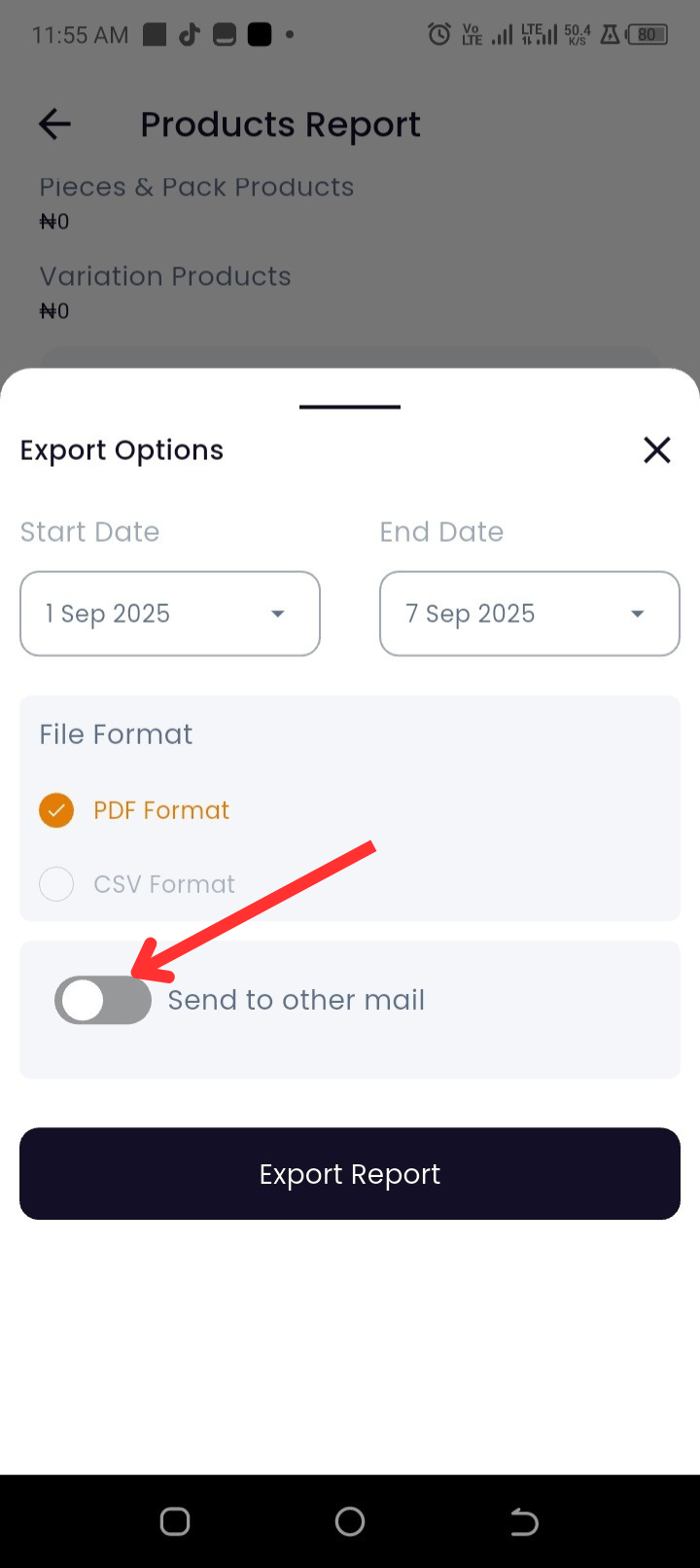
Tap on Send to Other Mail, enter the email address, and send.
-
Tap on Export Report to share the PDF via WhatsApp, email, or other platforms.
Troubleshooting
-
Issue: My product count doesn’t match what I expected.
Solution: Check if all products (including variations and packs) have been added to your inventory. -
Issue: Report export failed.
Solution: Ensure you have a stable internet connection and retry. -
Issue: The wrong product is showing as “most sold” or “least sold.”
Solution: Confirm that all sales transactions are properly recorded under the correct products.
Frequently Asked Questions (FAQs)
Q1: Can I export product reports for custom date ranges?
Yes. Tap View Report and set your start and end dates before exporting.
Q2: What formats are available for exporting?
You can export in CSV or PDF format.
Q3: Can I share reports directly without downloading?
Yes. Use the Share Report option to send via WhatsApp, email, or other platforms.