How to Check Your Profit and Loss (Mobile)
Steps to View Your Profit & Loss Report
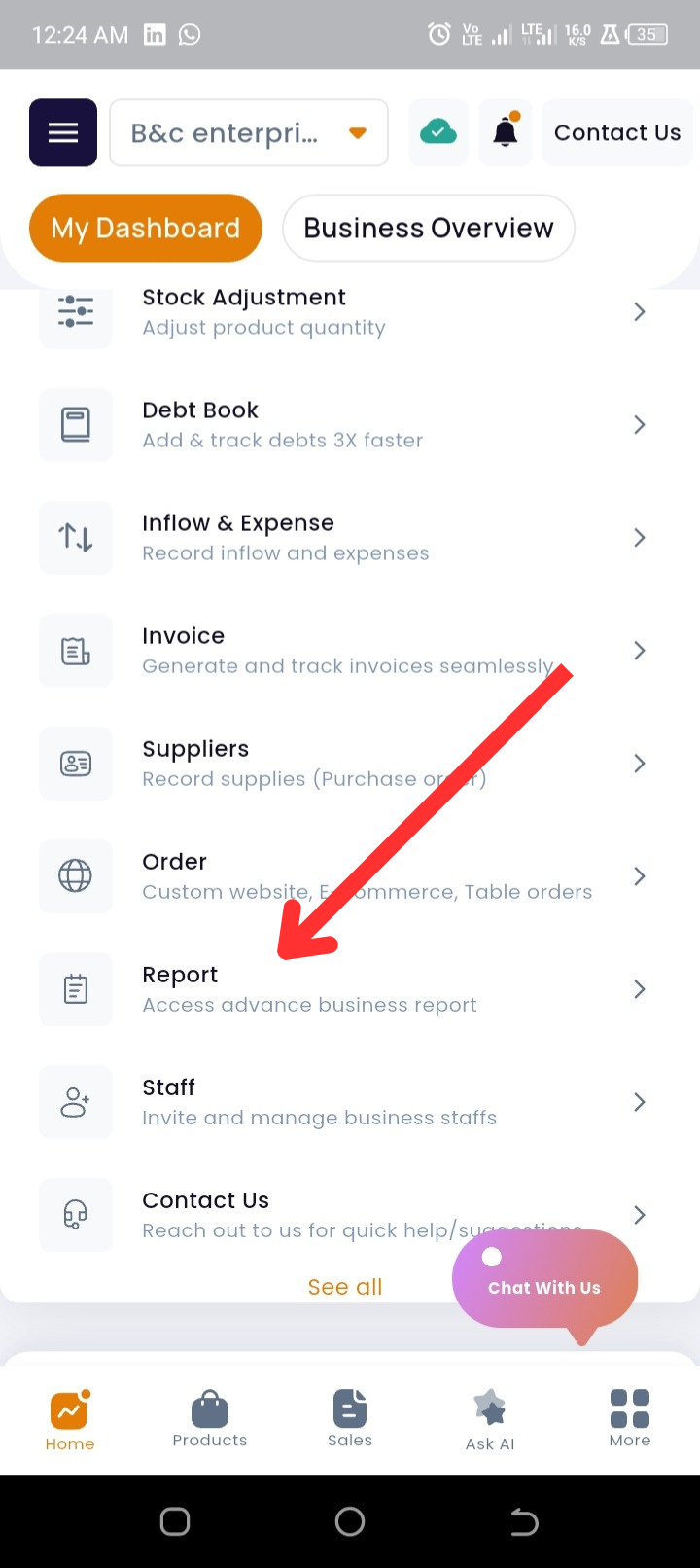
Step 1: From the homepage, scroll down to the Quick Actions section.
Step 2: Tap on Reports.
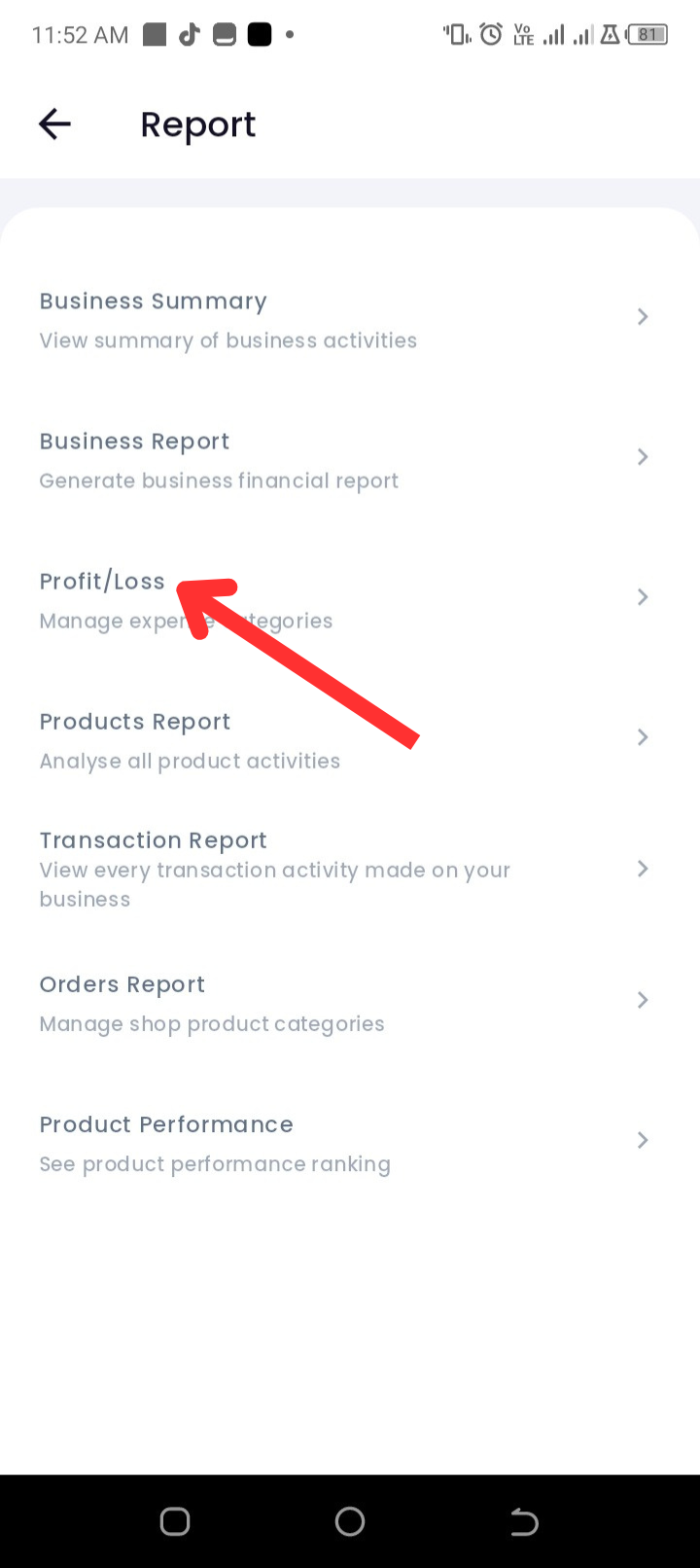
Step 3: Tap on Profit and Loss.
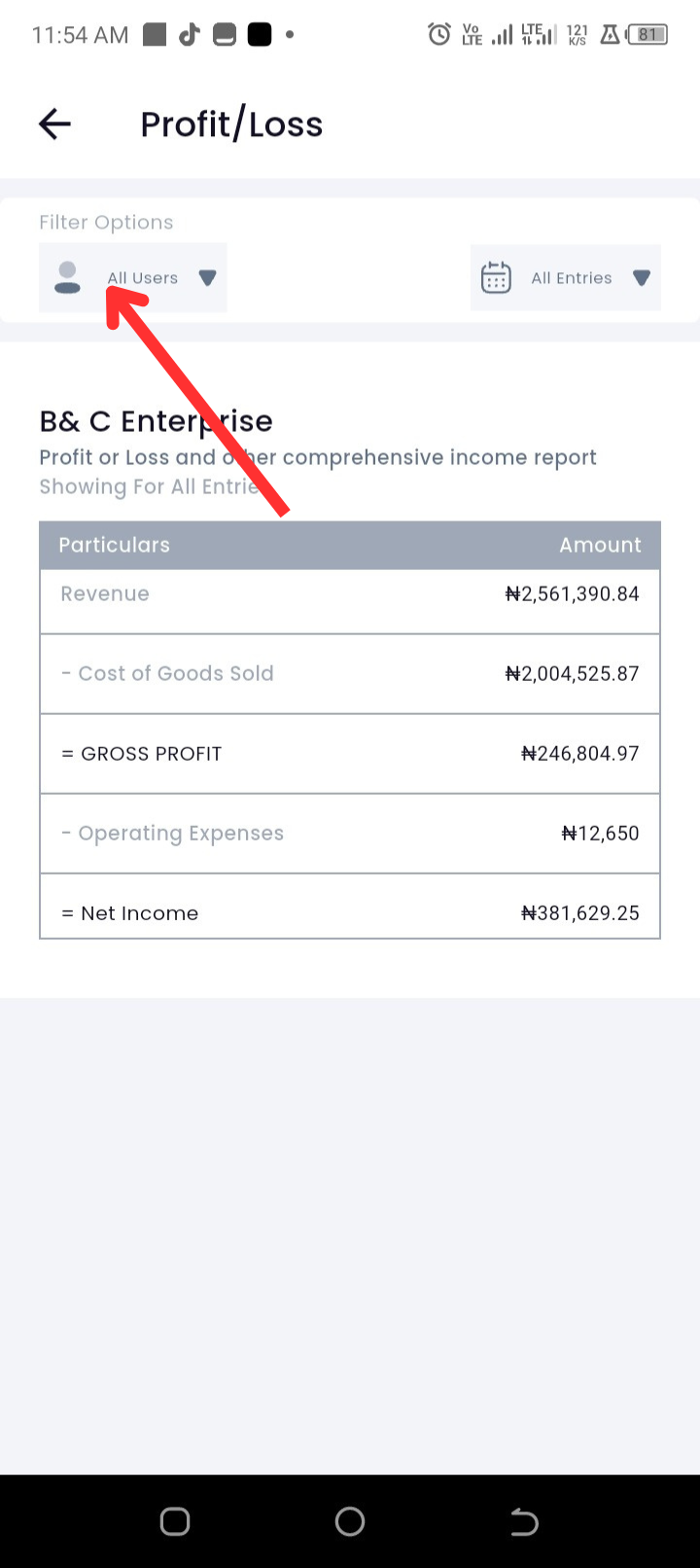
Step 4: At the top of the screen, use the filter options to refine your report:
-
To filter by user, tap on All Users and select the user you want to track.
-
To filter by date, tap on This Month and choose your preferred time range.
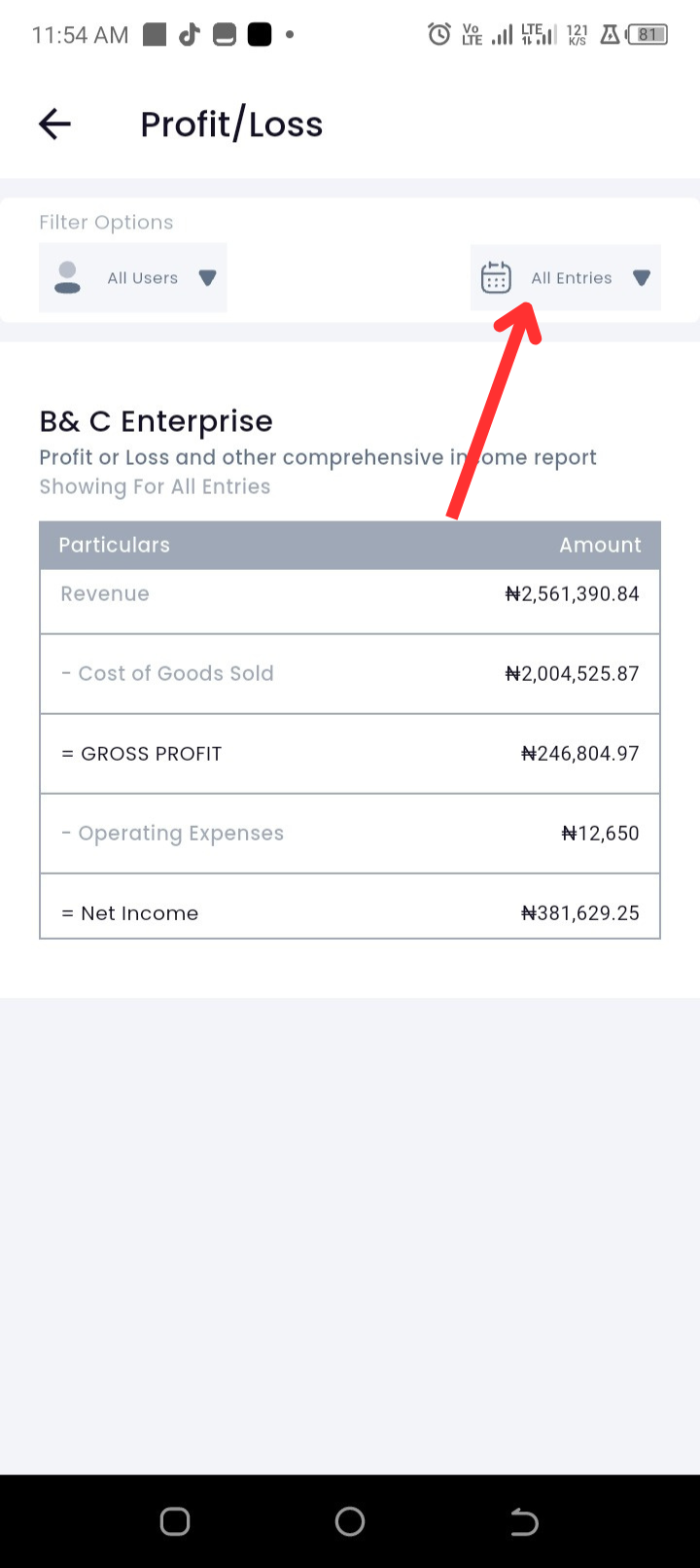
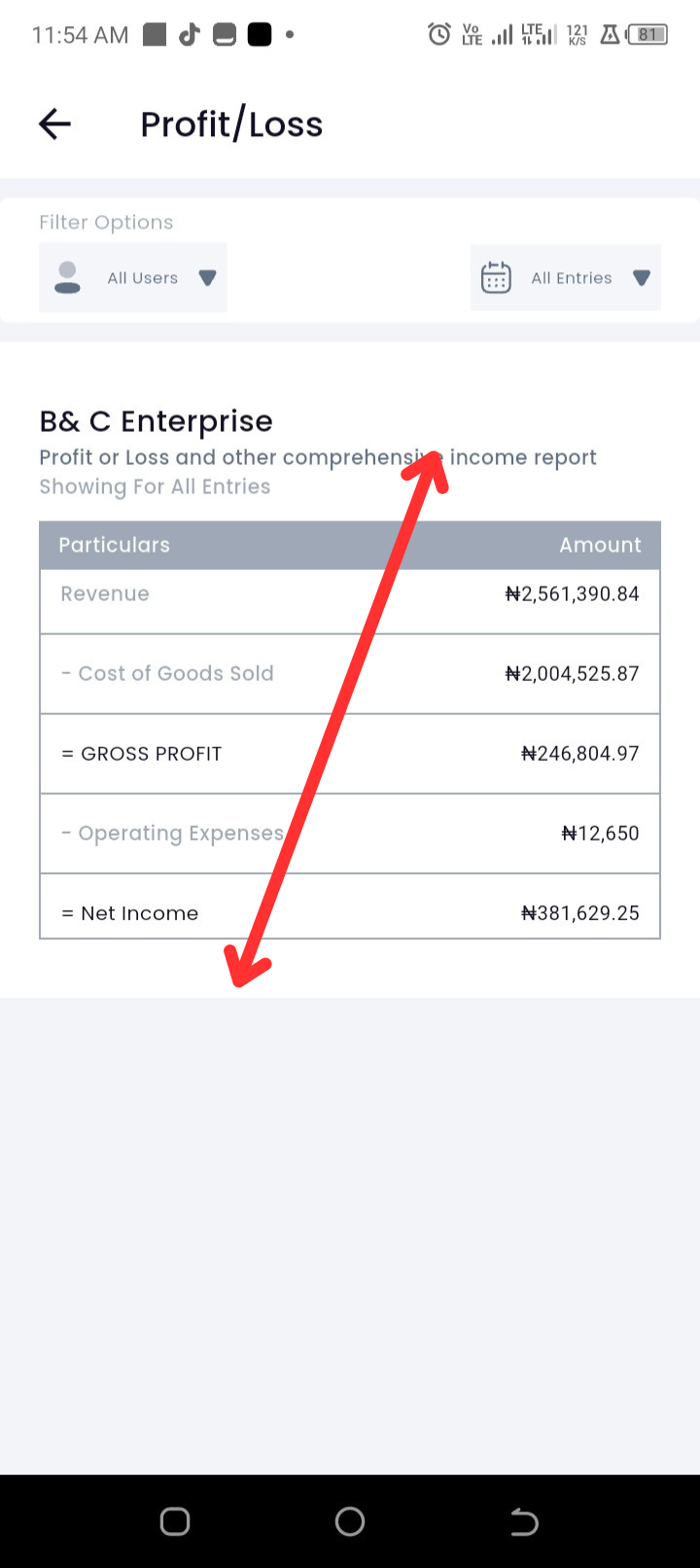
Step 5: Review the report. It includes:
-
Revenue – The total income earned by your business.
-
Cost of Goods Sold (COGS) – The direct costs of producing or purchasing goods sold.
-
Gross Profit – Revenue minus COGS.
-
Operating Expenses – Overheads such as rent, salaries, utilities, and other expenses.
-
Net Income – Final profit or loss after deducting all expenses.
Troubleshooting
-
Issue: My report isn’t showing accurate profit/loss.
Solution: Confirm all sales, purchases, and expenses have been properly recorded in the app. -
Issue: Some figures are missing from the report.
Solution: Check if the related transactions (sales, expenses, or COGS entries) were correctly added to the app.
Frequently Asked Questions (FAQs)
Q1: Can I see Profit & Loss for specific staff members?
Yes. Use the user filter to generate a report by staff.
Q2: Can I compare profits across different months?
Yes. Change the date filter to the specific months you want to view and compare.
Q3: What is the difference between Profit & Loss and Business Summary?
The Profit & Loss focuses on financial performance (income vs. expenses), while the Business Summary gives a broad overview of sales, products, and debts.