How to Check Your Business Report (Mobile)
Steps to Generate and View Your Business Report
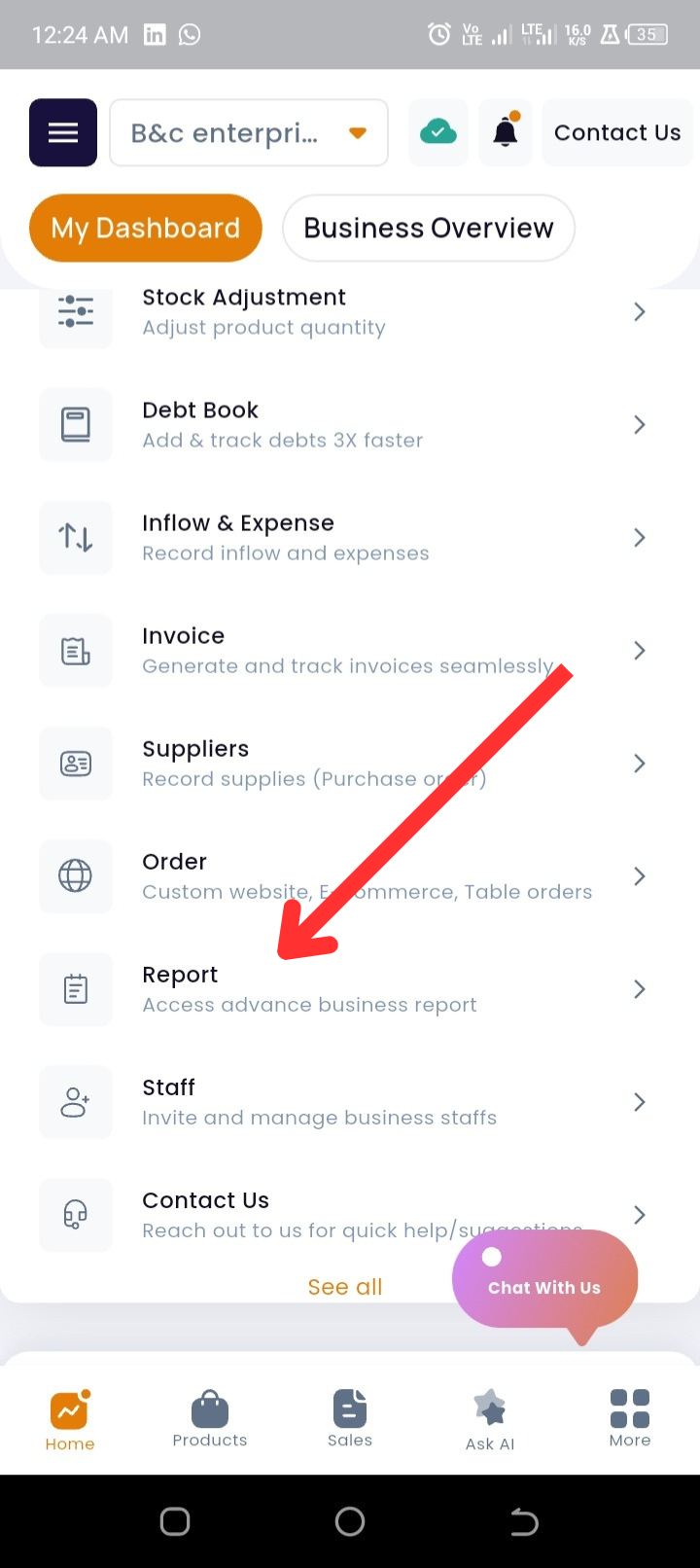
Step 1: From the homepage, scroll down to the Quick Actions section.
Step 2: Tap on Reports.
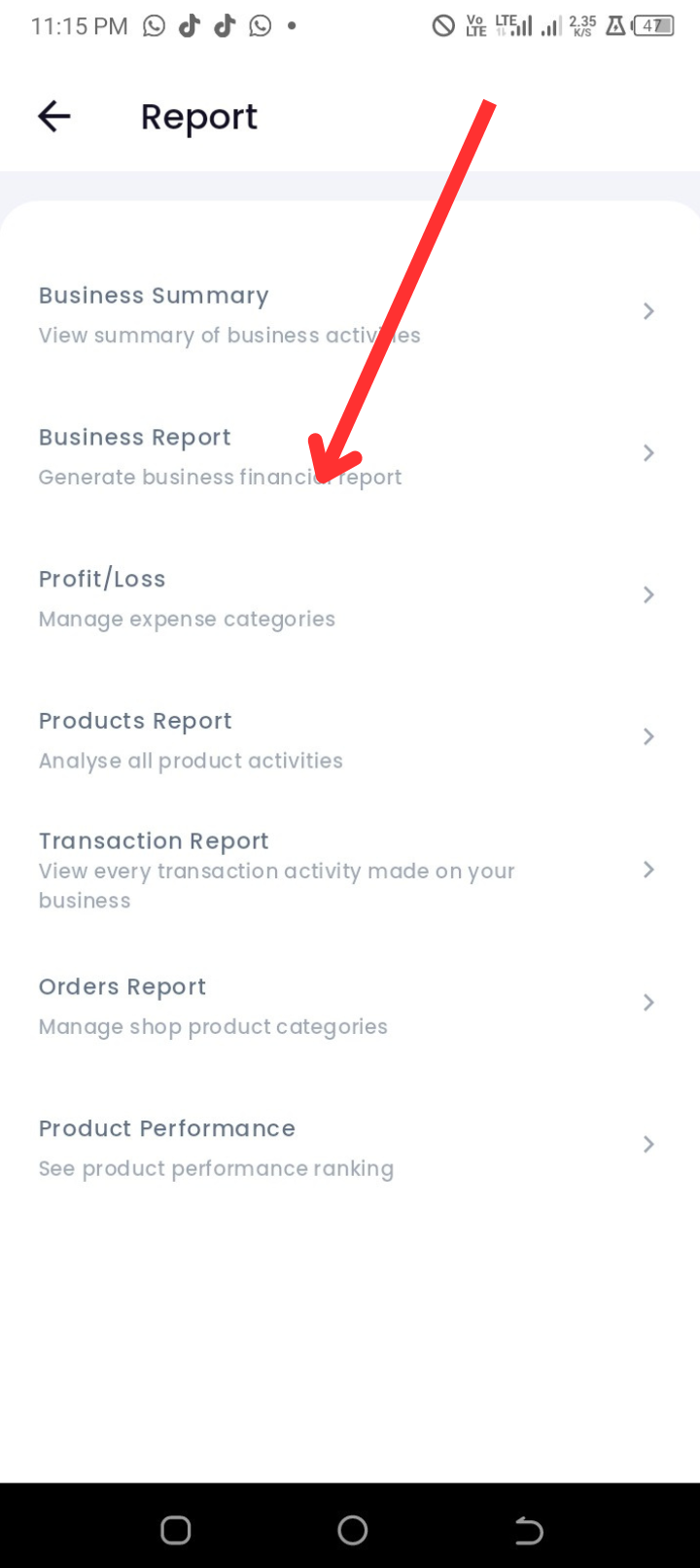
Step 3: Tap on Business Report.
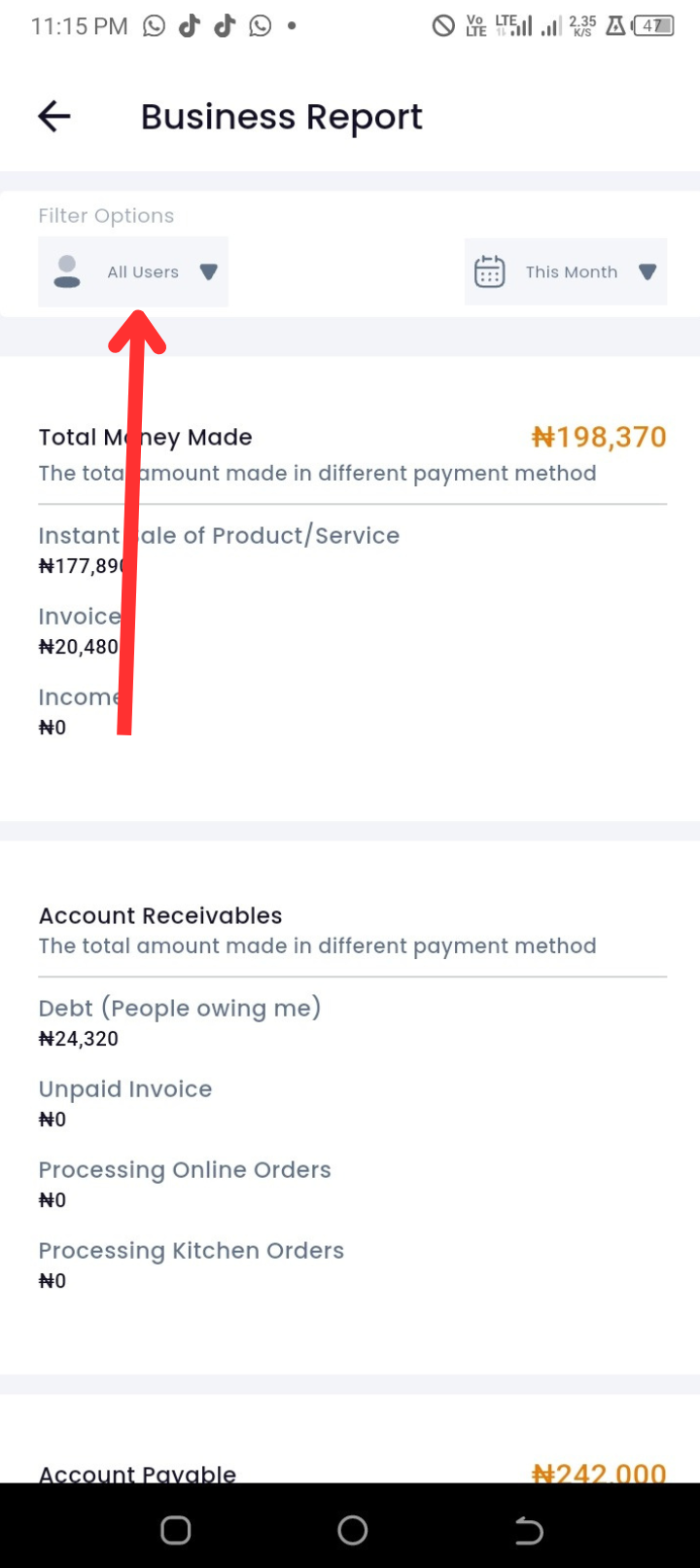
Step 4: At the top of the screen, use the filter options to customize your report:
-
To filter by user, tap on All Users and select the desired user.
-
To filter by date, tap on This Month and choose your preferred date range.
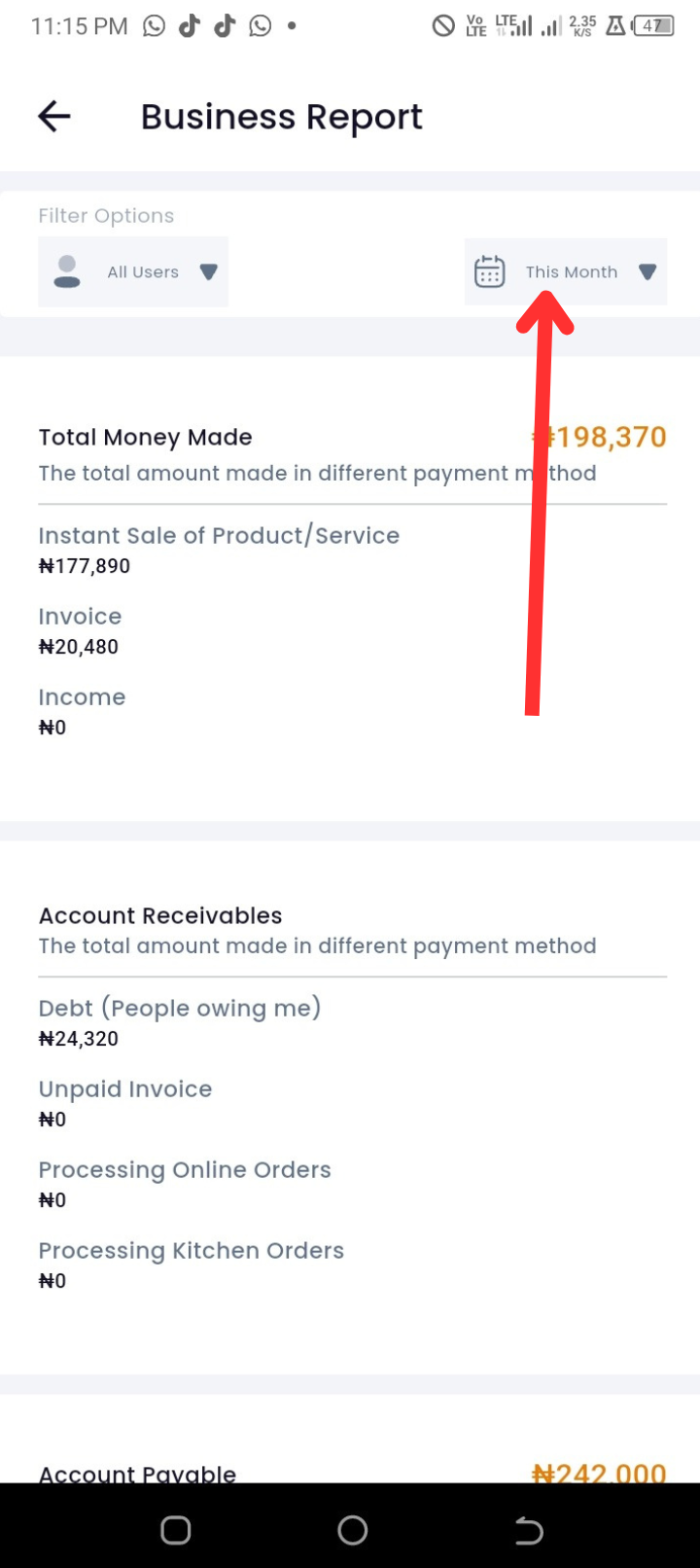
Step 5: Review the financial breakdown provided in the report:
-
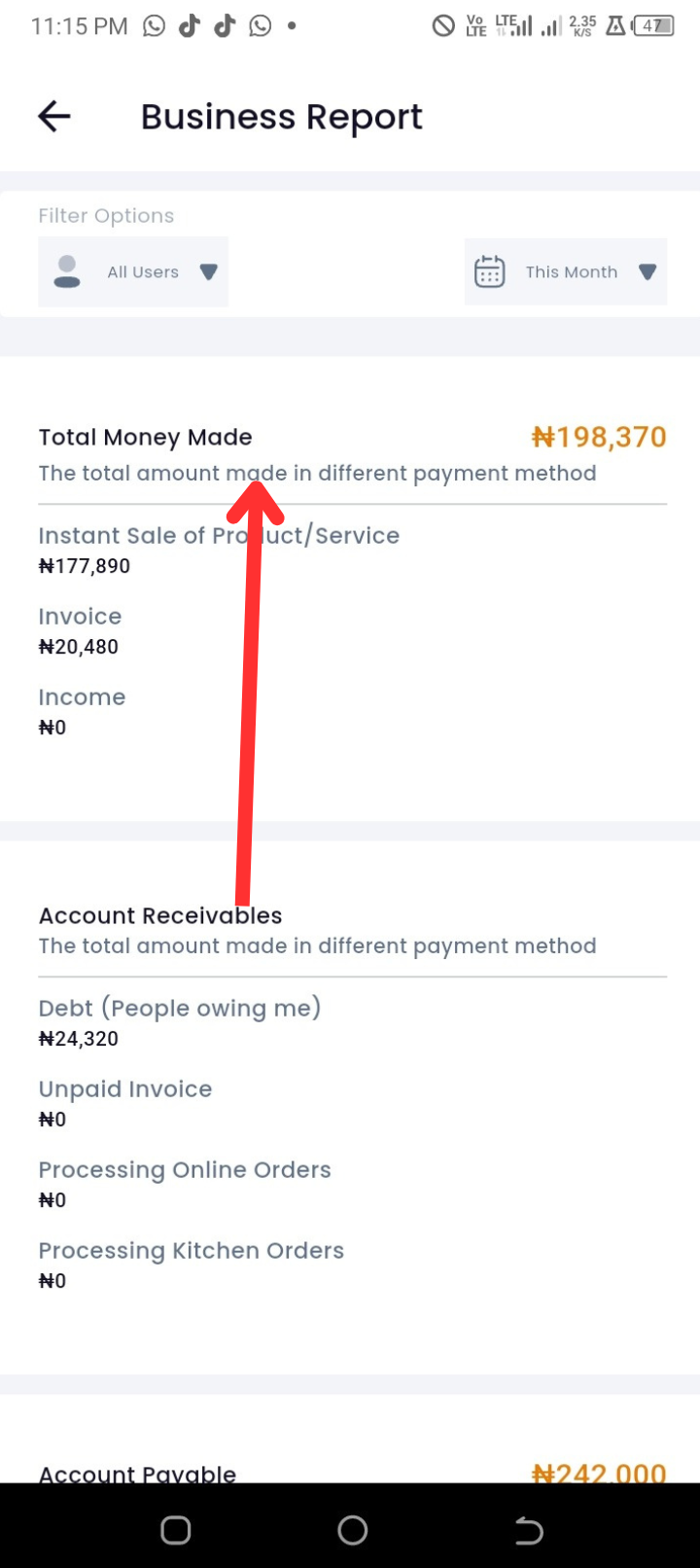
Money Made by Payment Method: Displays income received through different payment sources such as instant sales (products/services), invoices, and other income entries.
-
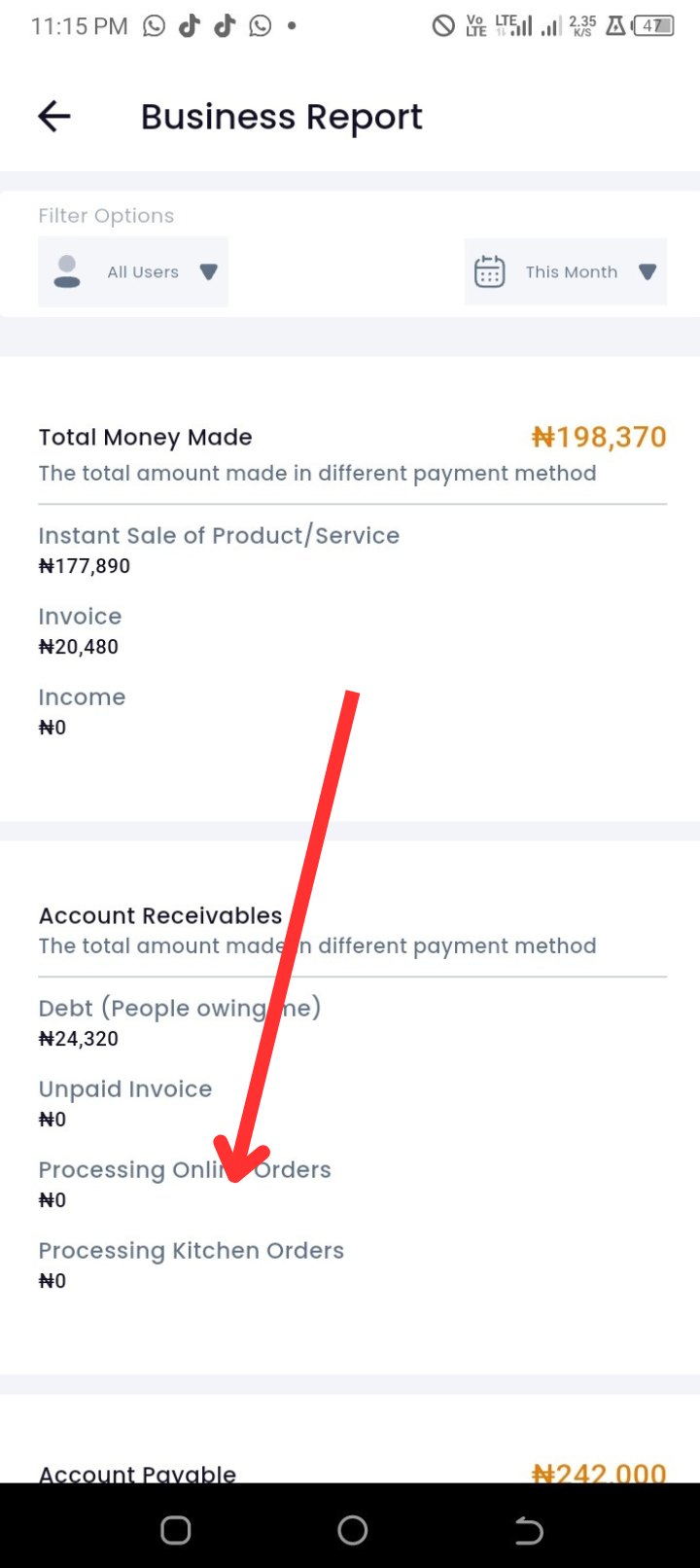
Accounts Receivable: Shows money expected from customers, including debts, unpaid invoices, processing online orders, and processing kitchen orders.
-
Accounts Payable: Displays the total amount your business owes to suppliers, vendors, or other third parties.
Troubleshooting
-
Issue: Report not showing updated figures.
Solution: Confirm your filters and refresh the report by exiting and reopening the Reports tab. -
Issue: Unable to view Accounts Receivable or Accounts Payable.
Solution: Ensure that invoices, debts, or payable records have been properly entered in the app.
Frequently Asked Questions (FAQs)
Q1: Can I generate reports for custom date ranges?
Yes. Tap the date filter and select the desired range.
Q2: Is the Business Report different from the Business Summary?
Yes. The Business Report provides a detailed financial breakdown (income, receivables, and payables), while the Business Summary gives an overview of sales, invoices, debts, and products.
Q3: Can I view separate reports for each staff member?
Yes. Use the user filter to generate reports per user.