How to Check Your Business Summary (Mobile)
Steps to View Your Business Summary
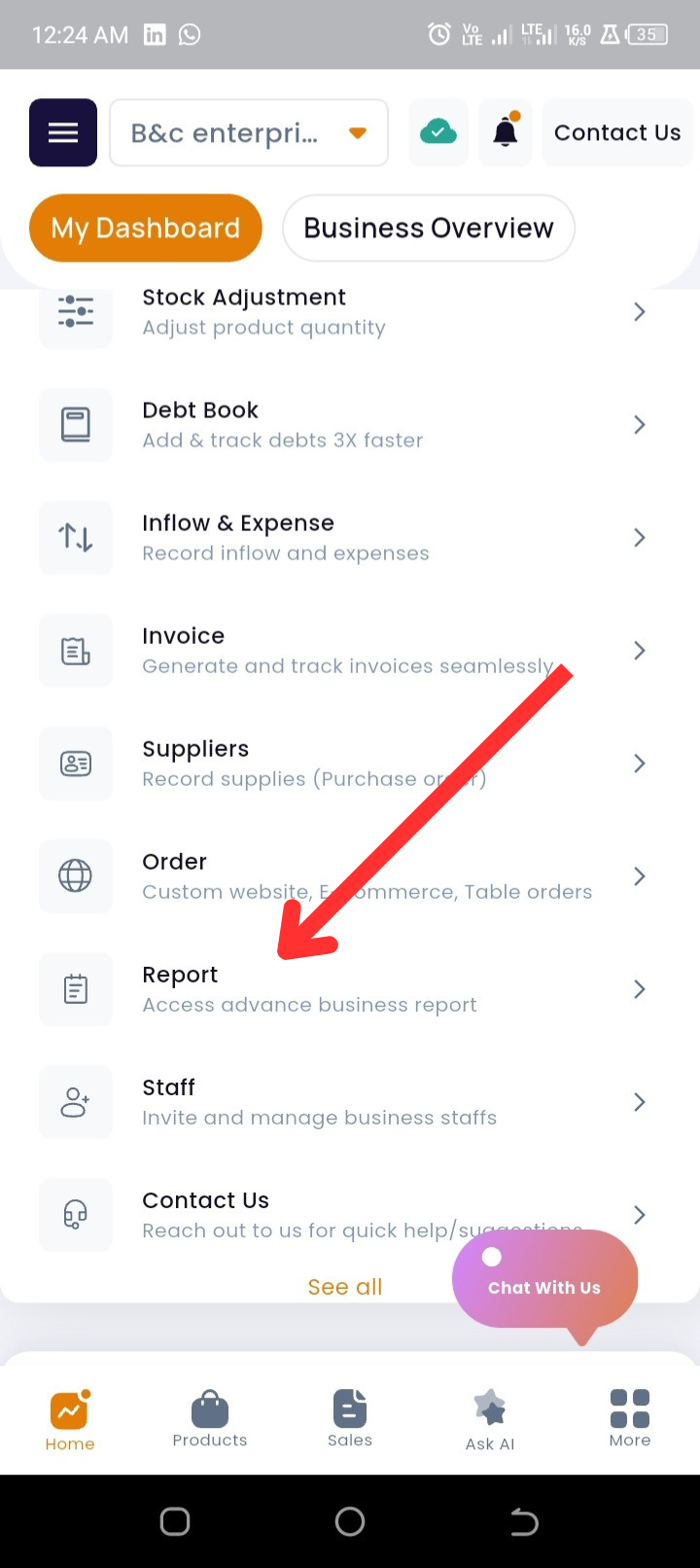
Step 1: From the homepage, scroll down to the Quick Actions section.
Step 2: Tap on Reports.
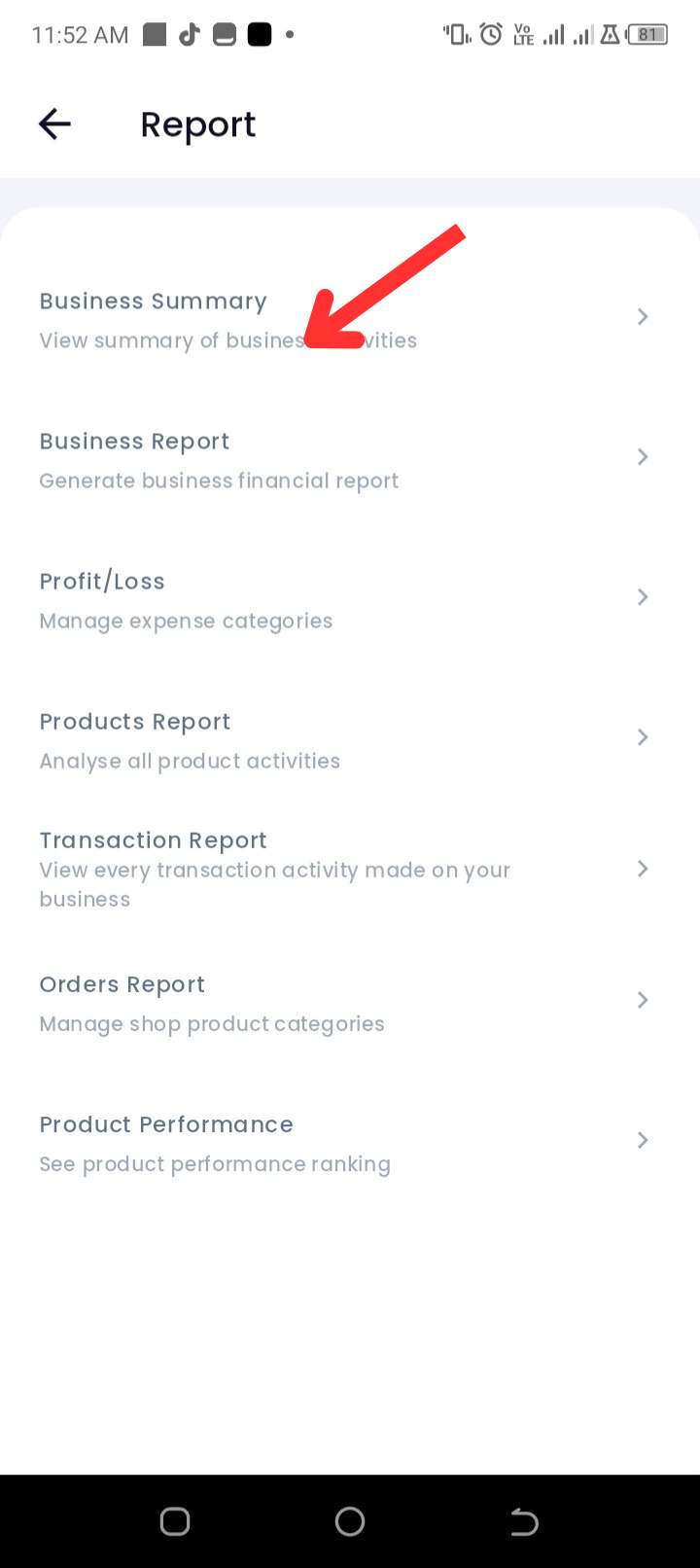
Step 3: Tap on Business Summary.
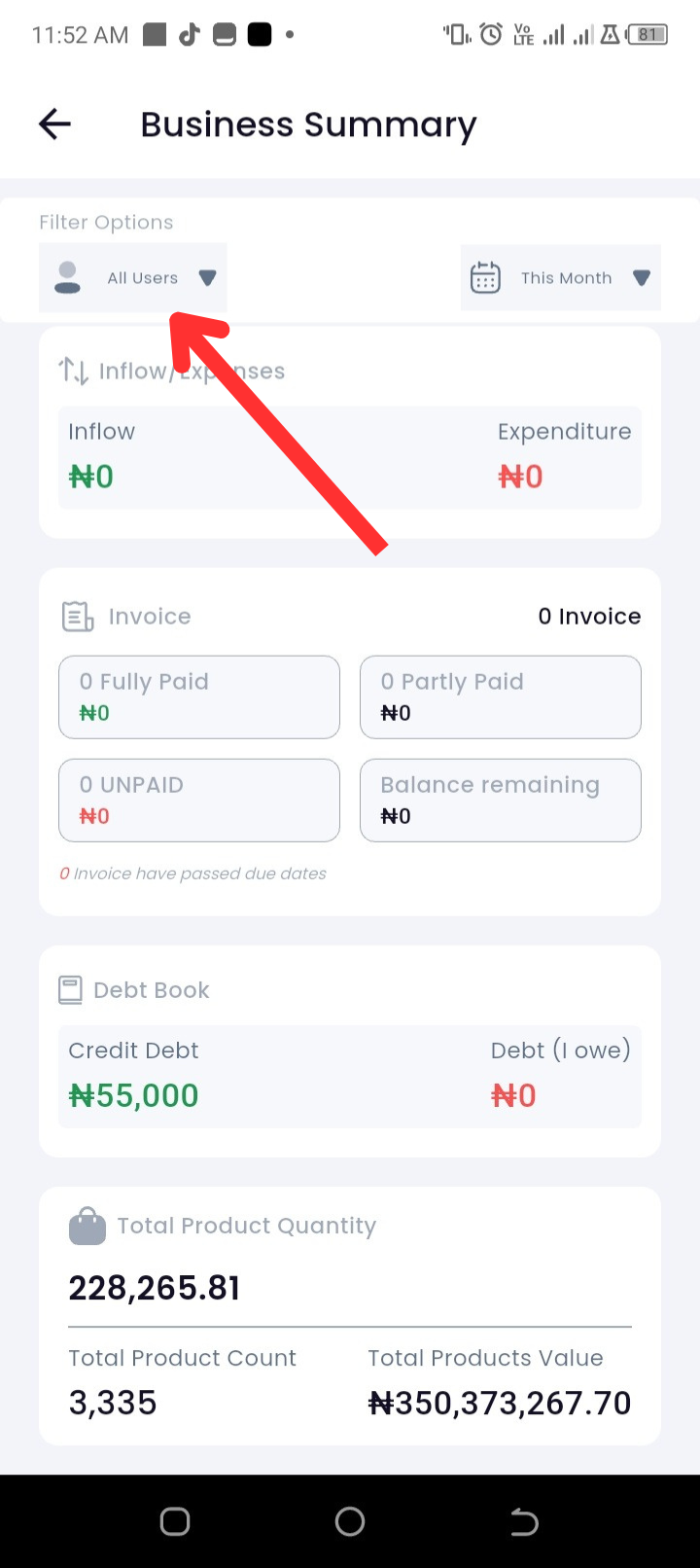
Step 4: Review your business activities summary displayed on the screen.
Step 5: Use the filter options at the top to refine your summary:
-
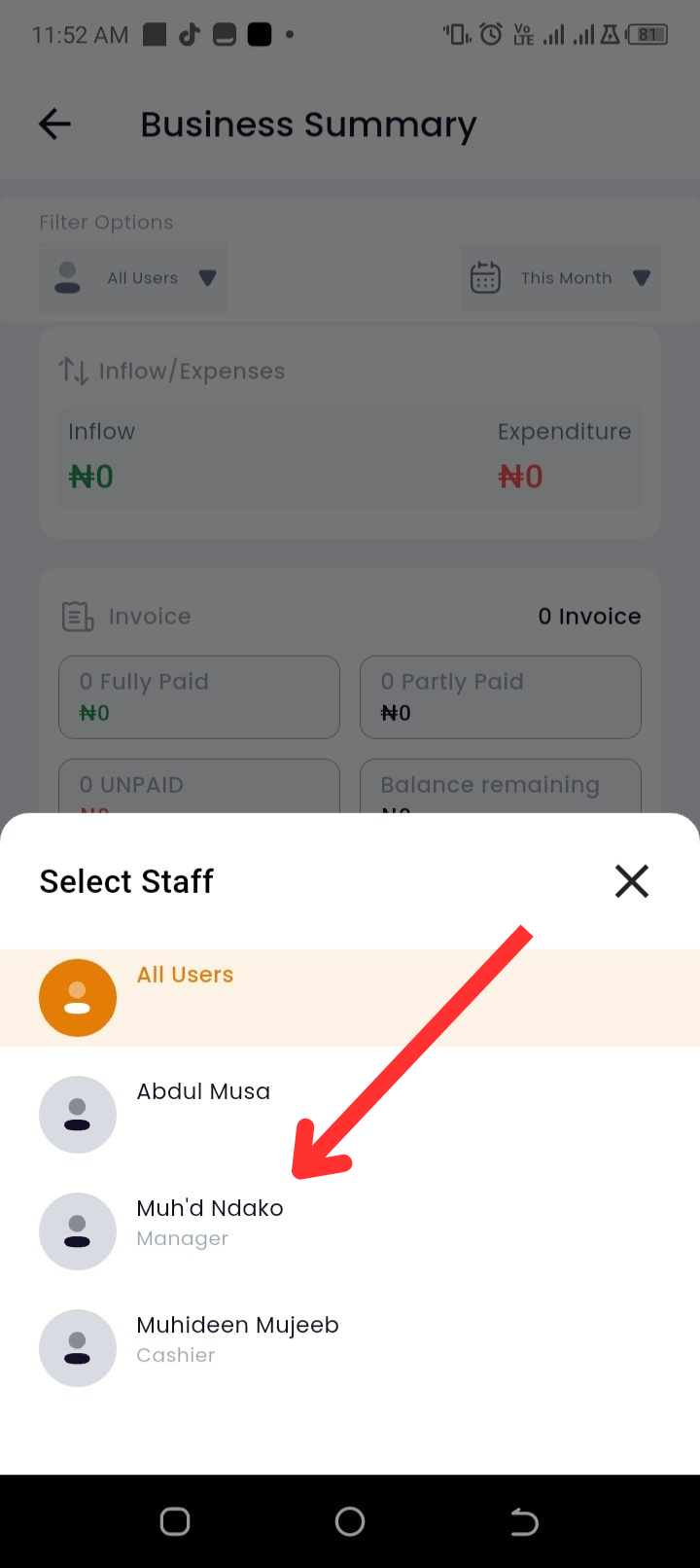
To filter by user, tap on All Users and select the desired user.
-
To filter by date, tap on This Month and select your preferred date range.
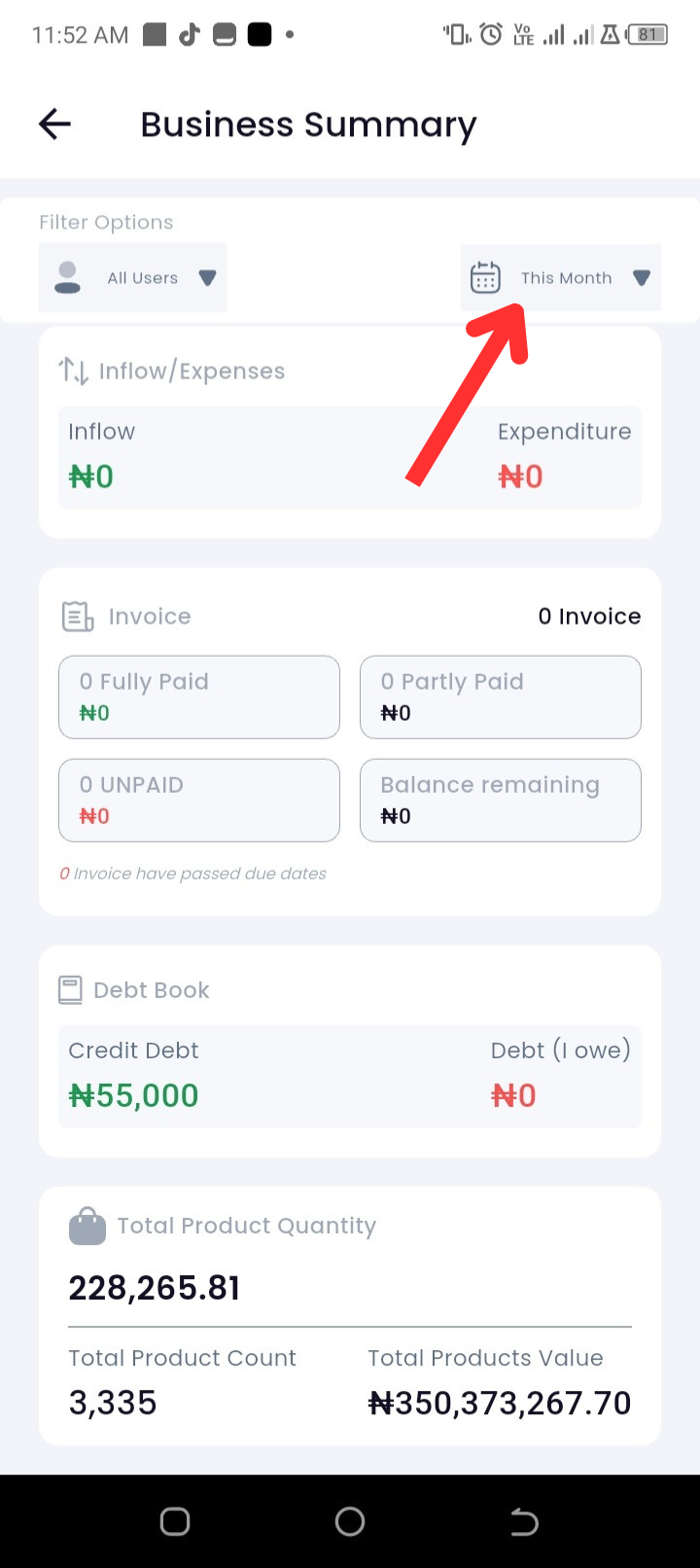
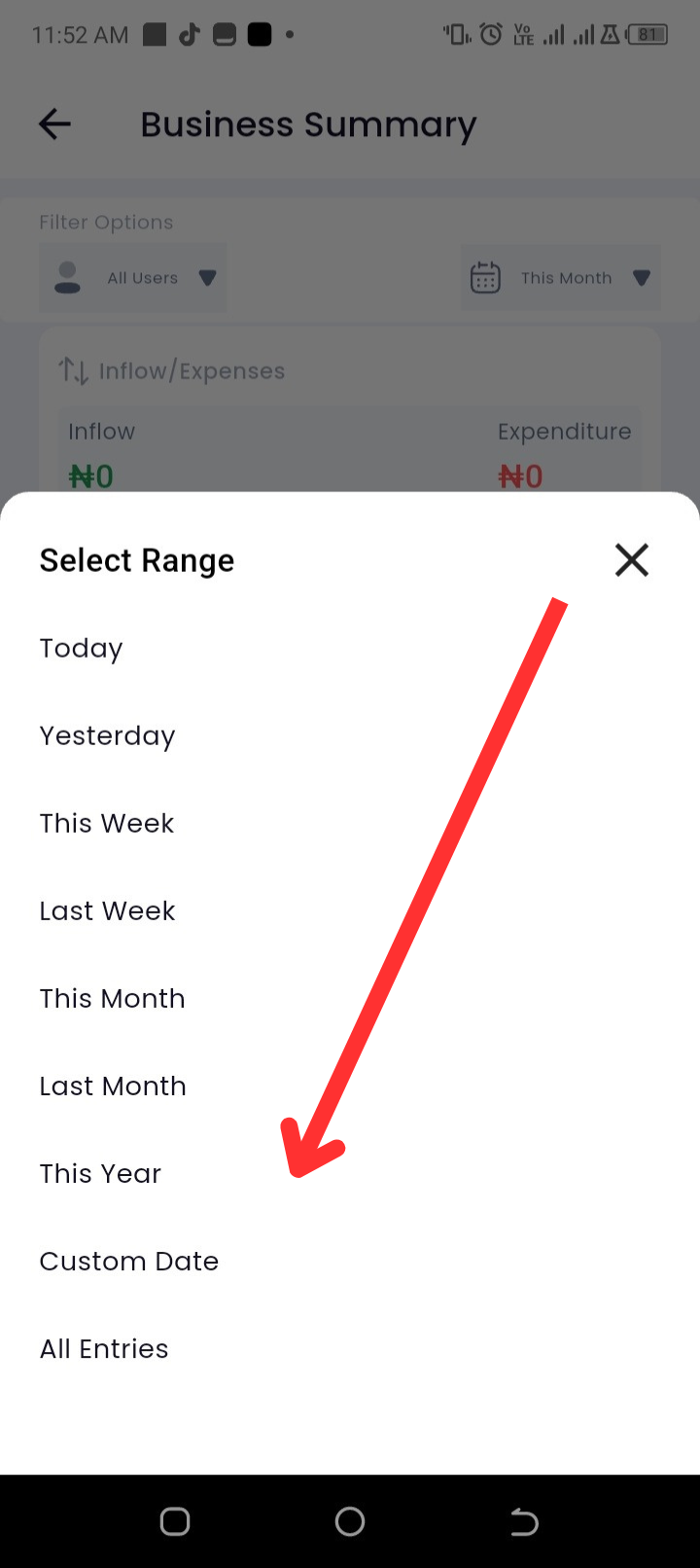
Step 6: View the graph that summarizes business activities based on your selected filters (default is “All Users” and “This Month”).
Step 7: Scroll down to view detailed breakdowns, including:
-
Total Sales, Sales Profit, Credit Sales, Discounts
-
Inflow and Expenditure Summary
-
Invoice Summary
-
Debt Book Summary
-
Product Summary (including total product quantity, product count, and product value)
Troubleshooting
-
Issue: Business summary not updating after filter selection.
Solution: Confirm your filter choice, then refresh the summary by exiting and reopening the Business Summary tab. -
Issue: Graph not displaying.
Solution: Check your internet connection. If the issue persists, restart the app and try again. -
Issue: Missing data in the summary.
Solution: Ensure your business records (sales, invoices, debts, etc.) have been entered correctly in the app.
Frequently Asked Questions (FAQs)
Q1: Can I see summaries for past months?
Yes. Tap on the date filter and select the month or custom range you want to view.
Q2: Can I view summaries by staff or users separately?
Yes. Use the user filter at the top to view summaries per user.
Q3: Does the graph update when I change filters?
Yes. The graph automatically updates based on the filter applied.