How to Add Suppliers/Supply on Mobile
Steps to Add a New Supplier and Supply
Step 1: Go to the homepage.
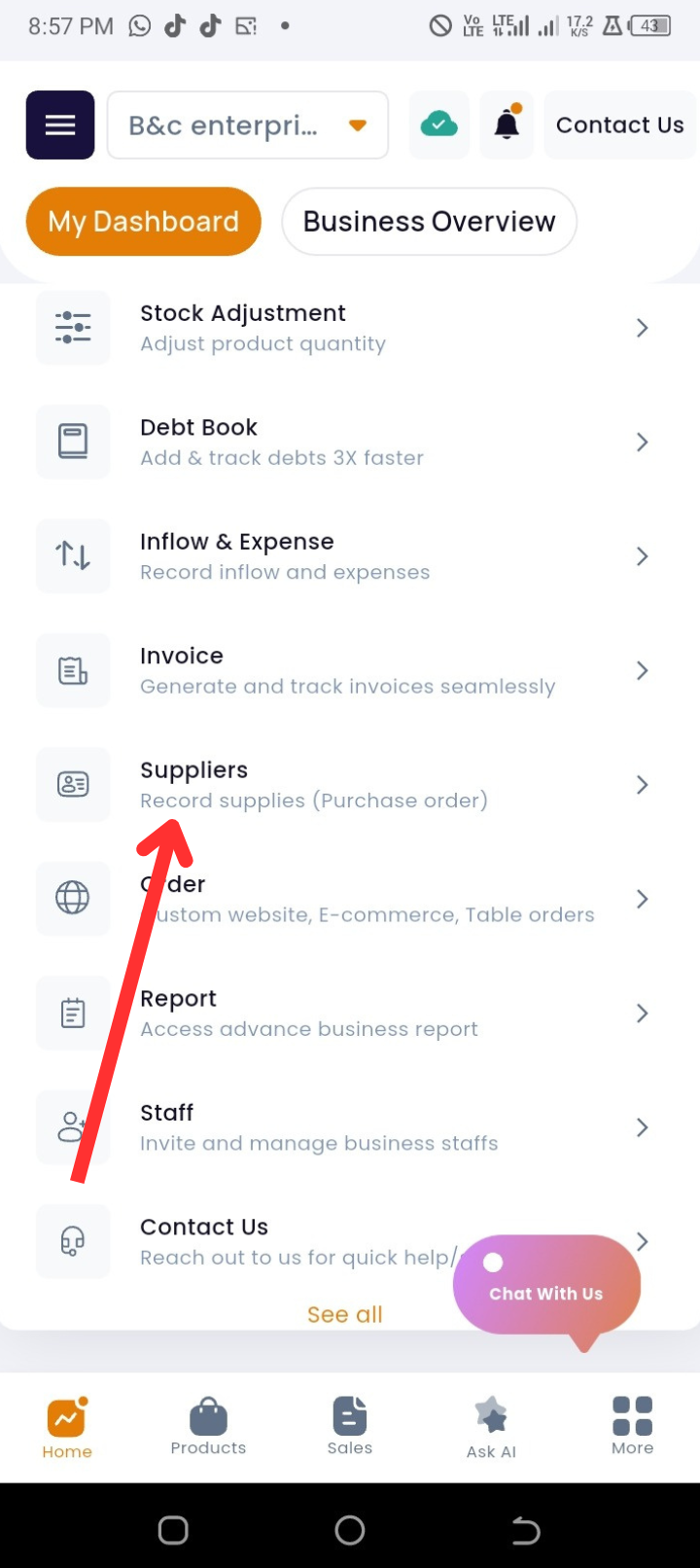
Step 2: Tap on Suppliers under Quick Actions.
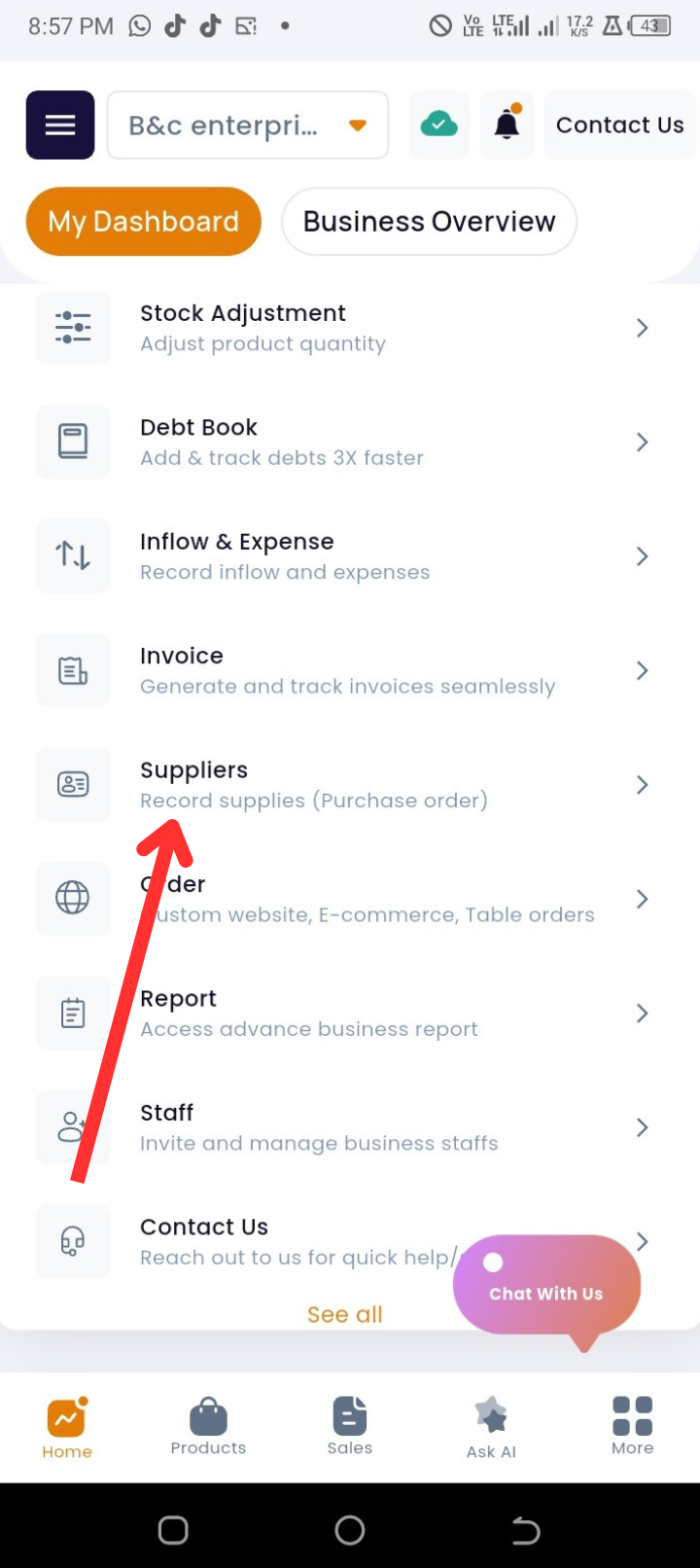
Step 3: Tap on +Add Supply.
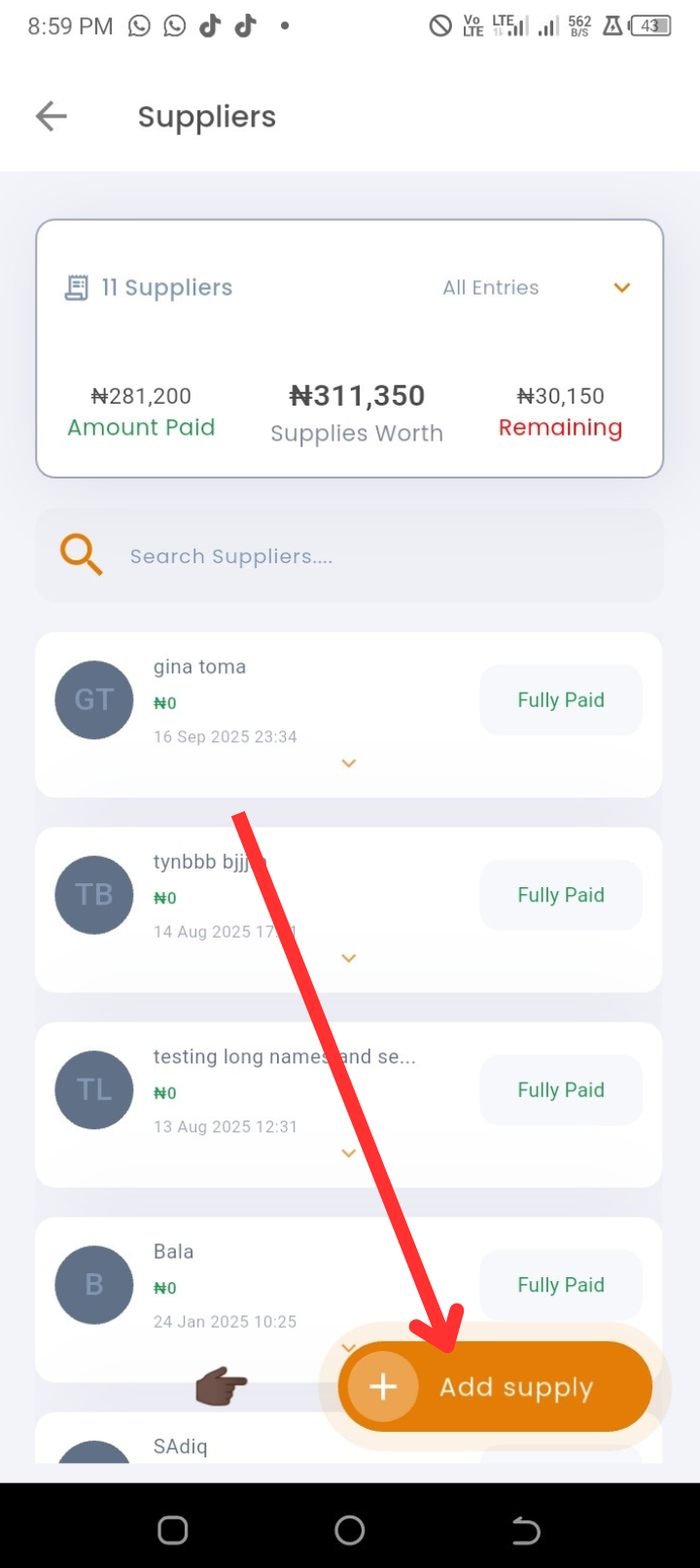
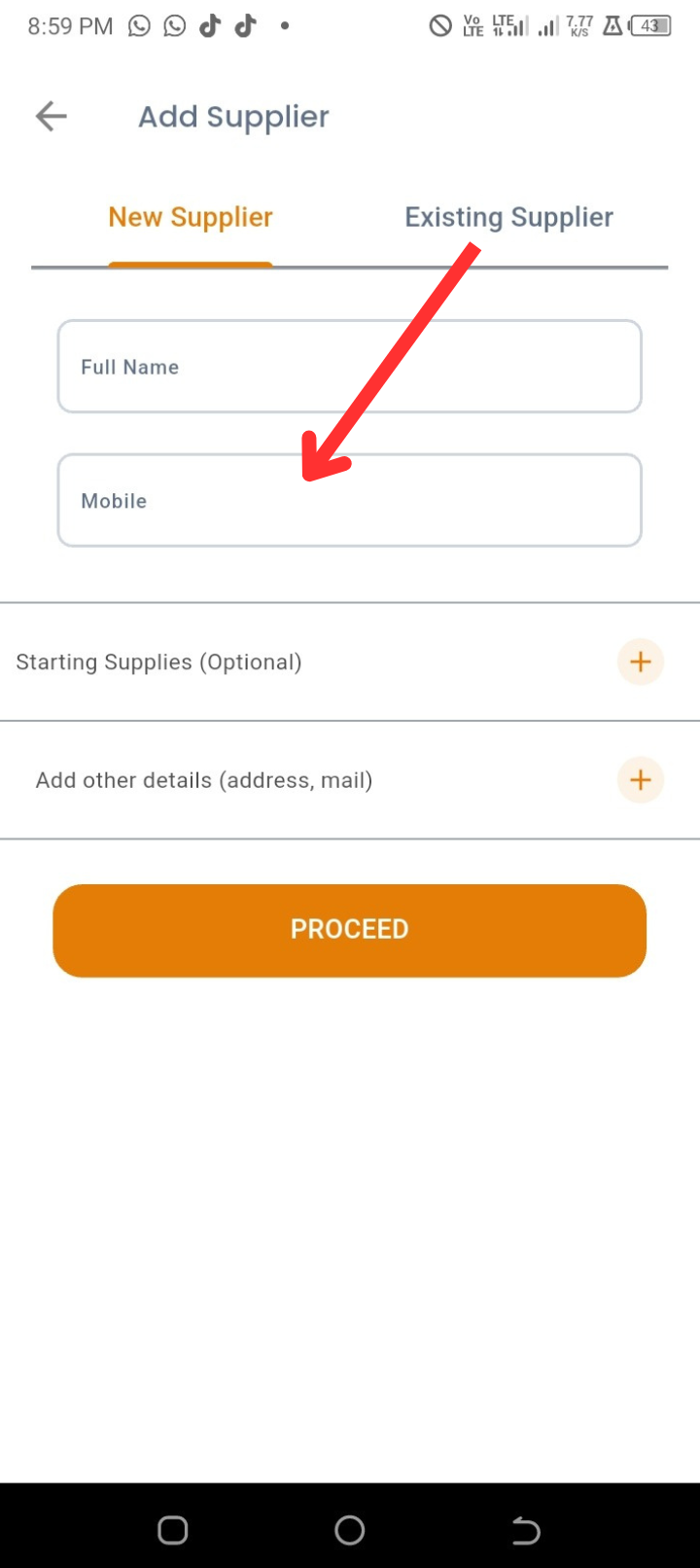
Step 4: Proceed to add a new supplier (or select from an existing supplier).
Step 5: Enter the name of the supplier and mobile number.
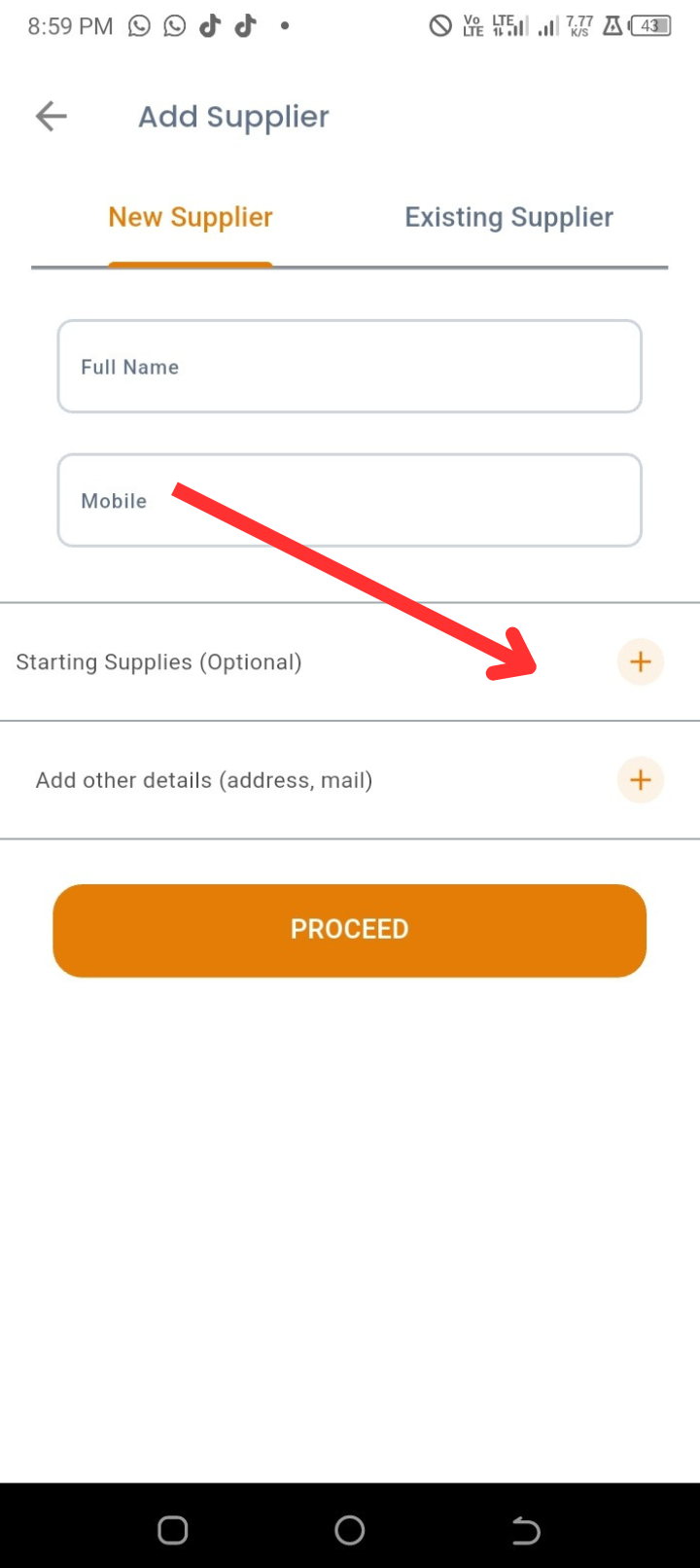
Step 6: (Optional) Select Starting Supplies by tapping on “Starting Supplies.”
Step 7: Search and select the product.
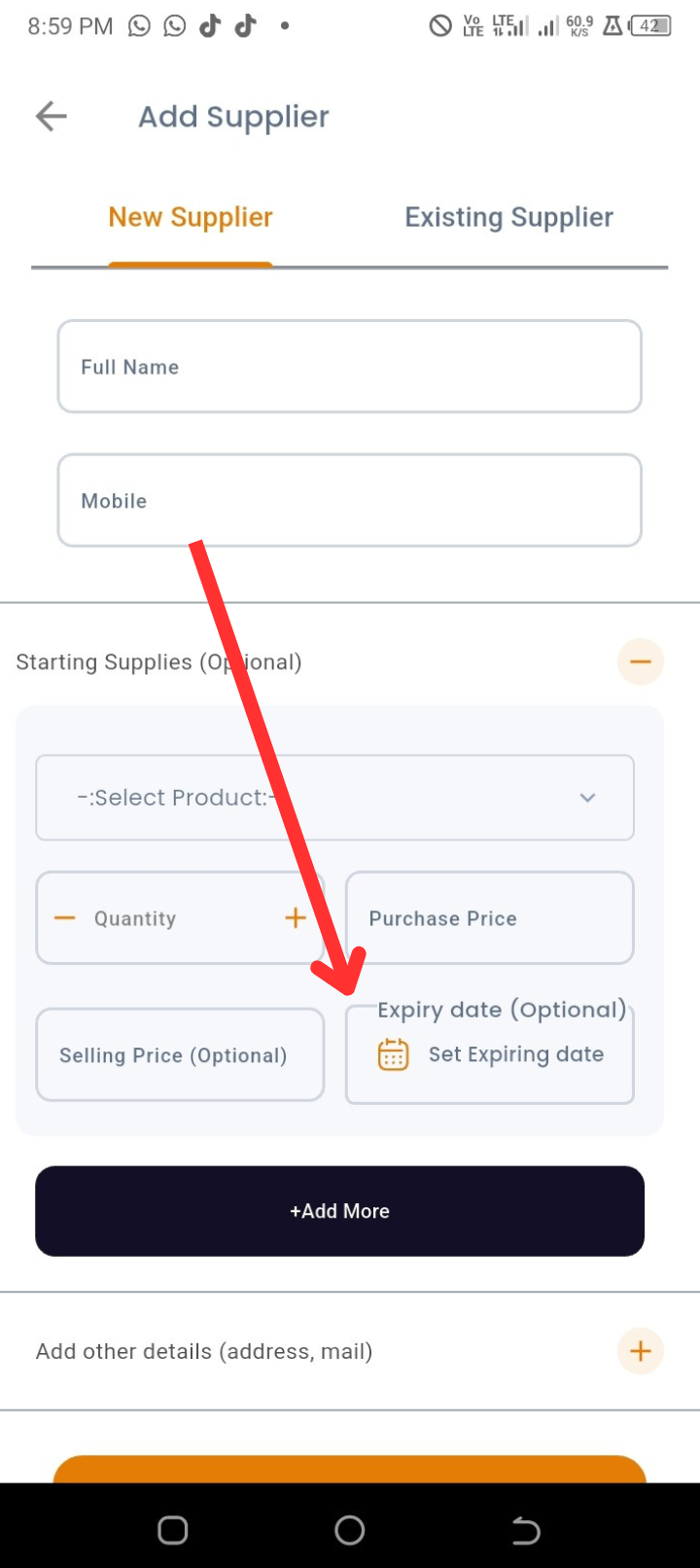
Step 8: Tap on +Add More to include additional supplies.
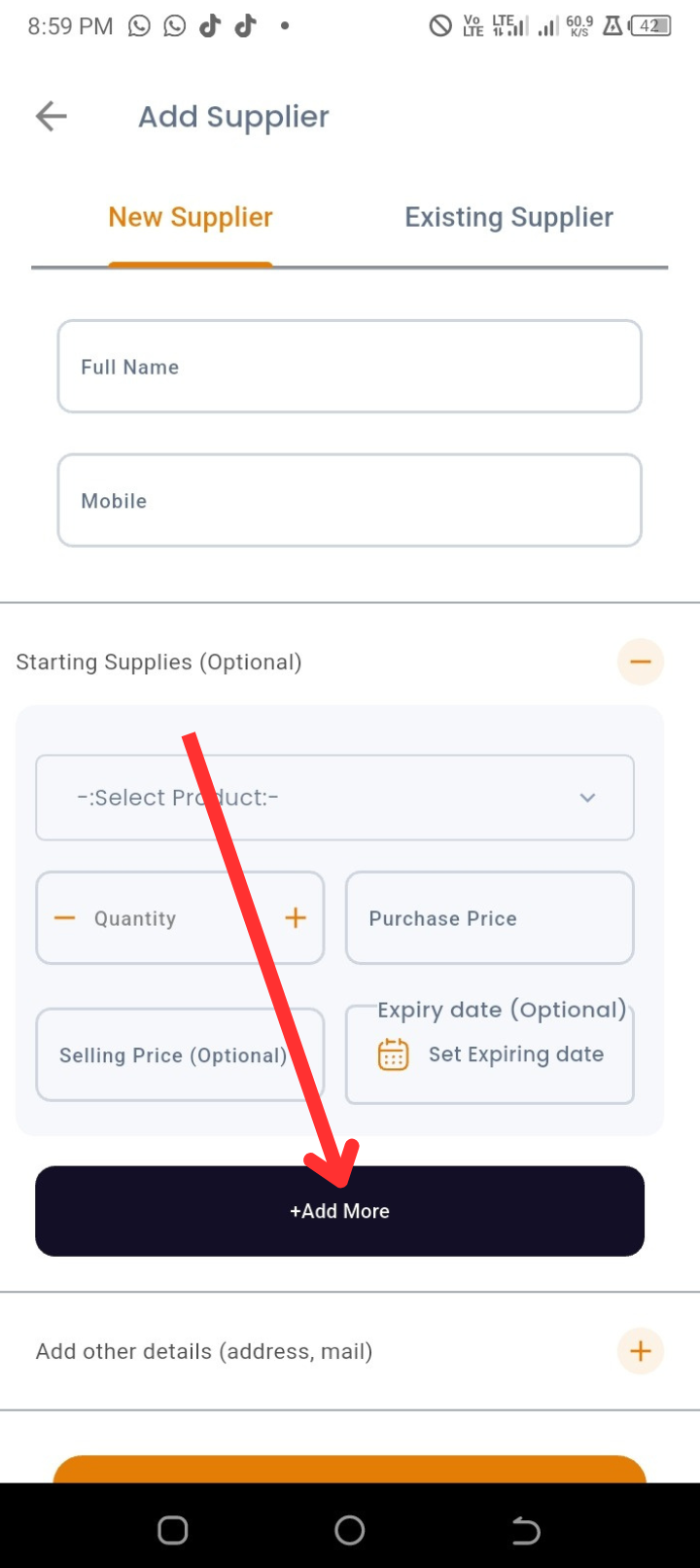
Step 9: Tap on Add Other Details to include information such as address and email.
Step 10: Tap on Proceed to finish.
Steps to Manage Supply and Suppliers
Step 1: Go to the homepage.
Step 2: Tap on Suppliers under Quick Actions.
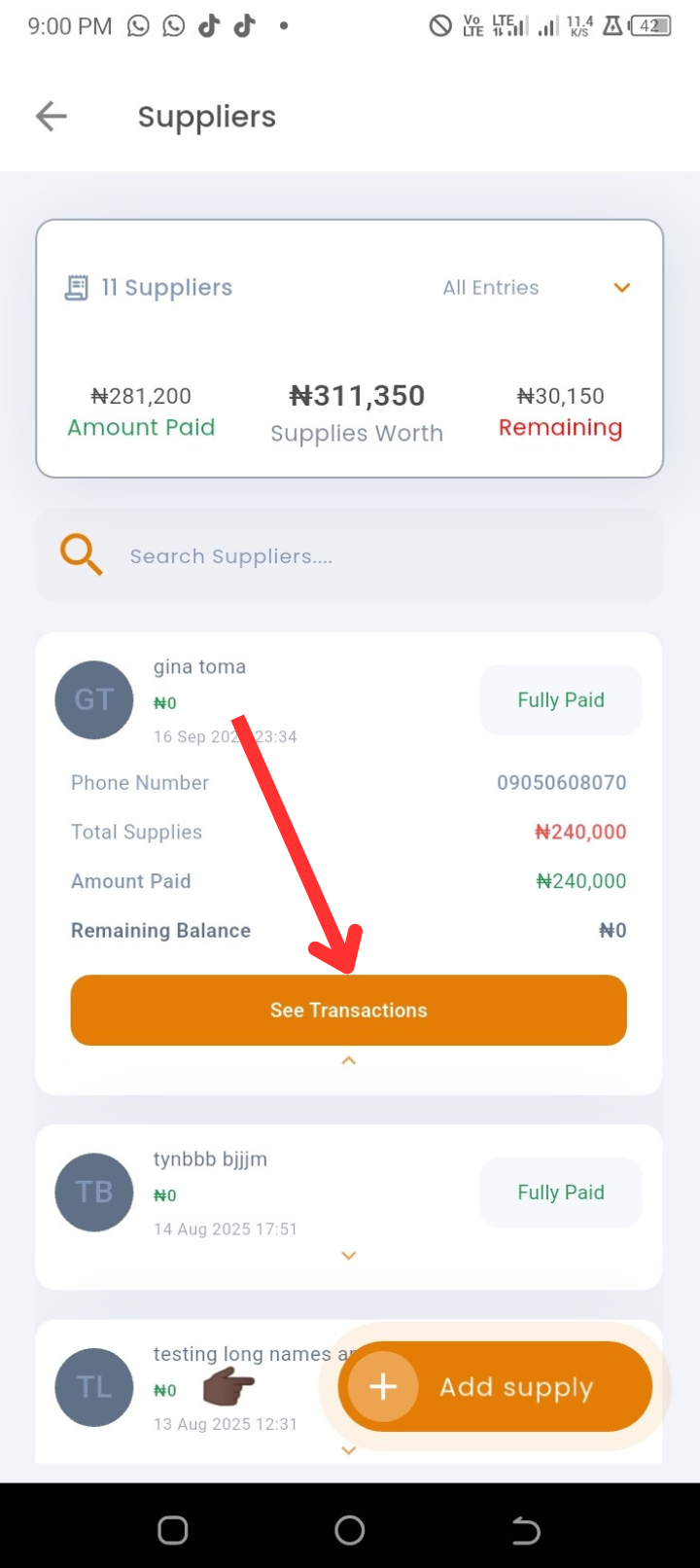
Step 3: Tap on the supplier’s information you want to view.
Step 4: Tap on See Transactions to view the total number of supplies and the total amount paid.
Step 5: Tap on Record Supplies to add new supplies.
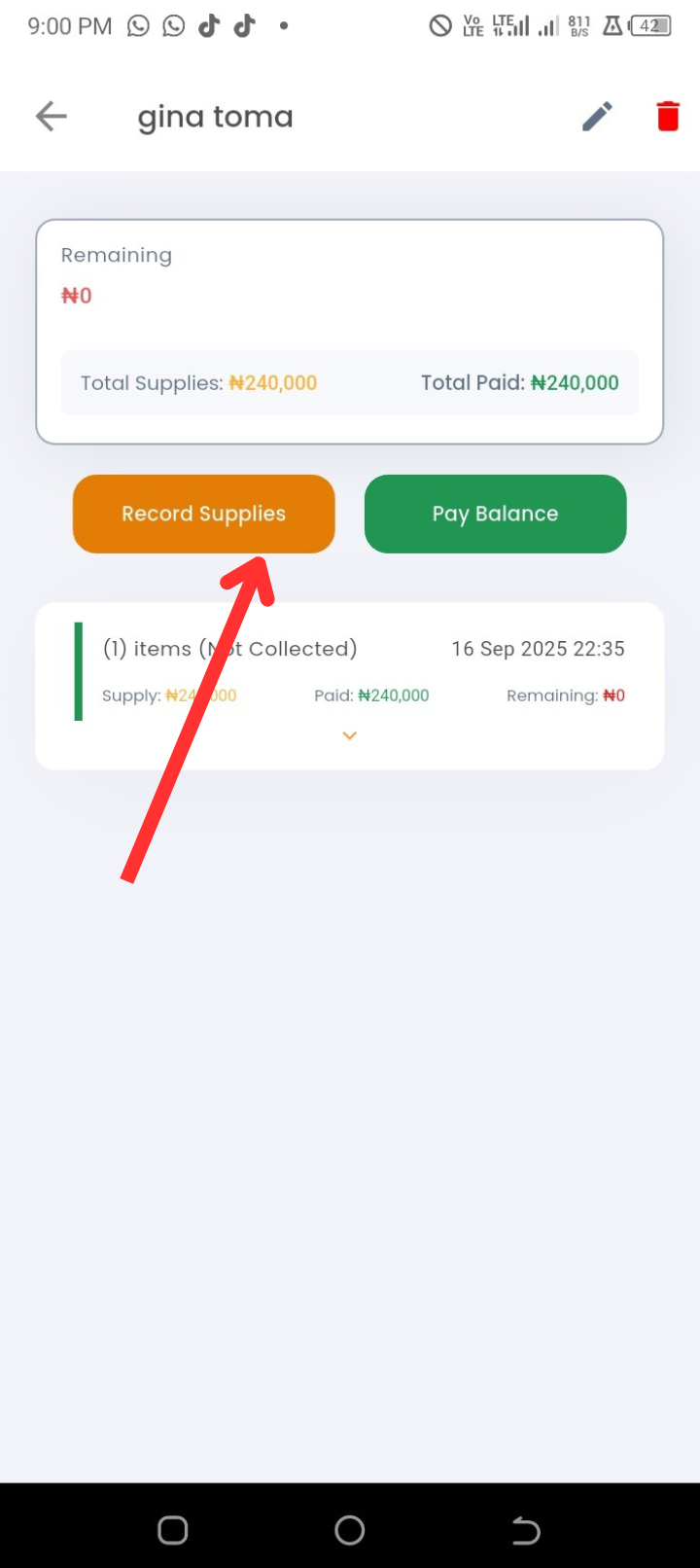
Step 6: Tap on Pay Balance to enter an amount paid to the supplier.
Step 7: To update supplier details, tap the pen icon at the top of the page, make your changes, and tap Update to save.
Step 8: To delete a supplier’s information, tap on the delete icon at the top of the page.
Troubleshooting
-
Issue: Supplier not saving.
Solution: Ensure the supplier’s name and mobile number are filled in before tapping “Proceed.” -
Issue: Cannot see supplier details after adding.
Solution: Refresh the page or navigate back to the homepage and re-enter the Suppliers tab. -
Issue: Wrong details entered.
Solution: Use the pen icon to edit and update supplier details.
Frequently Asked Questions (FAQs)
Q1: Can I add multiple supplies for the same supplier at once?
Yes. Tap on +Add More to include multiple supplies before saving.
Q2: Do I have to enter starting supplies?
No. Adding starting supplies is optional. You can leave it blank.
Q3: Can I delete a supplier completely?
Yes. Tap on the delete icon at the top of the supplier’s page to remove them.
Q4: Can I track payments made to suppliers?
Yes. Use the Pay Balance option to record every payment.