How to Record Debt on Mobile
The Debtbook feature in Timart makes it easy to track credit transactions, manage customer information, and send automatic payment reminders. Below are the step-by-step instructions.
How to Record a Debt Transaction
Step 1: Go to the Homepage – Open the Timart Business app, which takes you to the dashboard.
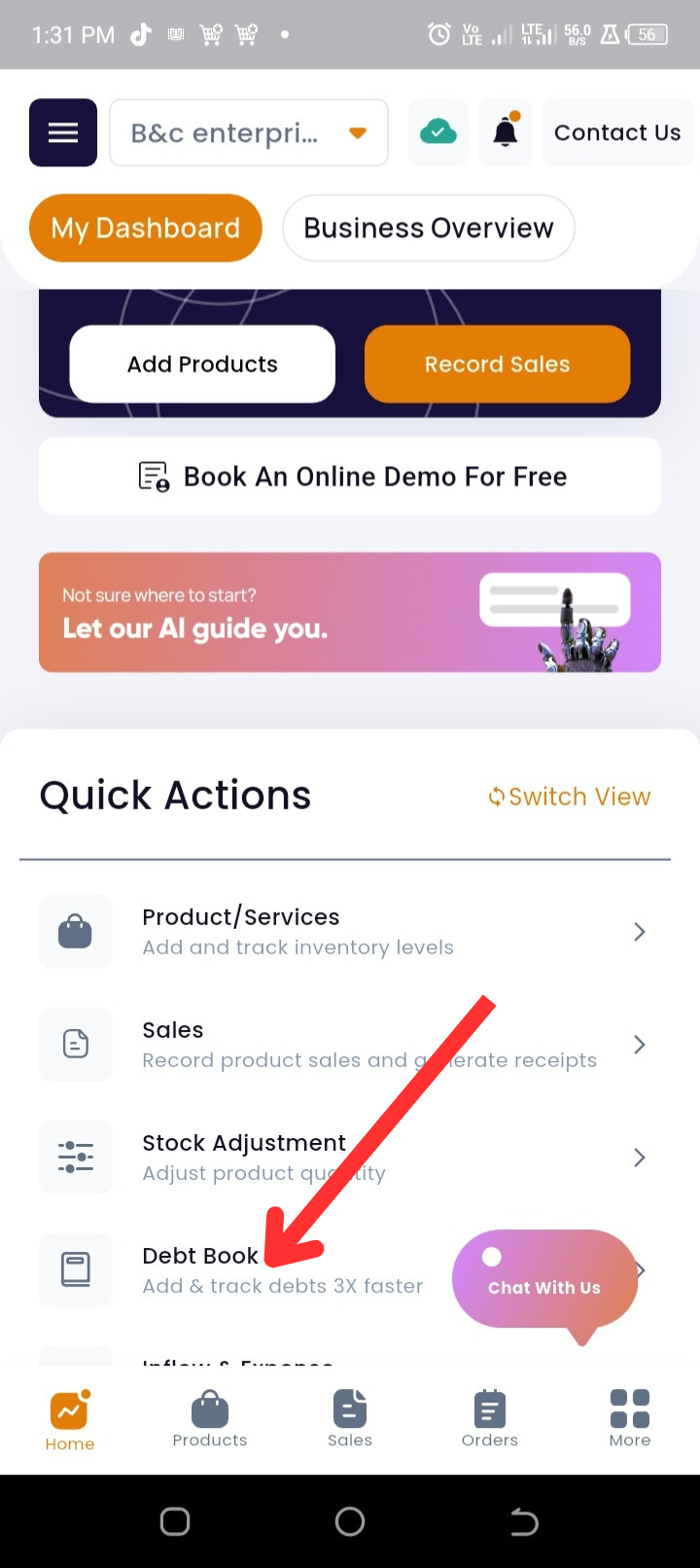
Step 2: Access Debtbook – Tap “Debtbook” under Quick Actions.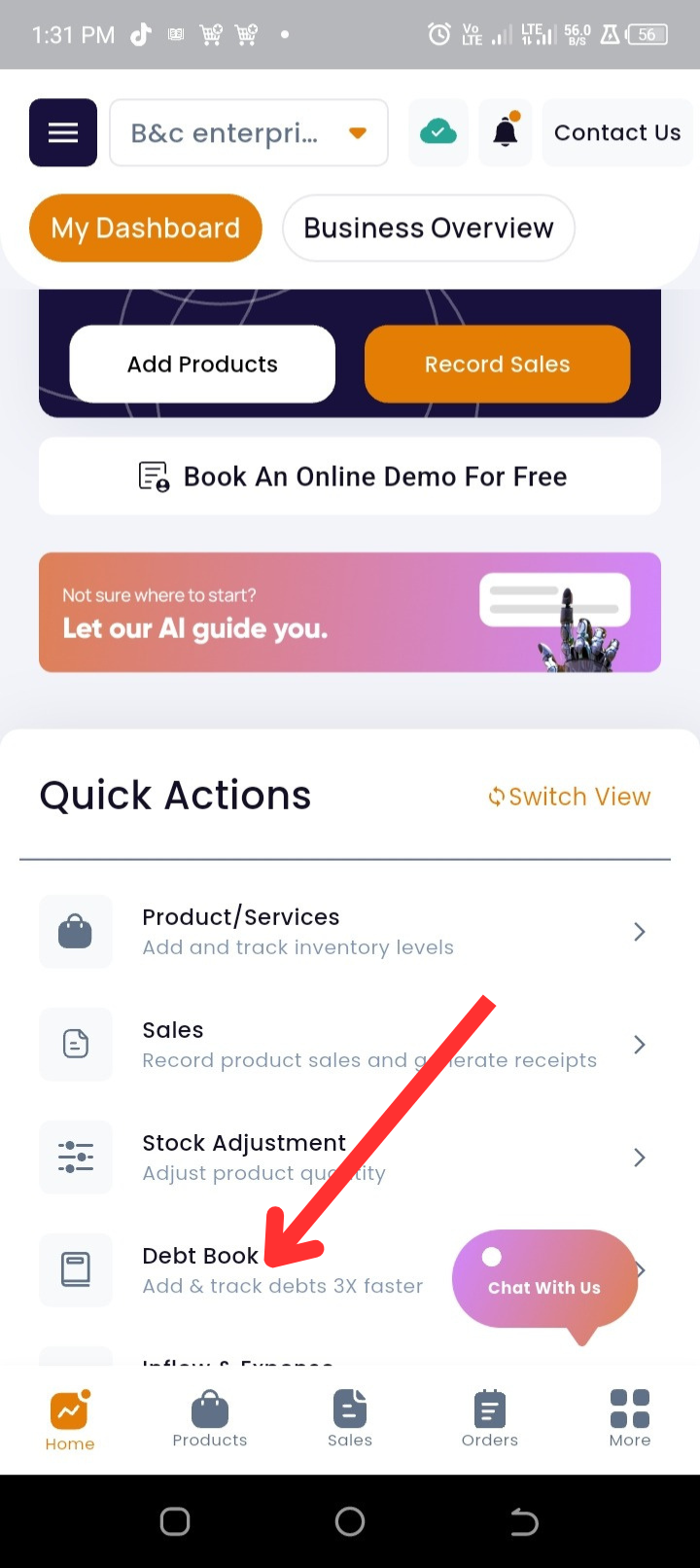
Step 3: Add or Select a Customer
If the customer already exists in your records, select their name.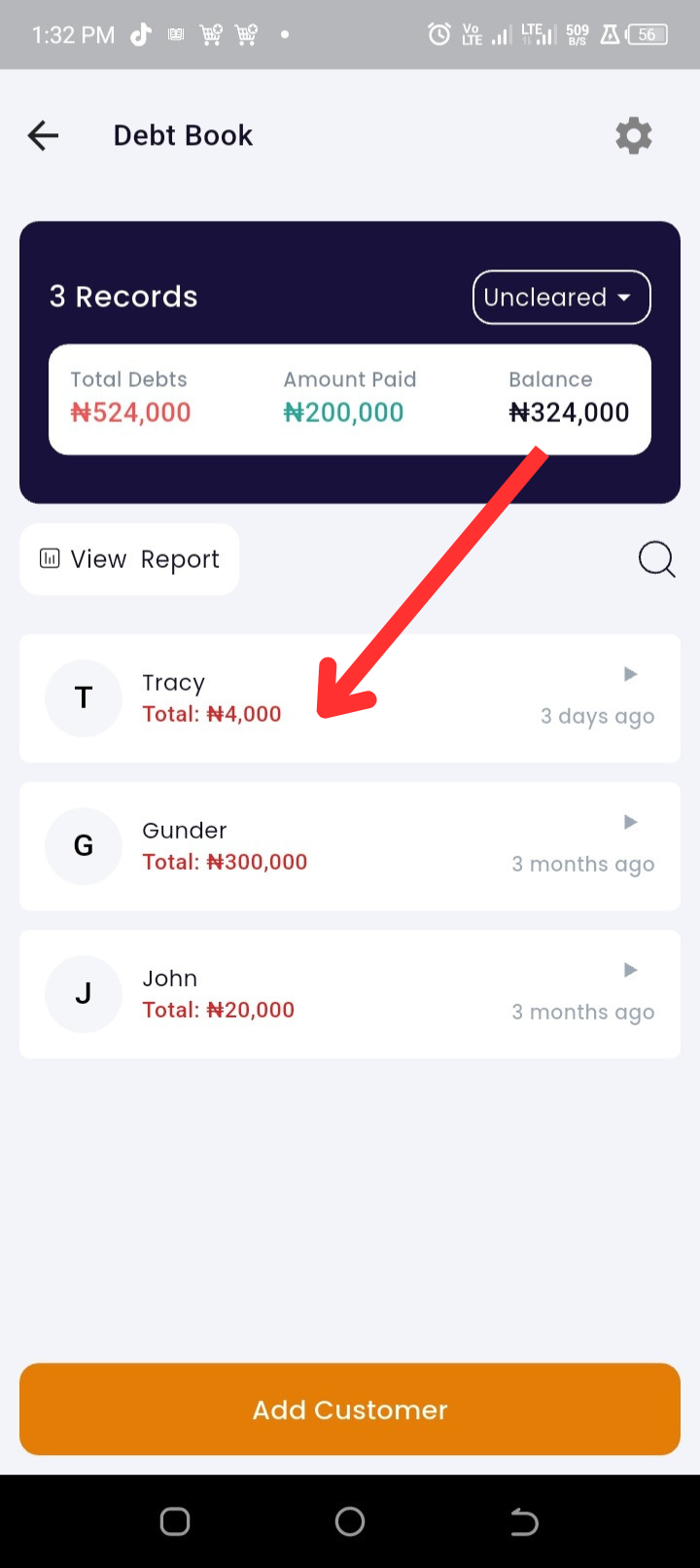
To add a new customer, tap “Add new”.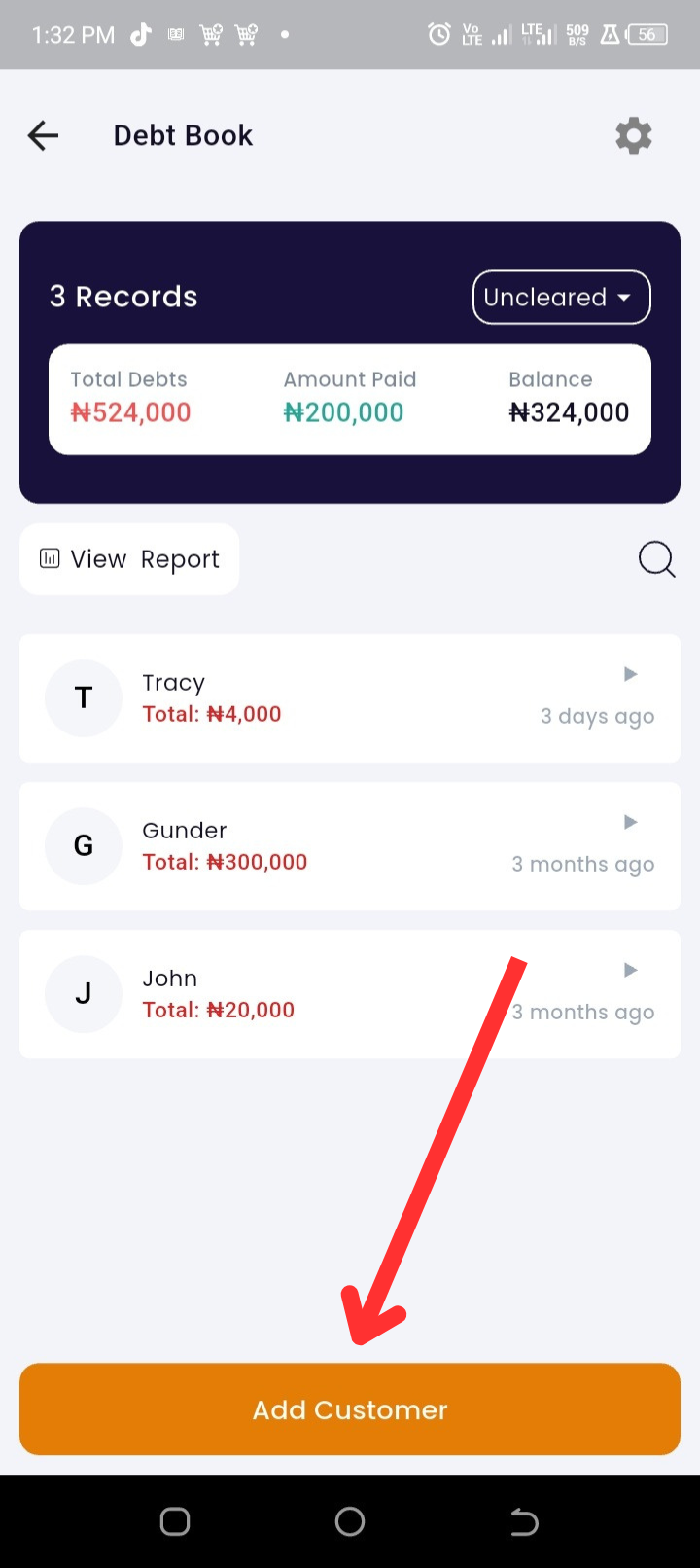
To add from your phone contacts, tap “Access contact”.
Step 4: Start a Credit Transaction – Tap “Give credit”.
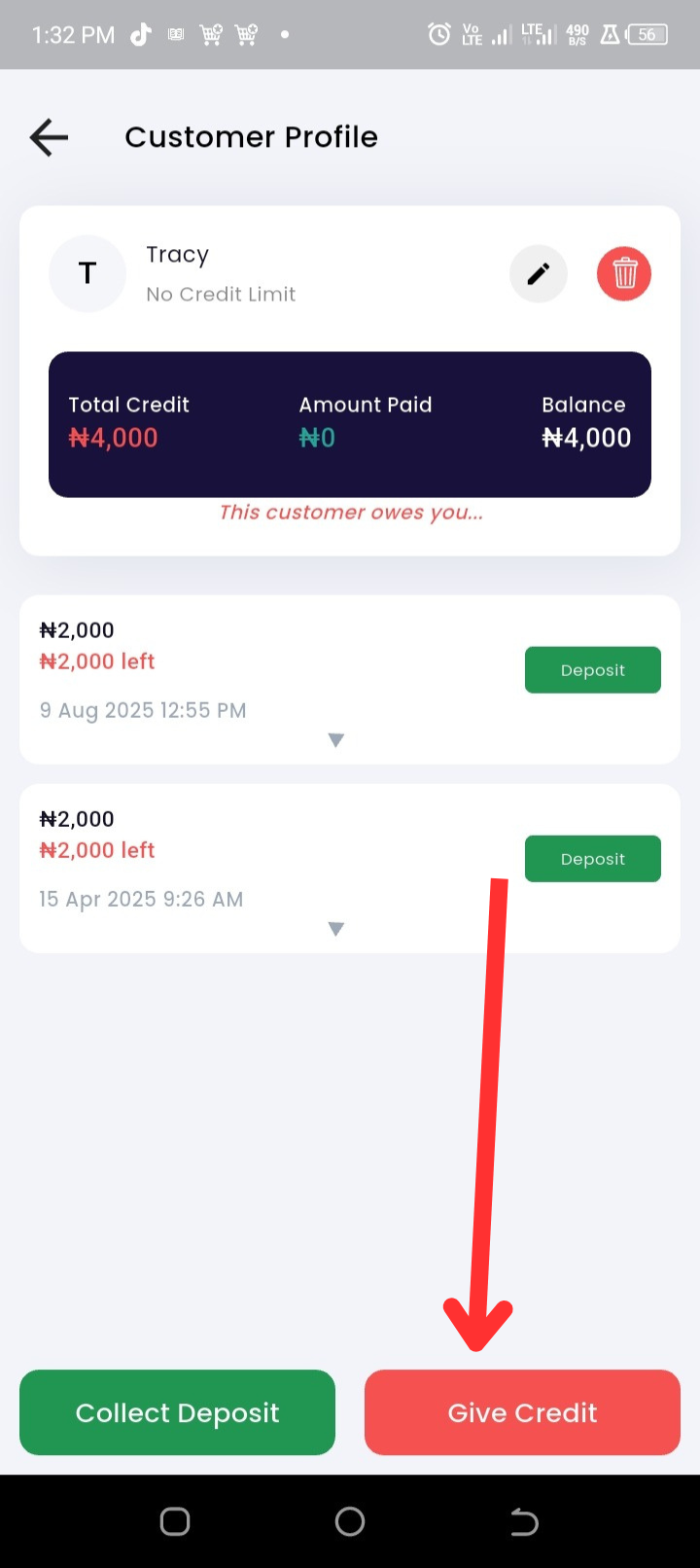
Enter Credit Details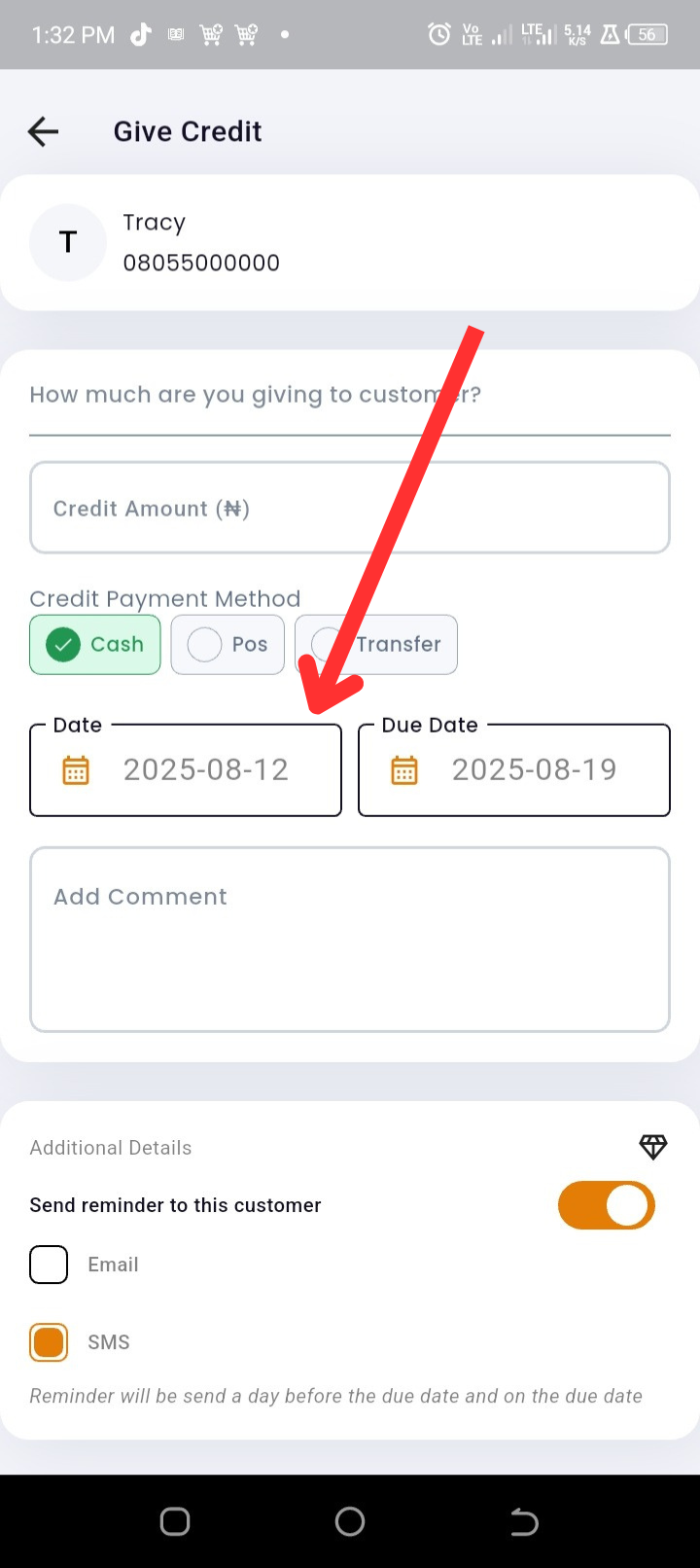
-
-
Credit Amount – Enter the exact amount you are giving the customer.
-
Payment Method – Choose whether the customer will pay via Cash, POS, or Transfer.
-
Transaction Date & Due Date – Set when the credit is given and the repayment deadline.
-
Step 5: Optional Details
-
Add a comment or note for the transaction.
-
Activate automatic debt reminders via Email, SMS, or both.
Step 6: Save the Transaction – Tap “Credit” to complete the process.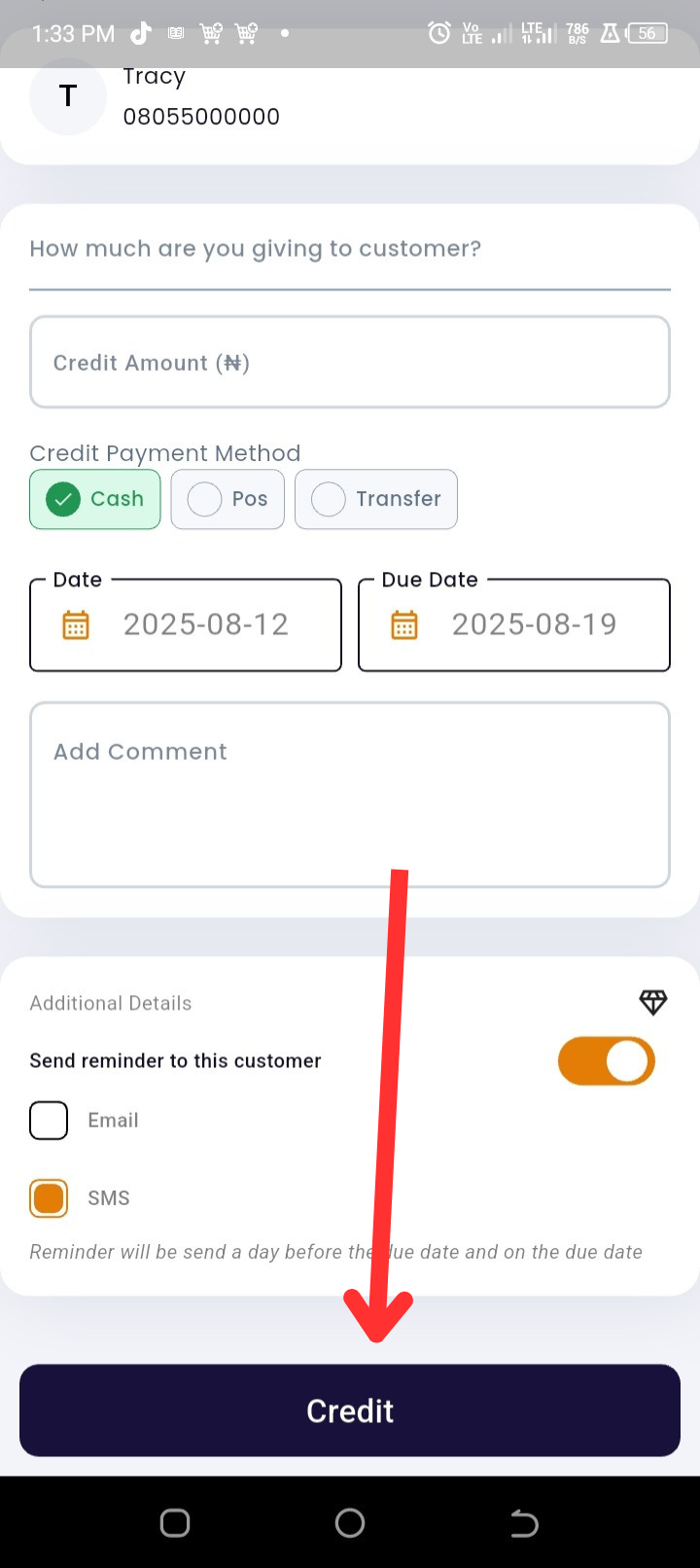
How to Add a New Customer in Debtbook
-
Go to the Homepage – Open the app to the dashboard.
-
Tap “Debtbook” under Quick Actions.
-
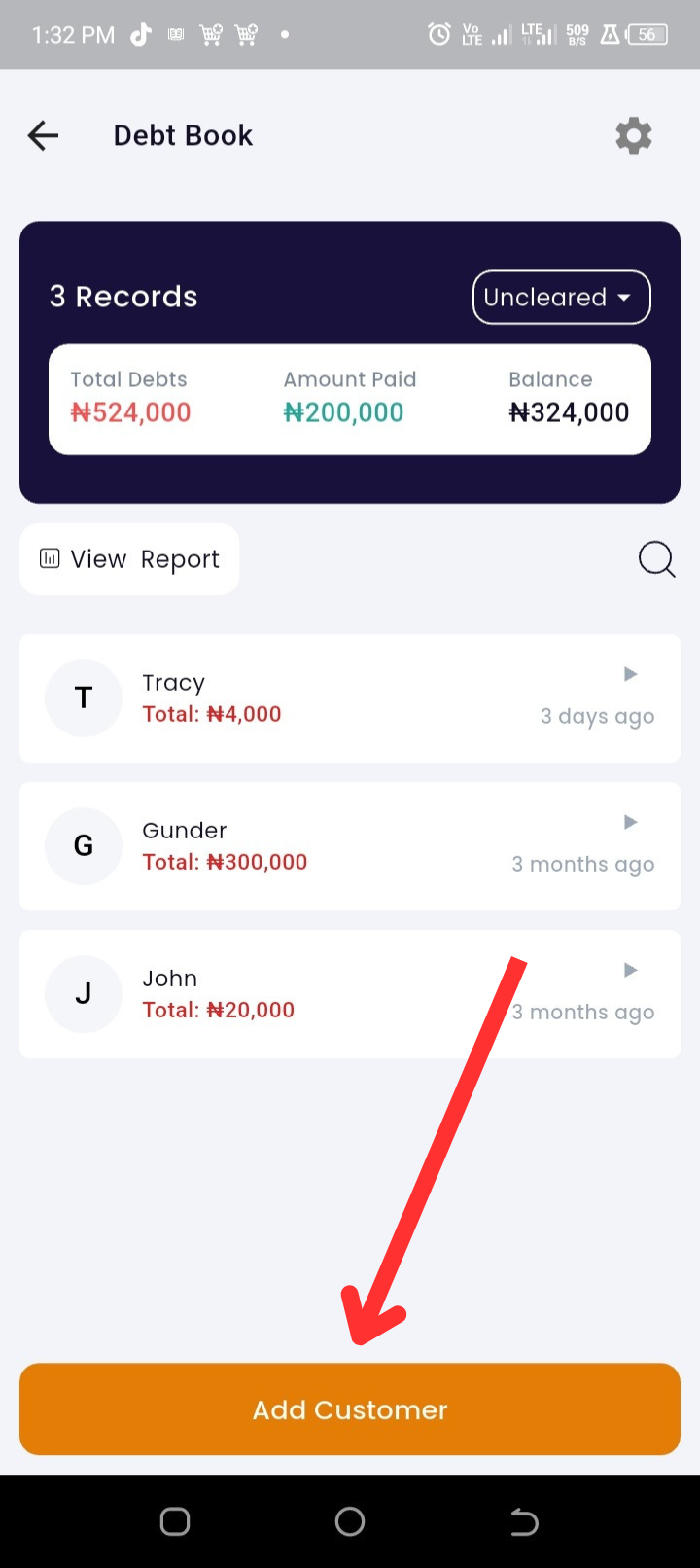
Tap “Add customer”.
-
Tap “Add new”.
-
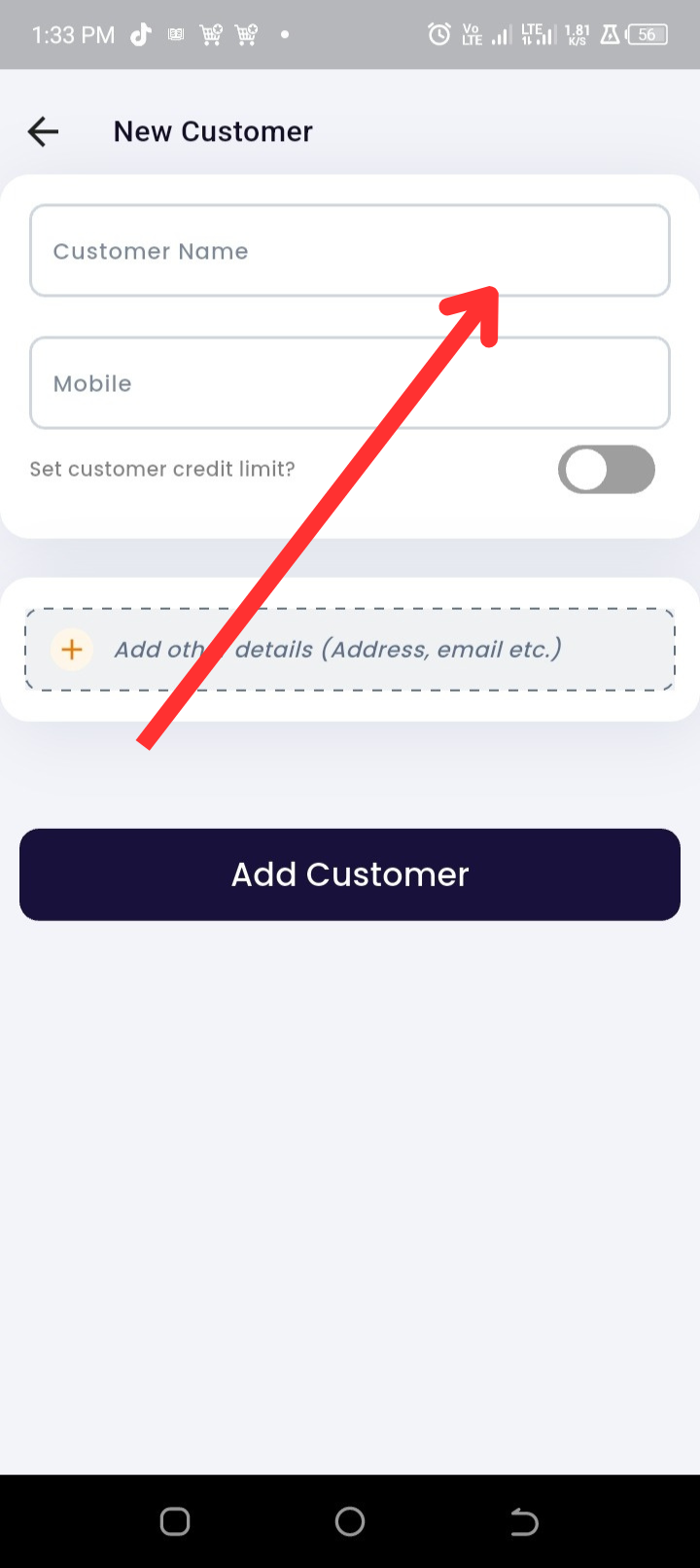
Enter Customer Details
-
Name and Mobile Number (required).
-
Set a Customer Credit Limit.
-
Optional: Add Address, Email, and other details.
-
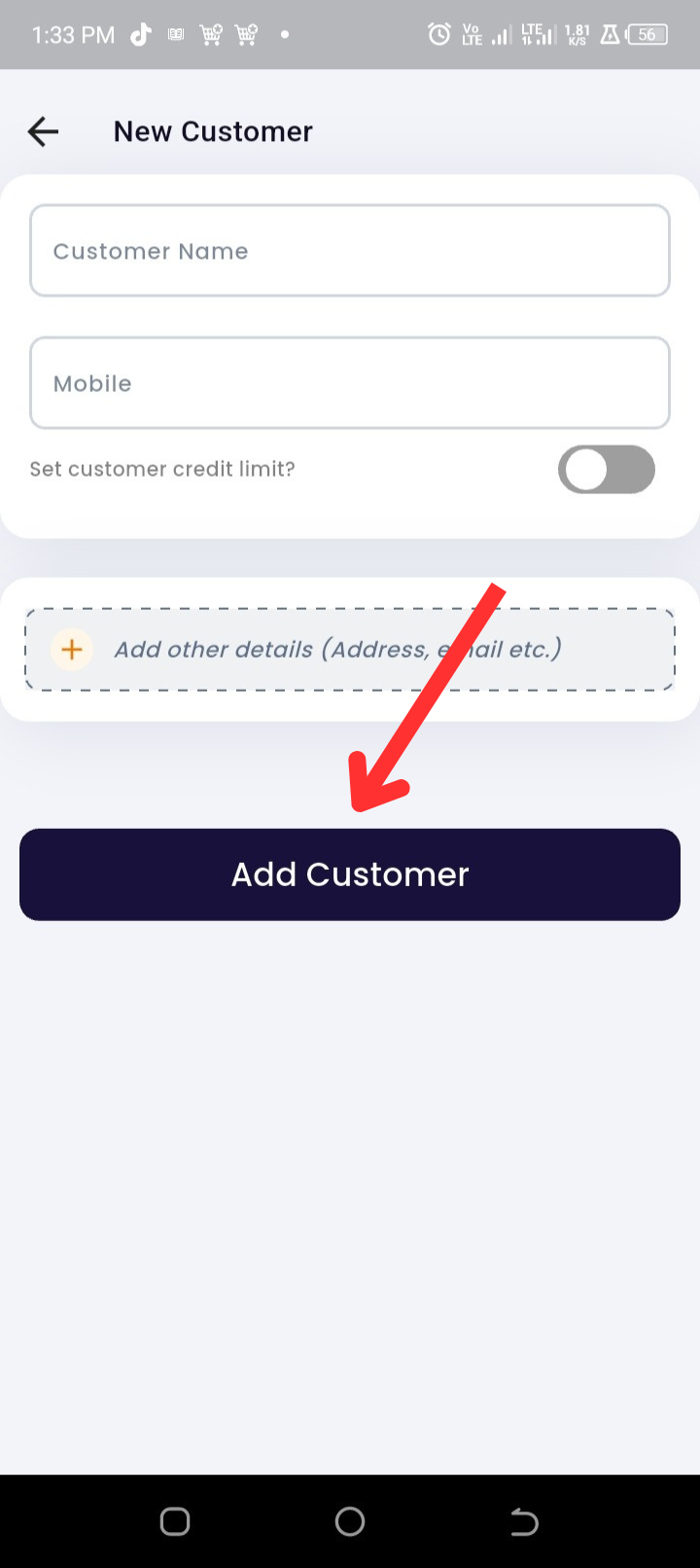
Tap “Add customer” to save.
Troubleshooting
|
Issue |
Possible Cause |
Solution |
|
“Access contact” not working |
No contact permissions granted |
Go to your phone settings and allow Timart to access contacts. |
|
Debt reminders not sending |
Notification or SMS/email settings disabled |
Check your app settings and ensure reminders are enabled. |
|
Wrong due date saved |
Date format mismatch or incorrect selection |
Double-check the date format in your device settings before saving. |
FAQs
Q1: Can I record a debt without adding a customer?
No. A customer record is required so the debt can be tracked and reminders sent.
Q3: How do I mark a debt as paid?
Open the customer’s Debtbook record, select the transaction, and tap “Deposit” to enter the amount paid by the customer.
Q4: Can I use multiple payment methods for debt repayment?
Yes, you can split repayment across different payment methods.