How to Record Sales on Mobile
Timart Business lets you record sales in three ways on mobile: from the Dashboard, the Sales page (Quick Actions), or the Navigation bar. Each method is fully described below so any team member can follow it independently.
Method 1 From the Dashboard
-
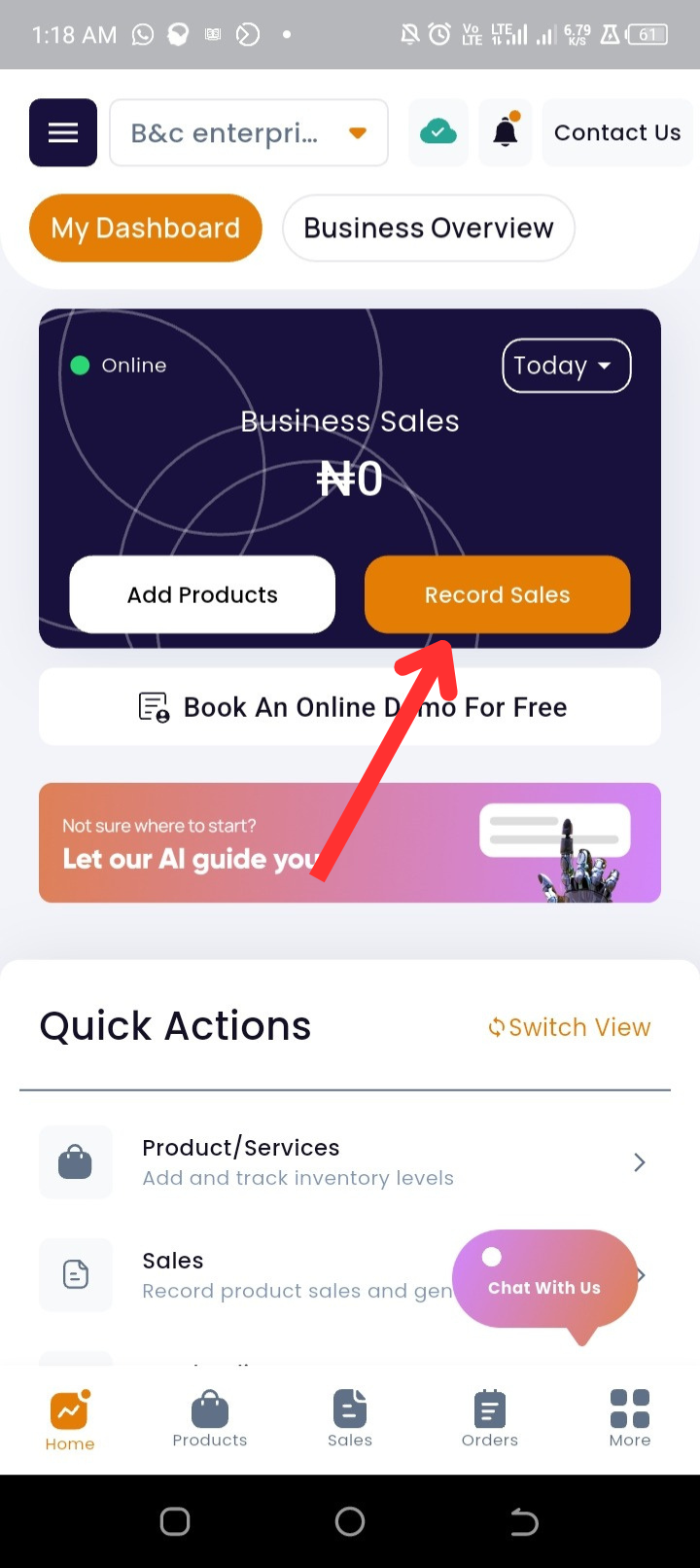
Open the Timart Business app. You will land on the Dashboard.
-
Tap Record Sales at the top of the page.
-
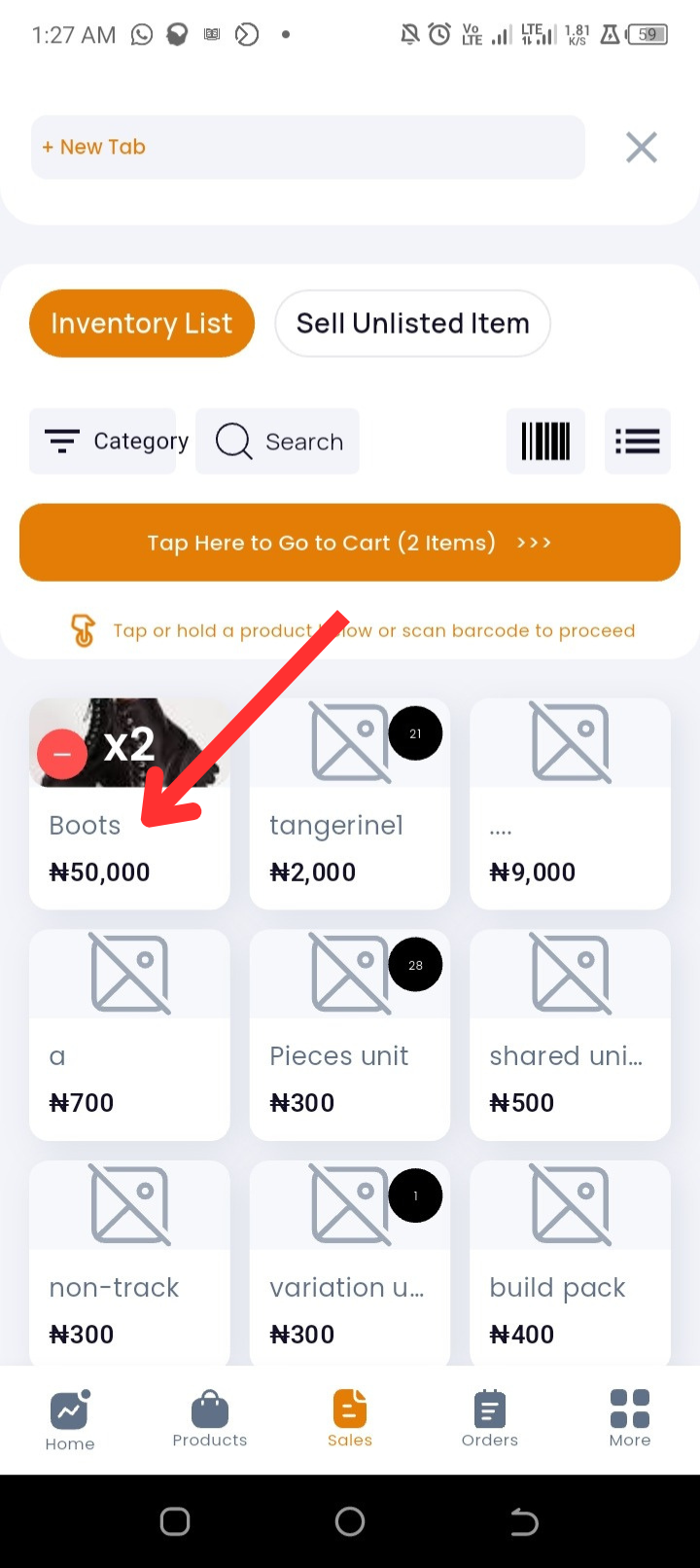
Select the products the customer wants to purchase:
-
Tap a product once to add it.
-
Tap repeatedly to increase quantity.
-
Tap the barcode scanner icon at the top of the page to scan items.
-
Use the search bar or browse by category to find items.
-
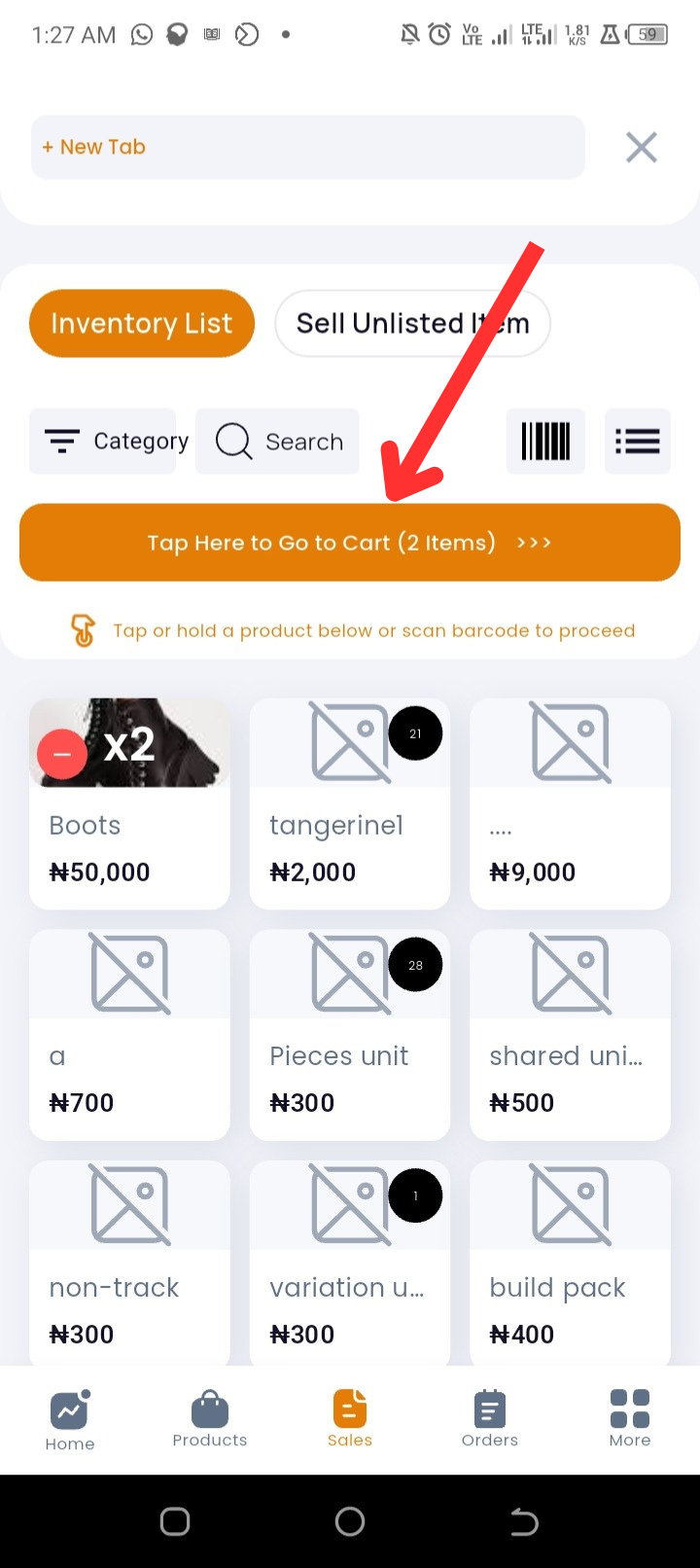
Tap on "Tap Here to Go to Cart" and review all selected items.
-
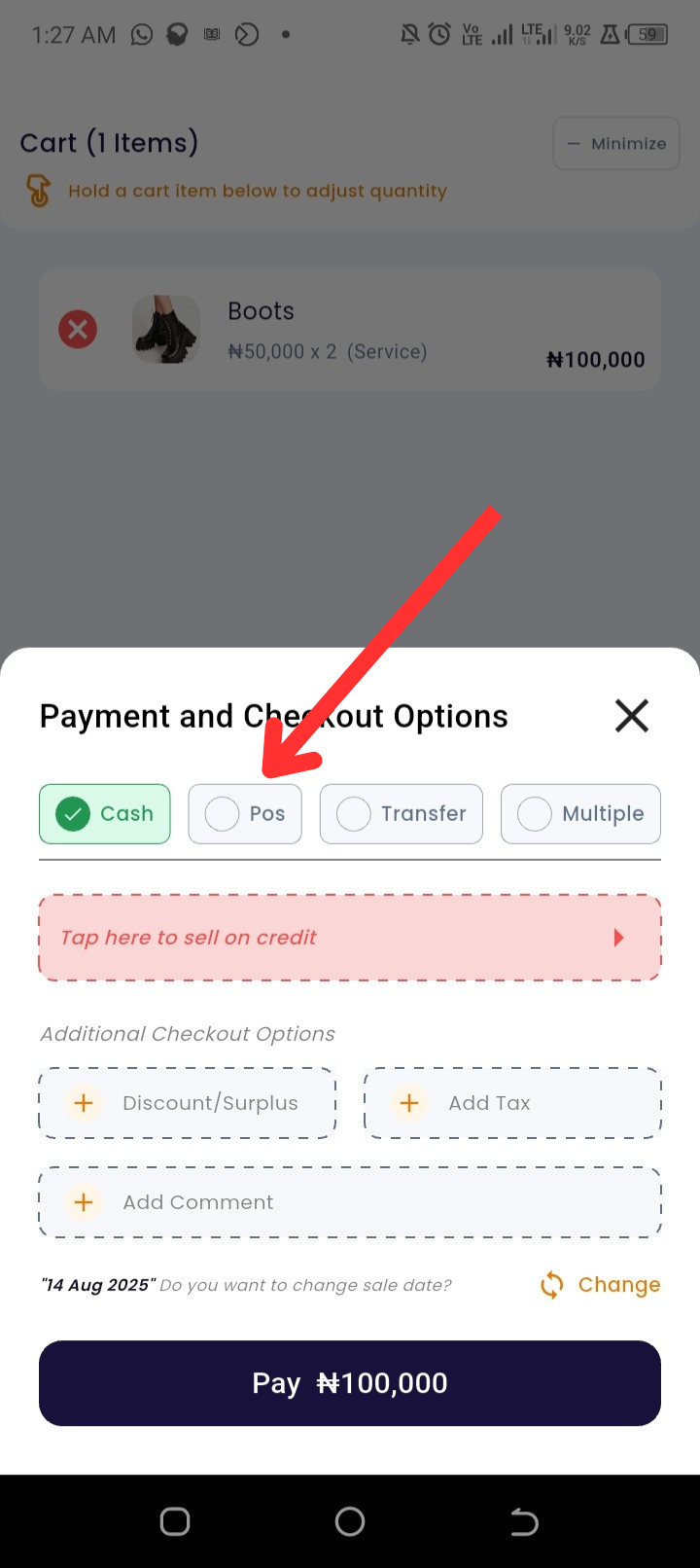
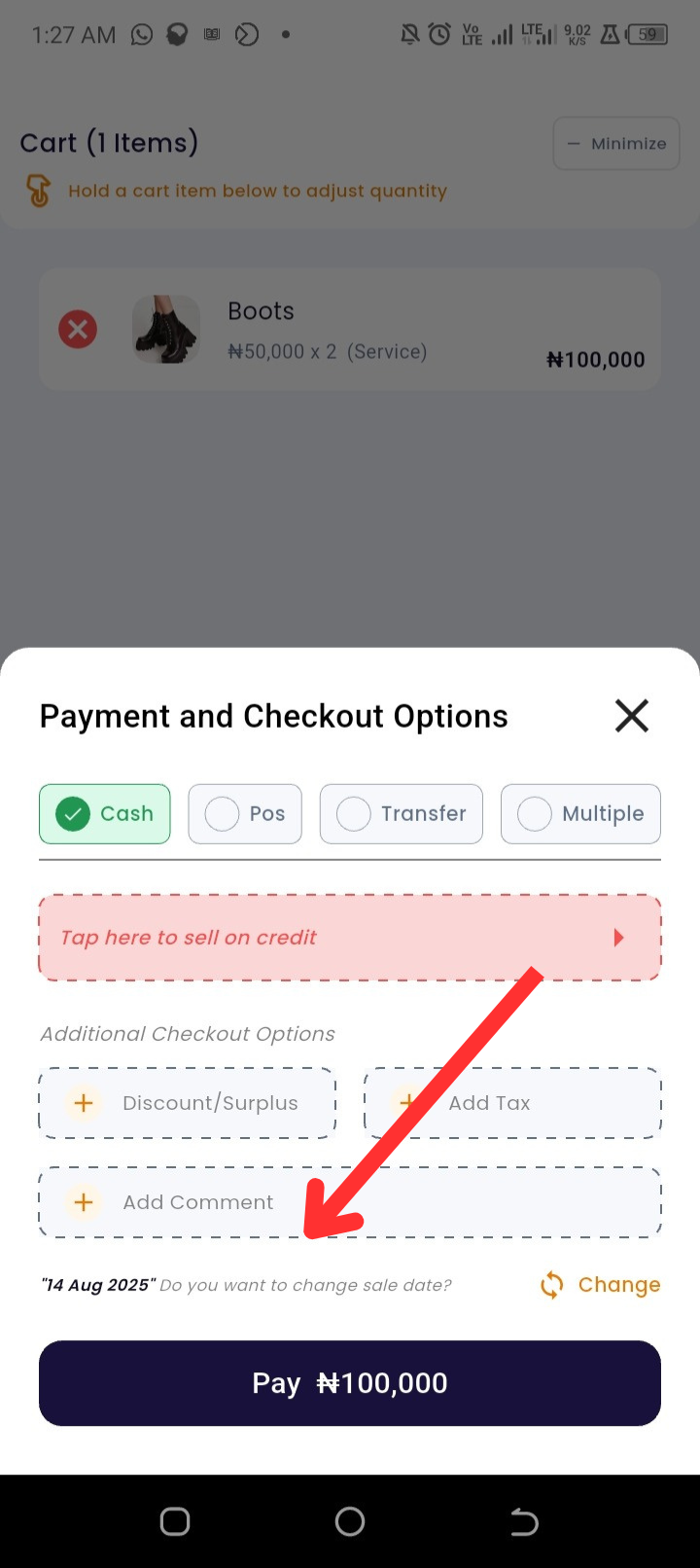
Tap Go to Payment and choose a payment method: Cash, POS, Transfer, or Multiple Methods. For a credit sale, tap "Tap Here to Sell on Credit" before proceeding.
-
(Optional) Add sale details: discount, surplus, tax, or comments. To change the sale date, tap Change on the payment screen.
-
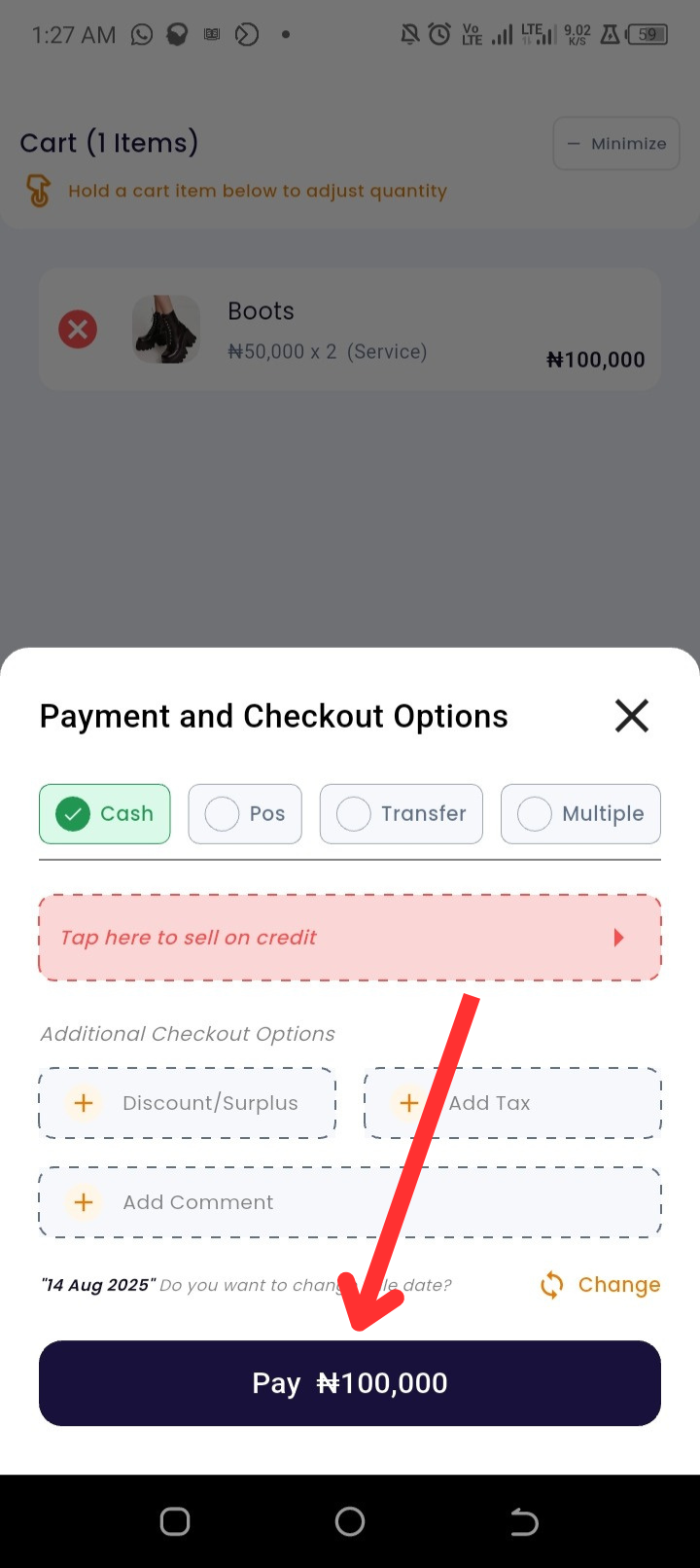
Tap Pay to complete the sale.
Method 2 From the Sales Page (Quick Actions)
-
Open the Timart Business app. You will land on the Dashboard.
-
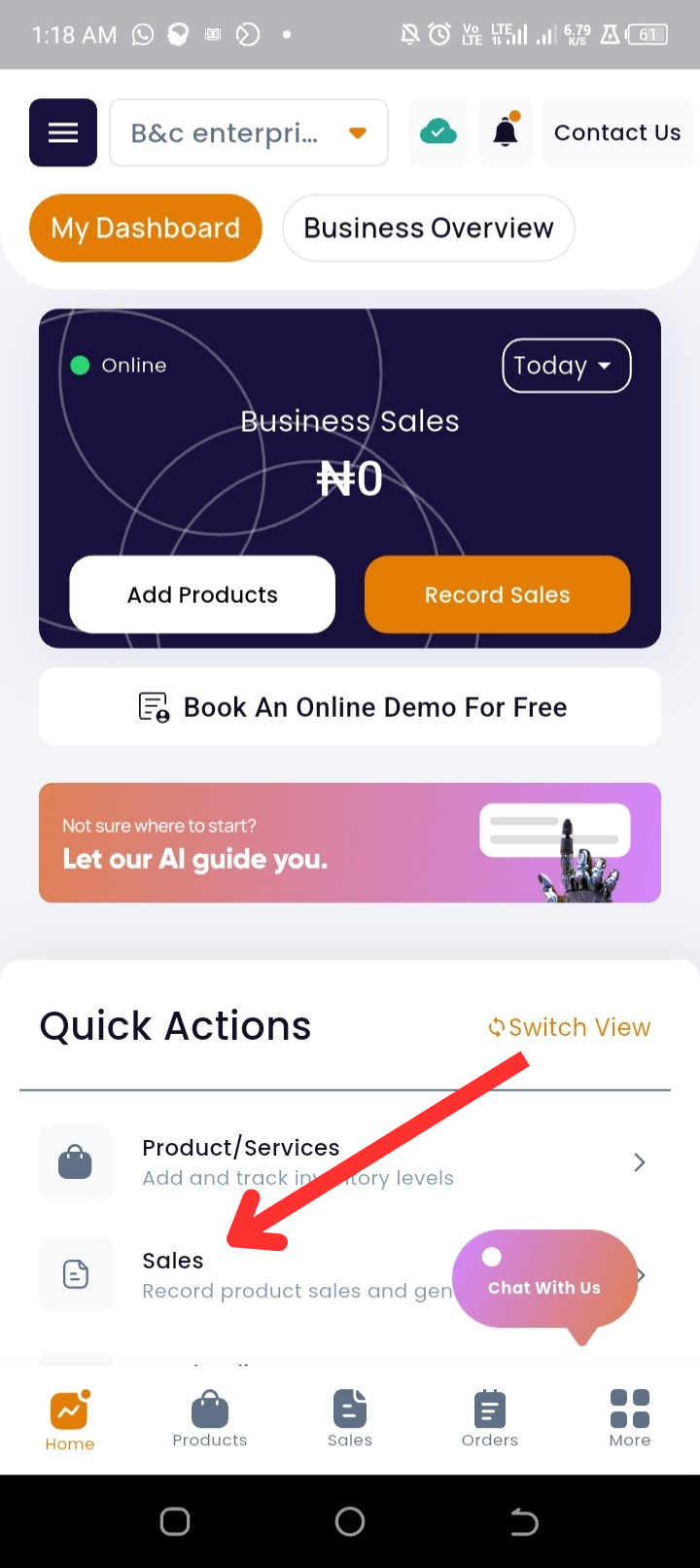
Tap Sales on the Quick Actions to open the Sales page.
-
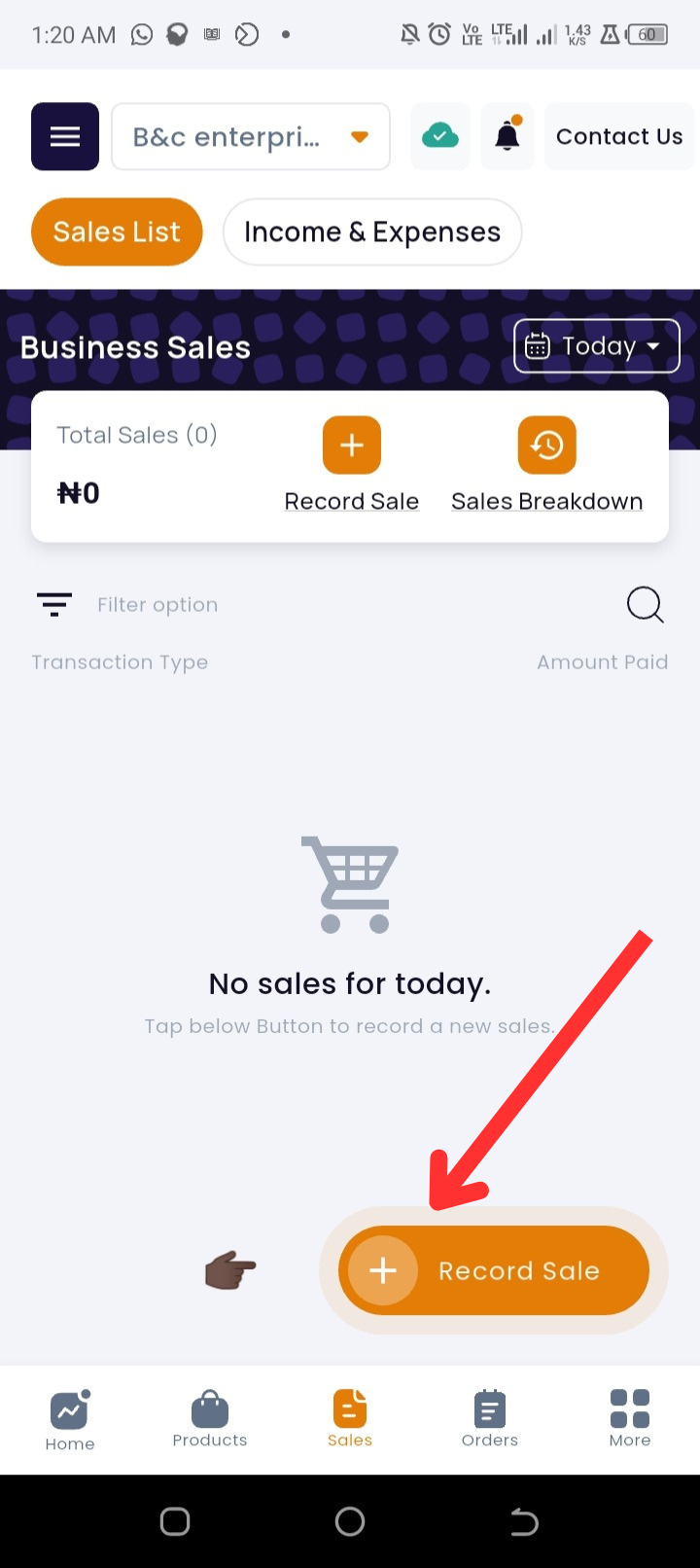
Tap Record Sales.
-
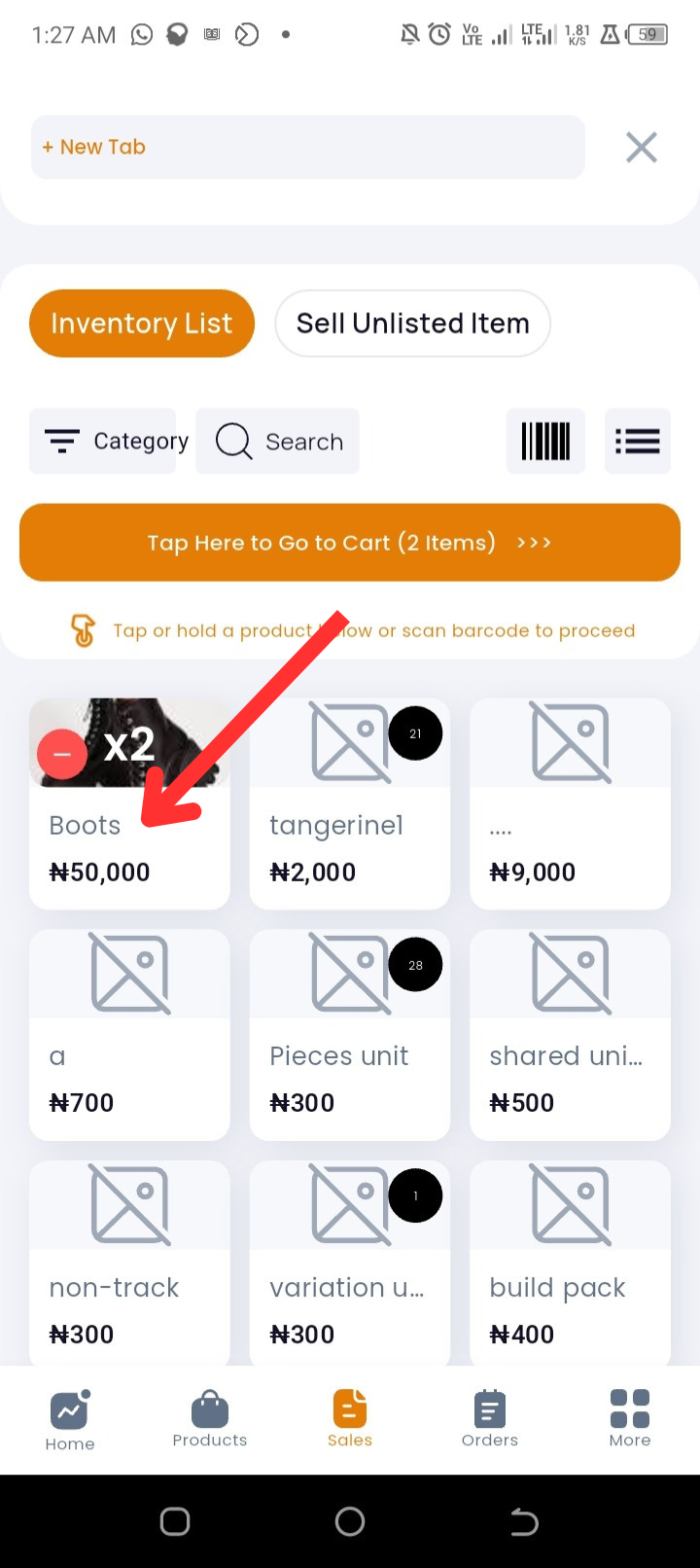
Select the products the customer wants to purchase:
-
Tap a product once to add it.
-
Tap repeatedly to increase quantity.
-
Tap the barcode scanner icon to scan items.
-
Search by name or category if needed.
-
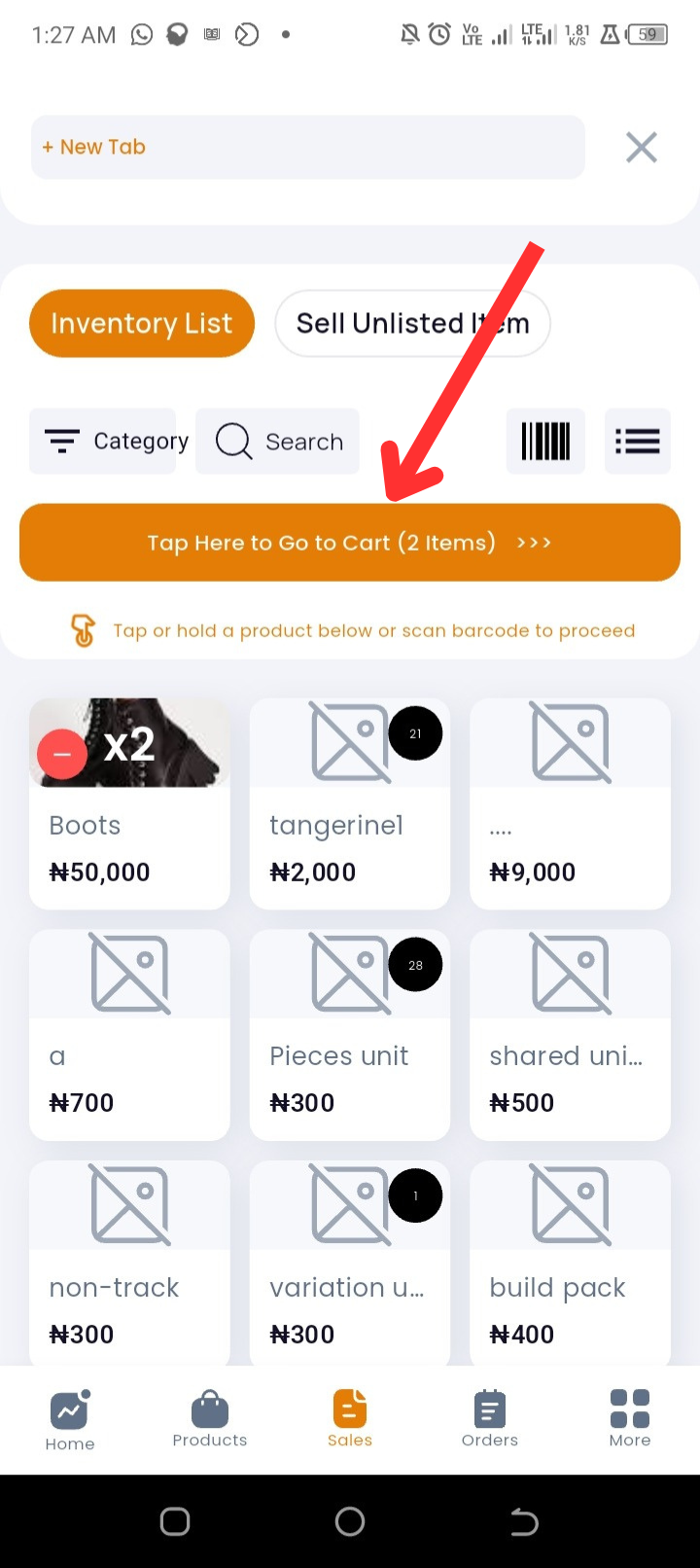
Tap on " Tap Here to Go to Cart" and review items.
-
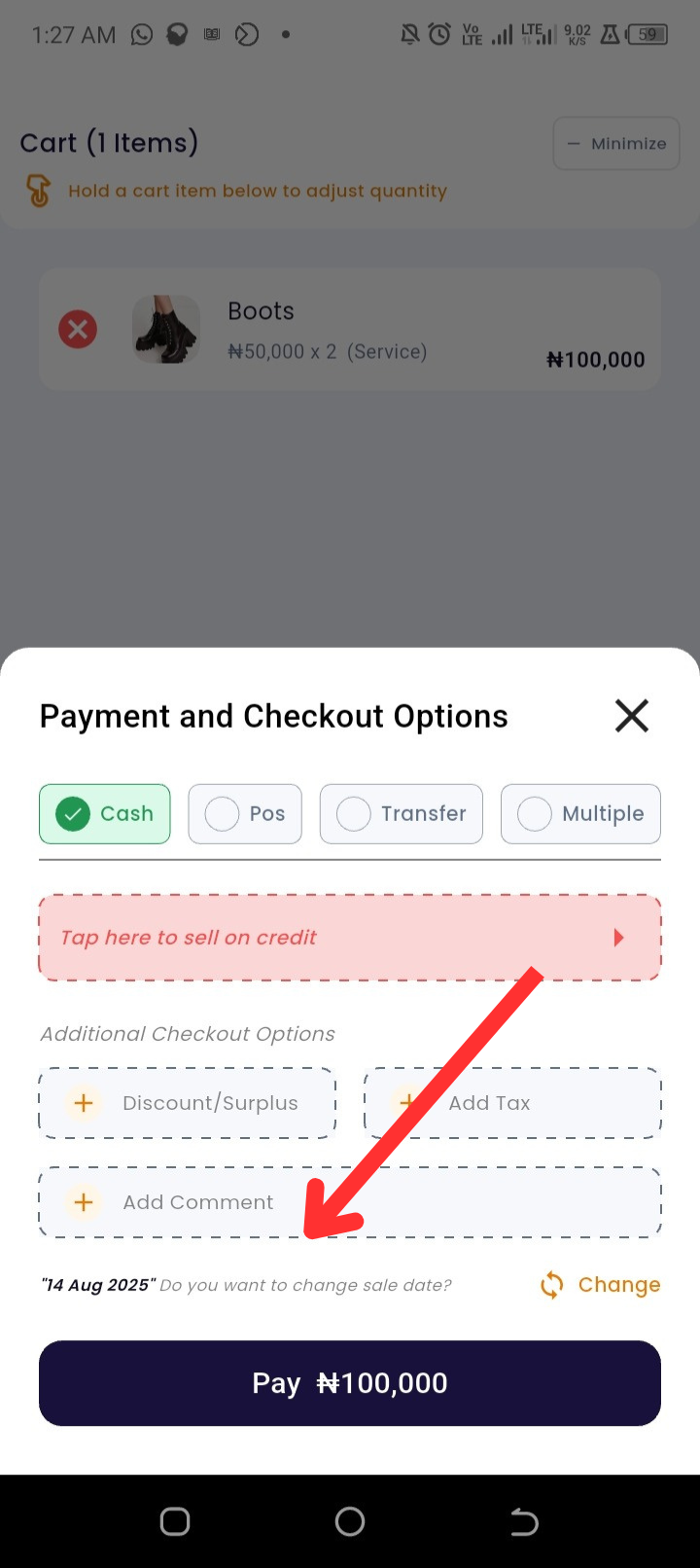
Tap Go to Payment and select the payment method: Cash, POS, Transfer, or Multiple Methods. For a credit sale, tap Tap Here to Sell on Credit before continuing.
-
(Optional) Add discount, surplus, tax, comments, or change the sale date.
-
Tap Pay to finish the sale.
Method 3 — From the Navigation Bar (Sales history + Record Sales)
-
Open the Timart Business app. You will land on the Dashboard.
-
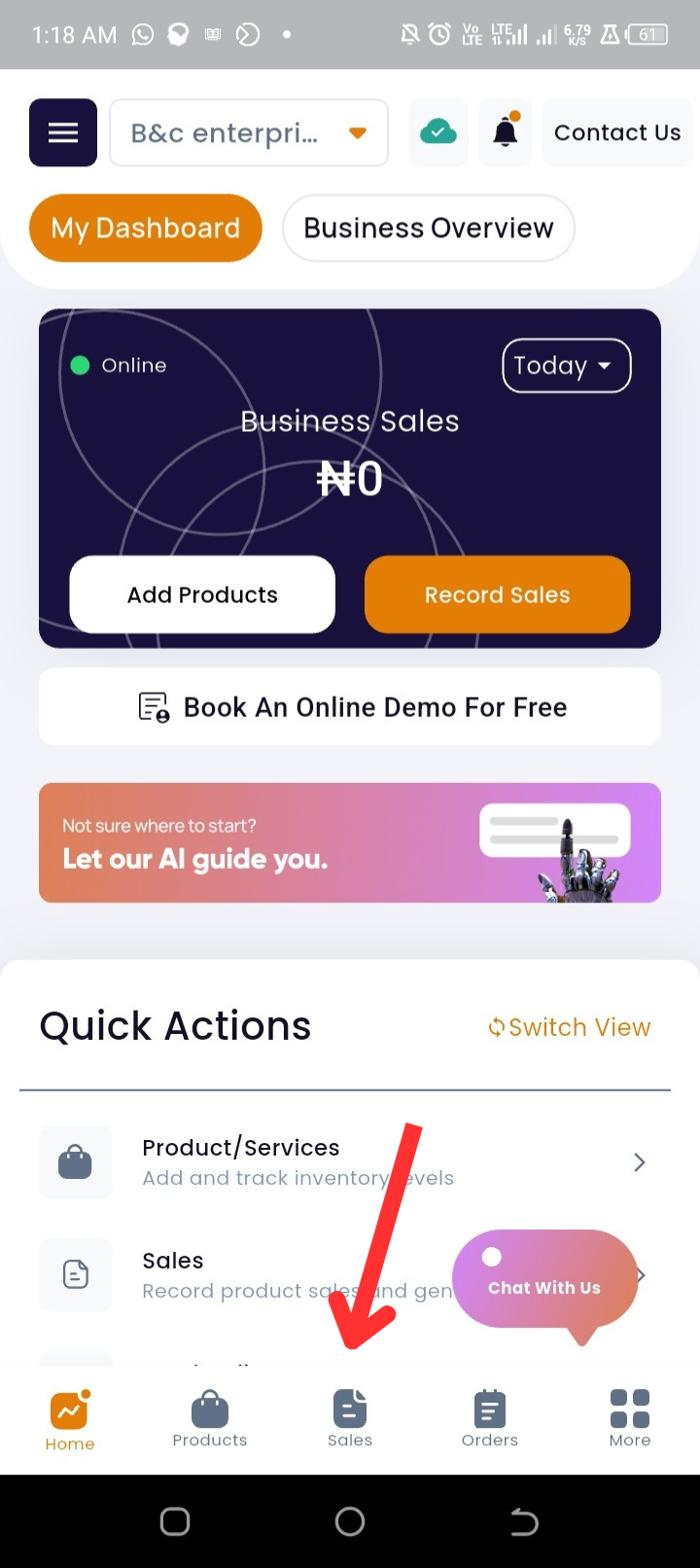
Tap Sales from the navigation bar. This opens the Sales page where you can view and manage sales history.
-
Tap Record Sales.
-
Select the products the customer wants to purchase:
-
Tap once to add a product.
-
Tap repeatedly to increase quantity.
-
Use the barcode scanner to scan items.
-
Search by category if needed.
-
Tap on "Tap Here to Go to Cart" and confirm items.
-
Tap Go to Payment and choose a payment method: Cash, POS, Transfer, or Multiple Methods. For credit sales, tap Tap Here to Sell on Credit before proceeding.
-
(Optional) Add discount, surplus, tax, or comment; change the sale date if needed.
-
Tap Pay to complete the transaction.
Troubleshooting
|
Issue |
Possible cause |
Suggested fix |
|
Barcode scanner will not scan |
Camera permission not granted or camera busy |
Allow camera access for Timart in device settings; restart app |
|
Payment method not available at checkout |
App out of date or payment method restricted by user role |
Update the app; check user role and payment method settings |
|
Sale recorded with the wrong date |
Sale date was not changed before payment |
Tap Change on the payment screen and set the correct date prior to Pay |
|
Offline sale not syncing |
No internet connection |
Connect to the internet; sales will auto-sync. If not, go to Settings and force sync |
|
App freezes or sale will not save |
Low device memory, cache issue, or outdated app |
Clear app cache, free up storage, and update the Timart app |
Frequently Asked Questions (FAQs)
Q: Can I split a sale across multiple payment methods?
A: Yes. On the Go to Payment screen select Multiple Methods and allocate amounts to each method.
Q: Can I record sales while offline?
A: Yes. Sales recorded offline will sync automatically when the device reconnects to the internet.
Q: How do I sell on credit and how is it tracked?
A: On the payment screen tap Tap Here to Sell on Credit before finalizing the sale. The sale appears in the Debt Book and can be managed with automatic reminders if configured.
Q: How do I view or print a receipt after a sale?
A: After payment completes, tap View Receipt on the confirmation screen. You can also find the sale in Sales history and open it to view or print the receipt.
Q: Can multiple staff members record sales at the same time?
A: Yes. Timart supports concurrent sales transactions across devices. Ensure each staff member has their own account for accurate tracking and accountability.
Q: How do I refund a sale?
A: Go to Sales > Sales history, select the transaction, then choose Refund (follow on-screen prompts). If your account lacks this option, contact support to enable permissions.
Q: Where are sales recorded for reporting?
A: All sales feed into Reports where you can review daily, weekly, and monthly sales, item performance, and profit metrics.