How to Edit a Product (Mobile)
Keeping your product information up to date ensures accurate inventory tracking, pricing, and reporting. This guide walks you through editing an existing product on the Timart mobile app.
Step-by-Step Guide
Step 1: Open the app and go to the Dashboard.
Step 2: Tap on Products from the navigation bar.

Step 3: Locate and select the product you want to edit.
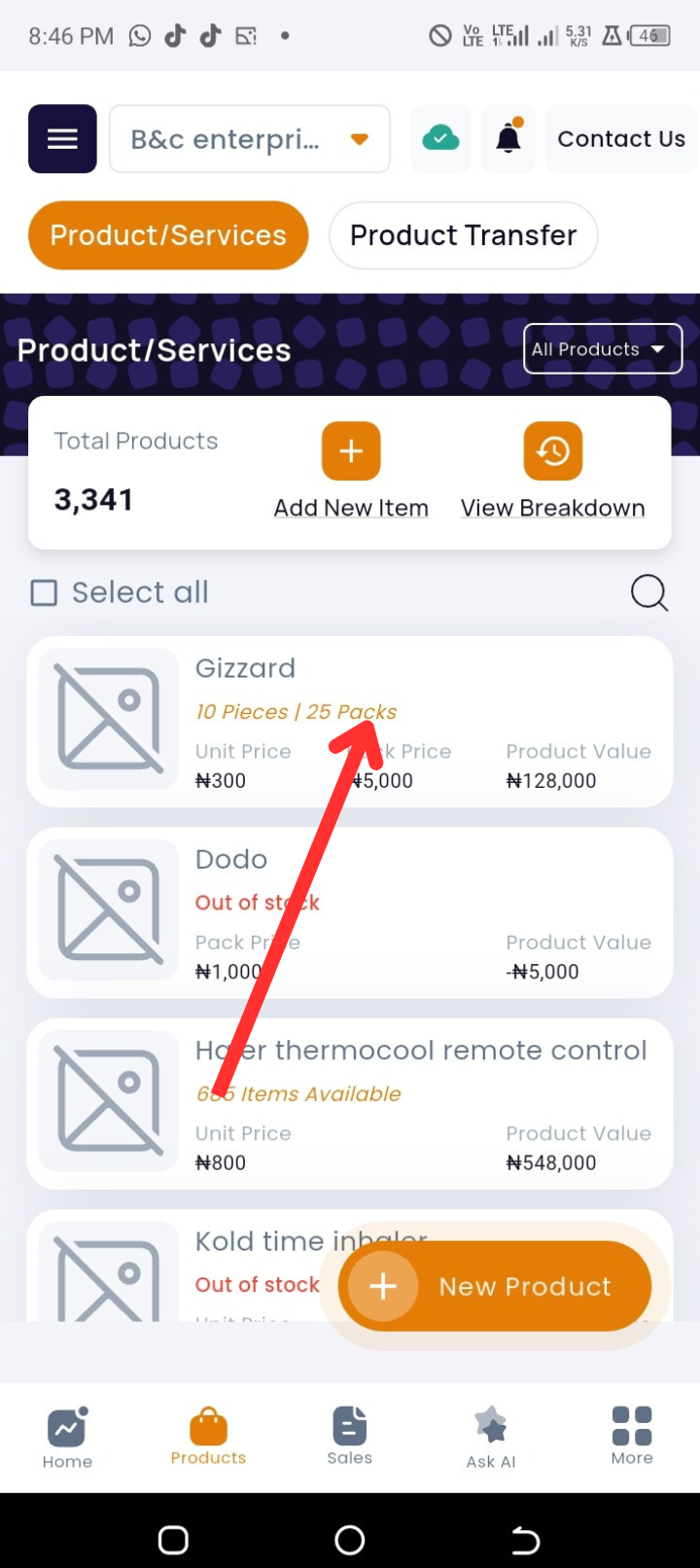
Step 4: On the product detail page, tap Edit Product at the bottom.
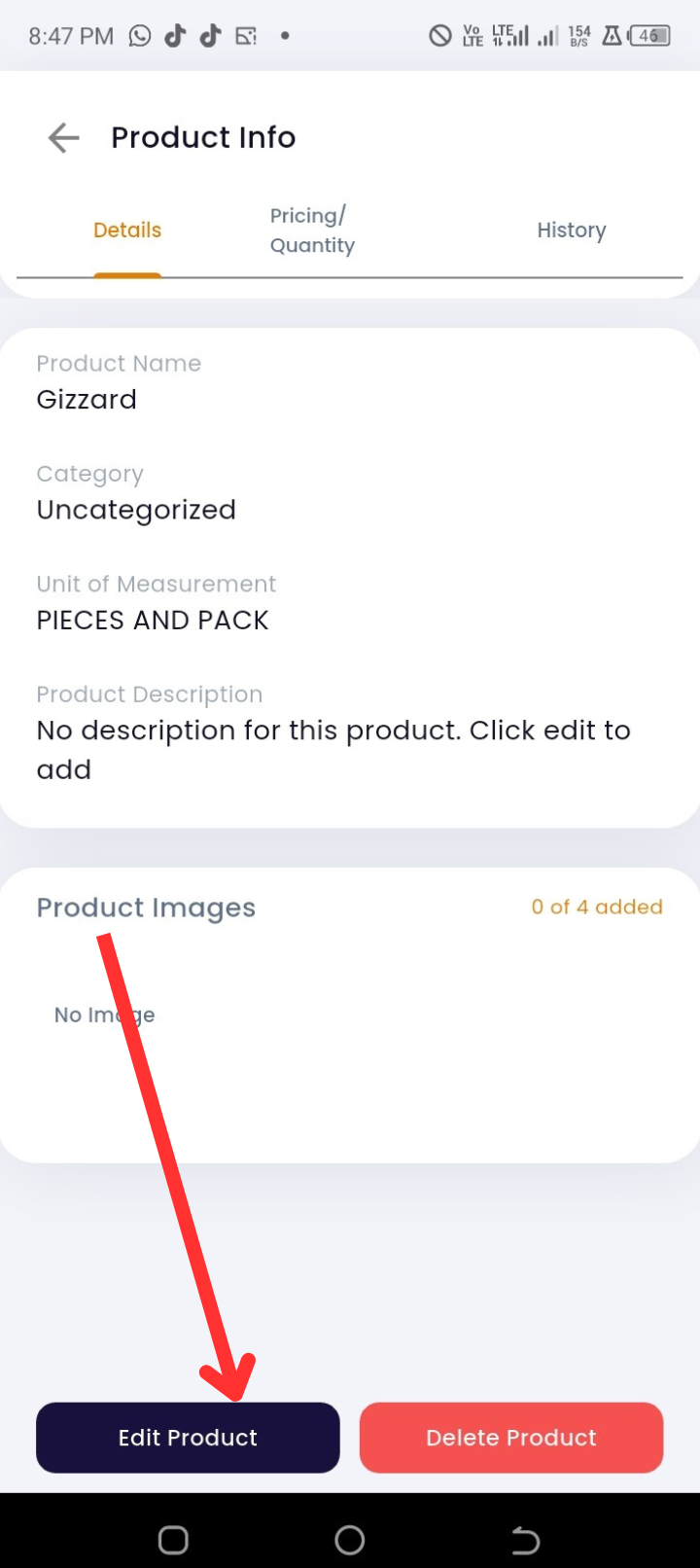
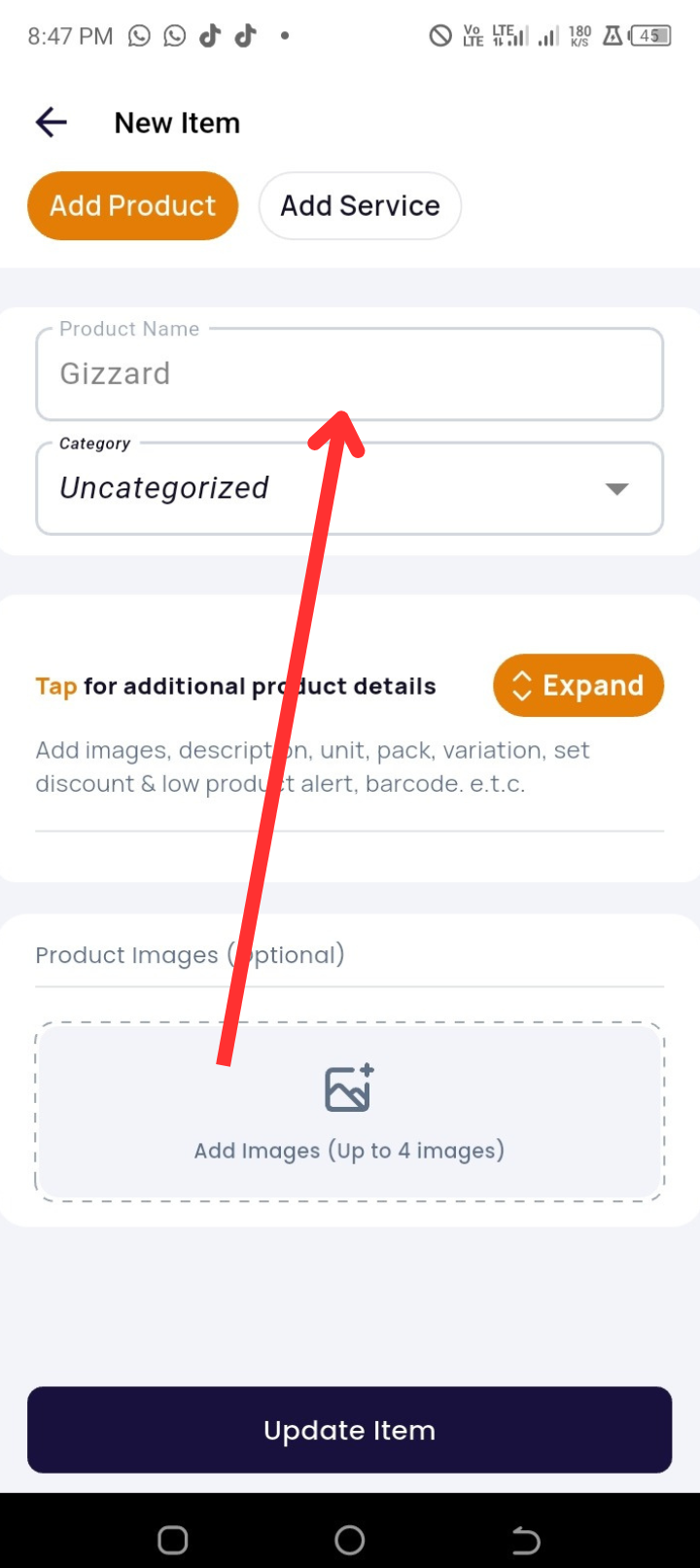
Step 5: Make the necessary changes to the product information (e.g., name, category, price, quantity, purchase price, description, unit measurement, expiry date, or other advanced settings).
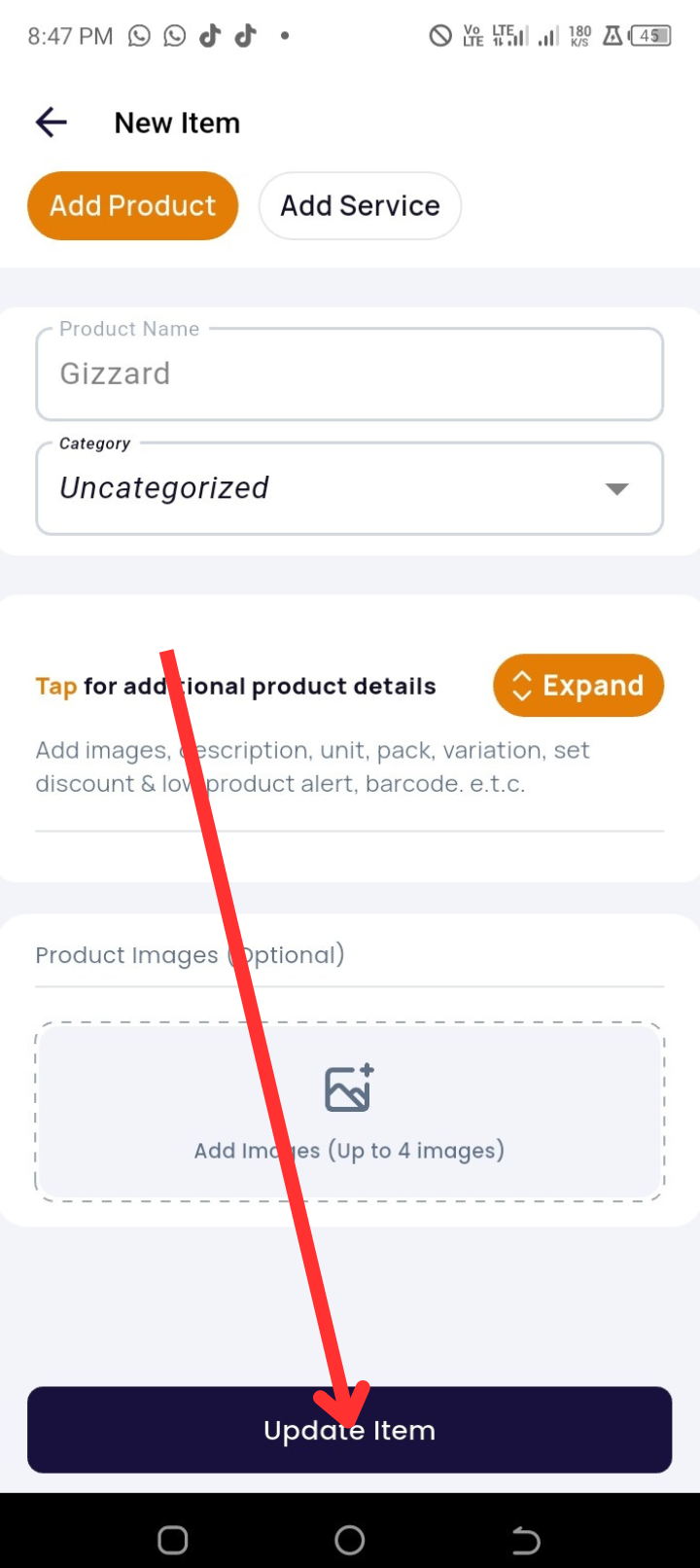
Step 6: Once satisfied with your updates, tap Update Item to confirm.
Troubleshooting Tips
|
Issue |
Possible Cause |
Solution |
|
Cannot find the product to edit |
Wrong category or search term used |
Use the search bar or browse by category to locate the product |
|
"Edit Product" option is missing |
Viewing as a restricted user |
Ensure you are logged in with the correct permissions to edit products |
FAQs
Q1: Can I edit the purchase price after sales have been made?
A: Yes, but changes will not affect past transactions—only future profit calculations.
Q2: Will editing a product affect my stock count?
A: No, unless you specifically update the quantity field.
Q3: Can I add images while editing a product?
A: Yes, you can upload new images or replace existing ones during editing.