How to Add Products in Different Units of Measurement (Mobile)
Selling products in various units like bags, bottles, liters, or yard helps you maintain accuracy in stock tracking, pricing, and reporting.
Here’s how to enable and configure this feature.
📲 Step-by-Step Guide
1. Launch the App
Open the Timart Business App and go to your Dashboard.
2. Add a New Product
Tap Add Products at the top of the page
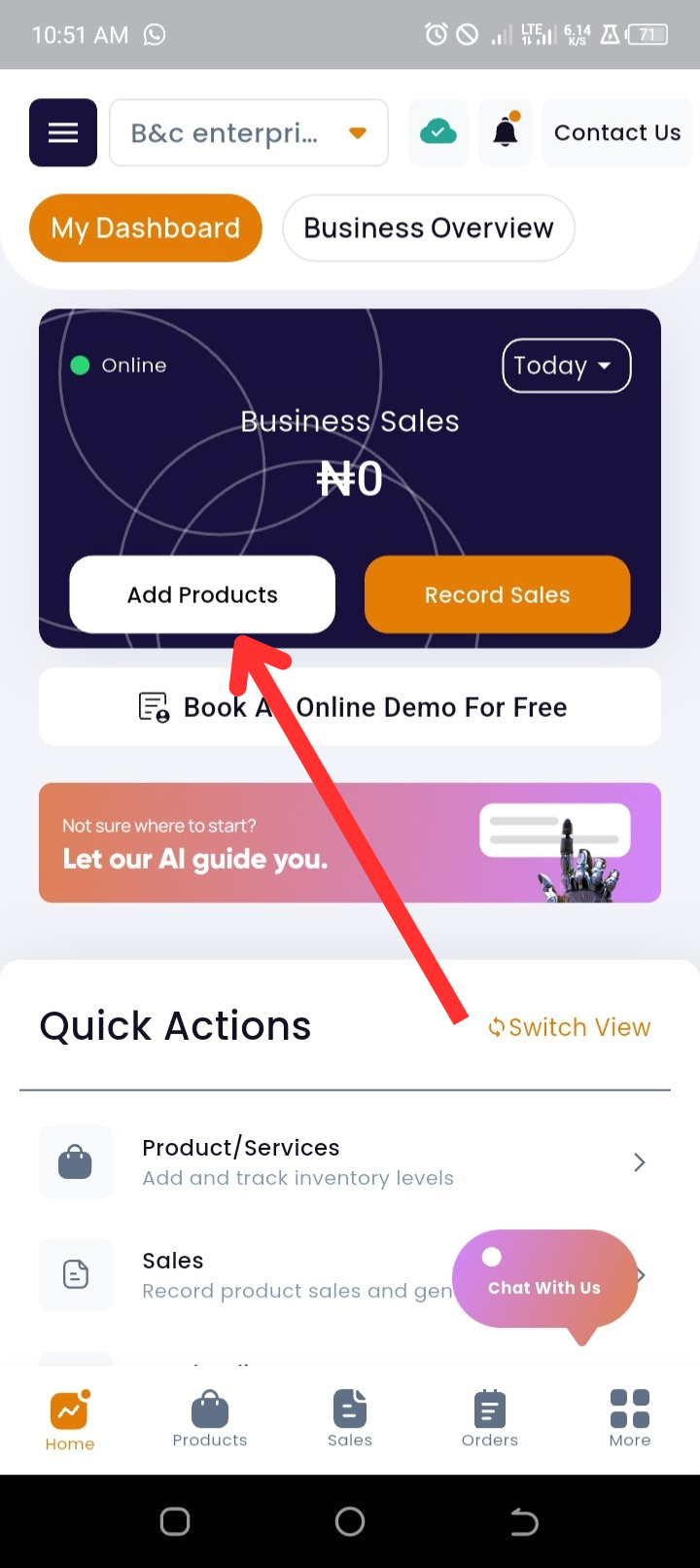
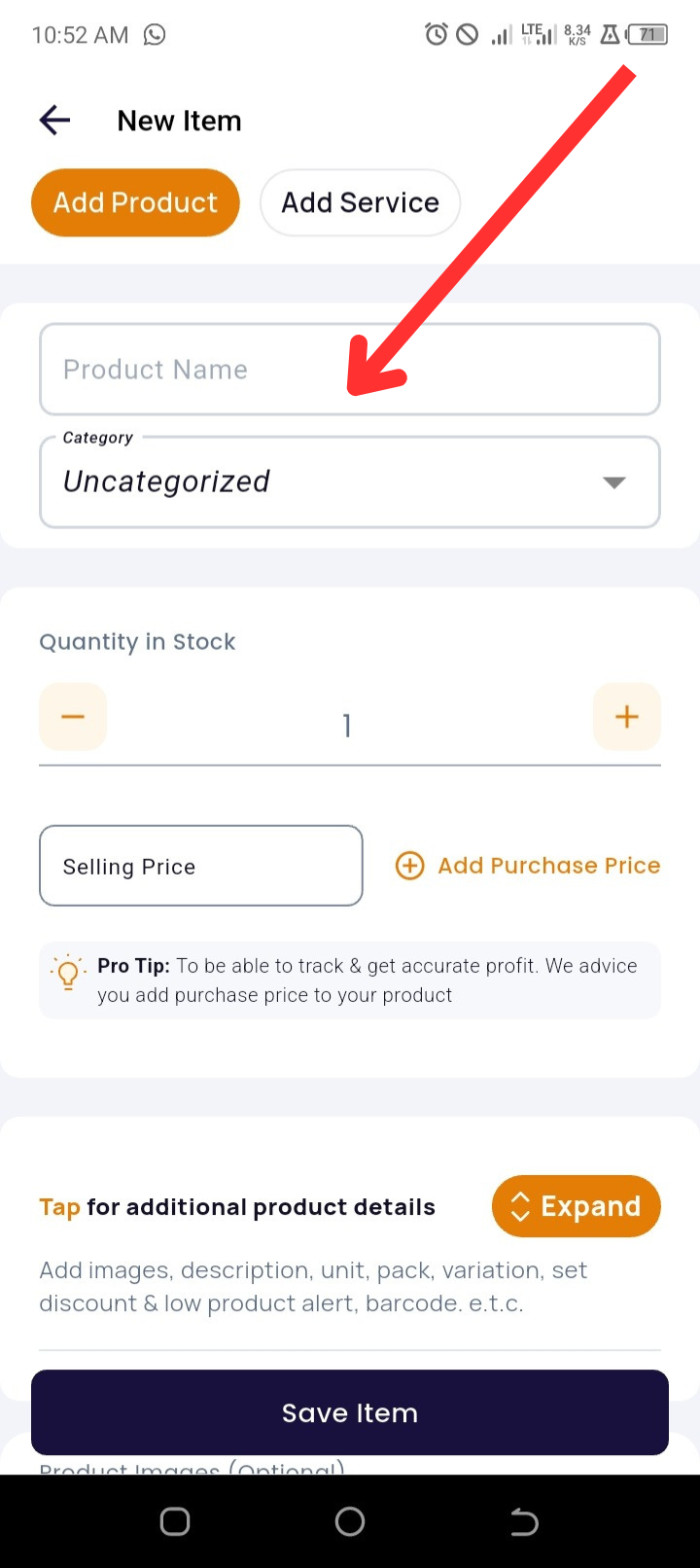
3. Enter Product Details
-
Input the Product Name
-
Select or create a Category (optional)
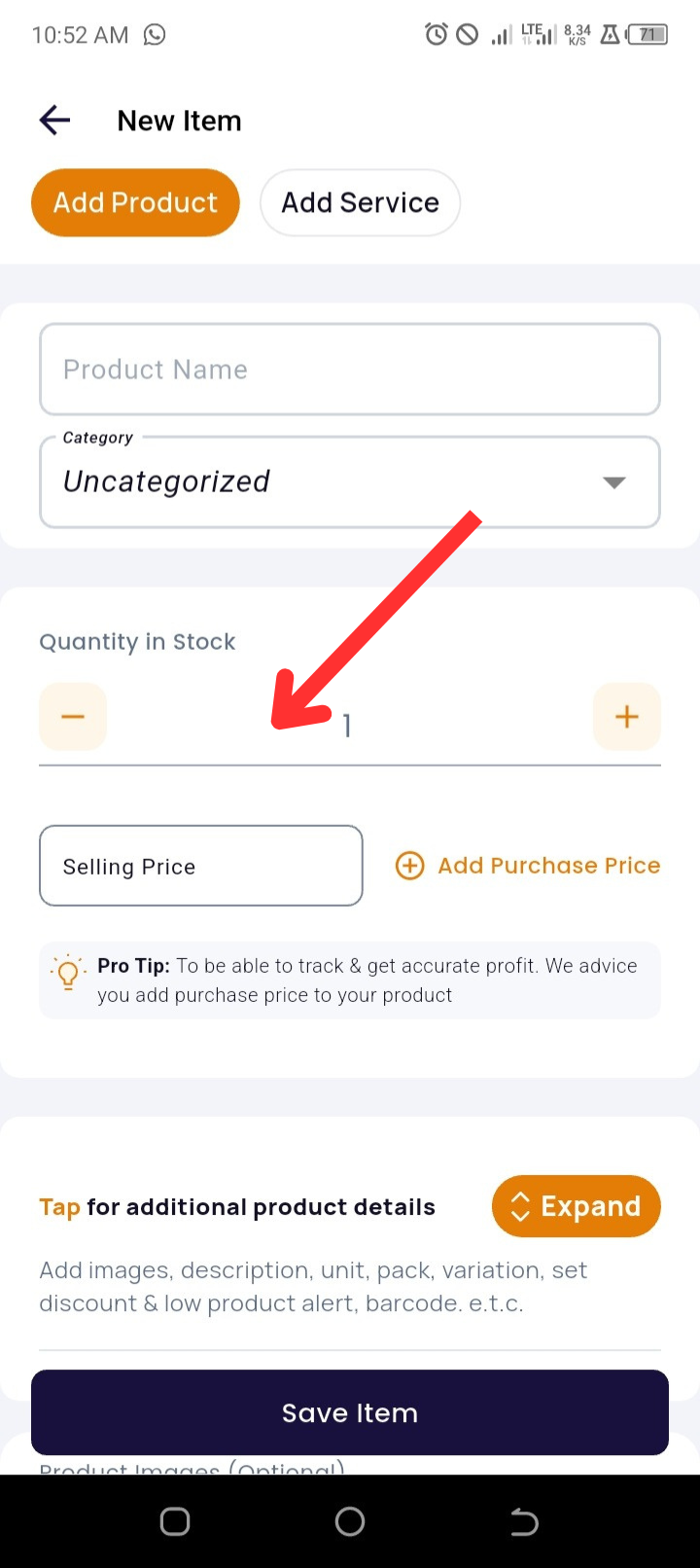
4. Add Inventory and Pricing Information
-
Enter the Product Quantity
-
Enter the Selling Price
-
Tap + Add Purchase Price (optional but useful for profit tracking)
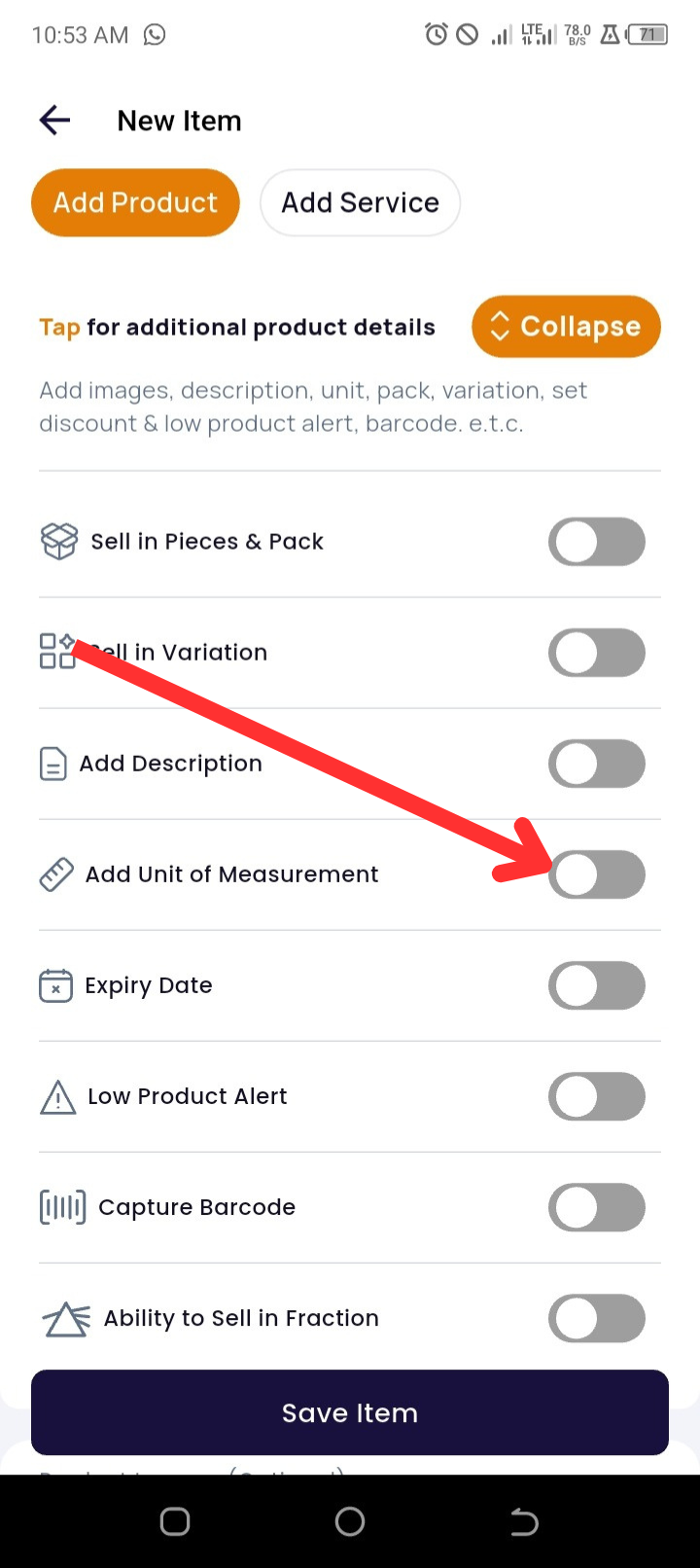
5. Enable Unit of Measurement
-
Tap Expand to open additional product settings
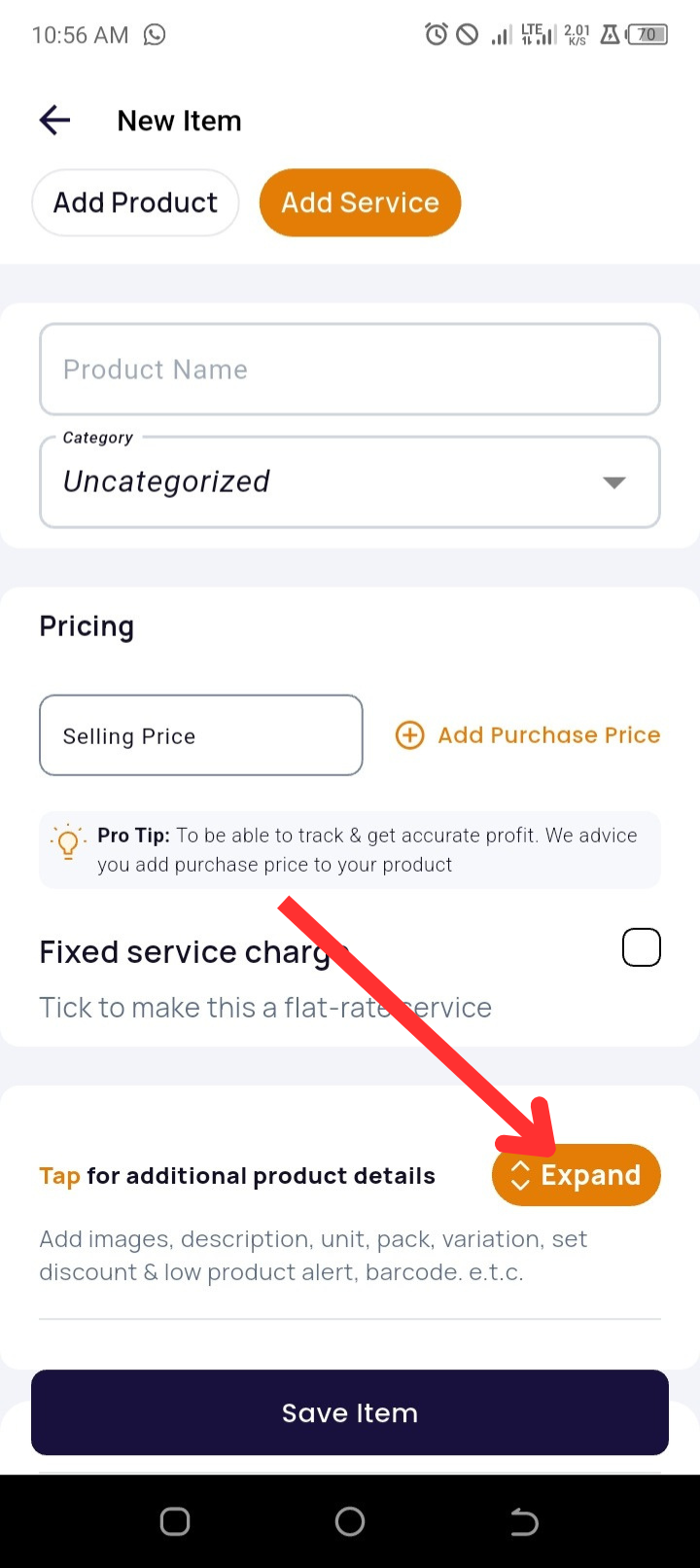
Toggle Unit of Measurement ON
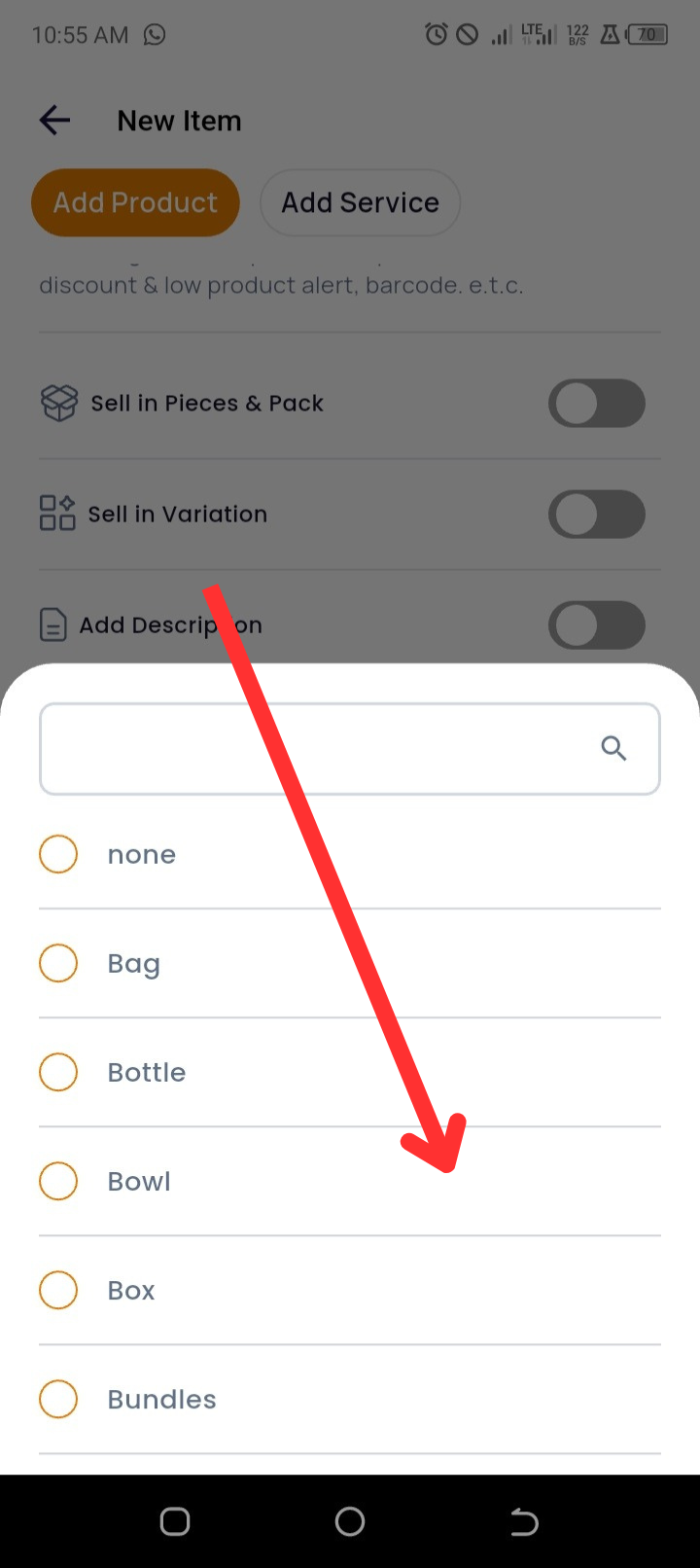
6. Select Your Unit Type
-
Choose from common units such as:
-
Bag
-
Bottle
-
Bowl
-
Liter
-
Bundles
-
Box
-
Carton
-
Centimeter
-
Dozen
-
Feet
-
Grams
-
Kilogram
-
Yard
-
pair
7. Upload Product Images (Optional)
-
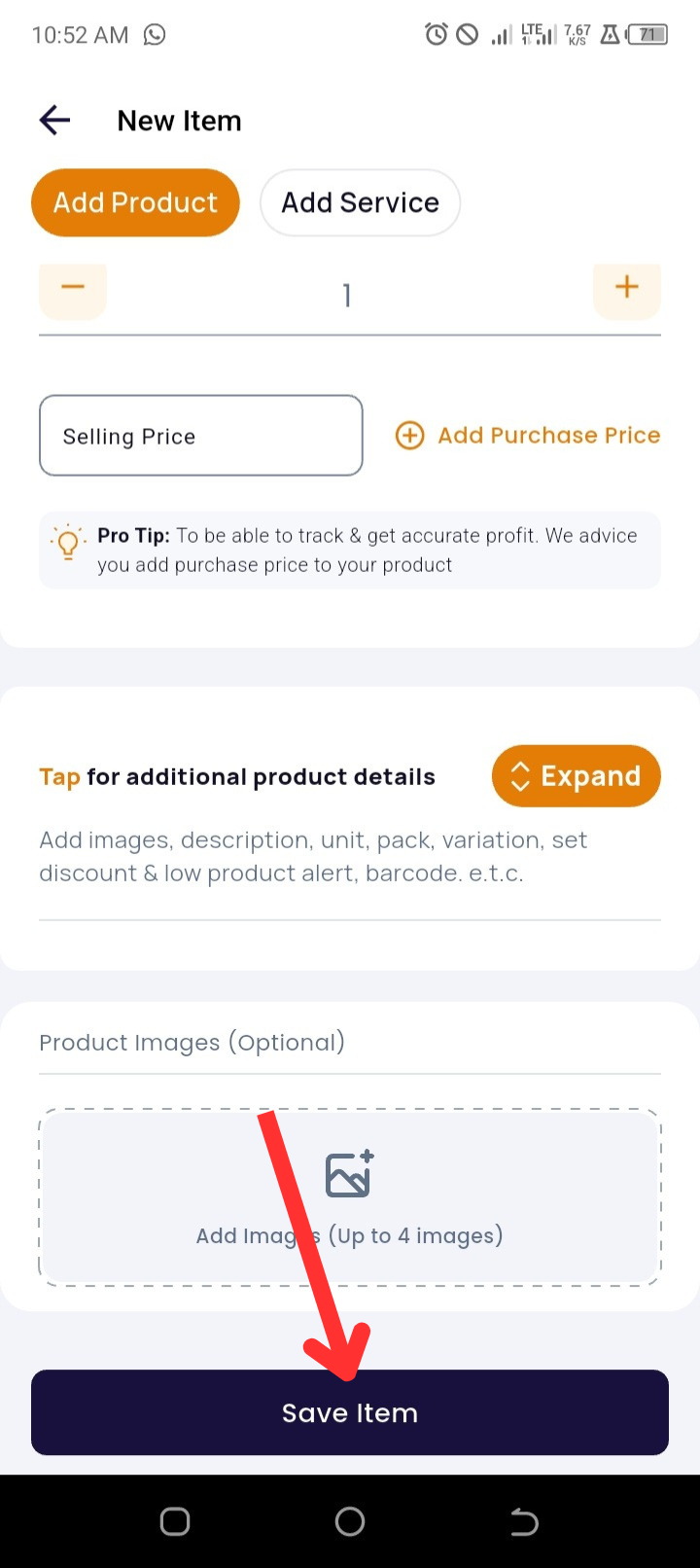
Tap Add Images to upload a product photo
8. Save Your Entry
-
Tap Save Item to complete the setup
Pro Tips
-
Choose standard units (e.g., “liters”, “kg”) to ensure consistency in sales reports and inventory records.
-
Combine Units of Measurement with Sell in Fractions to sell partial quantities (e.g., 0.5 liters).
🛠️ Troubleshooting
|
Issue |
Cause |
Solution |
|
Can't see unit of measurement toggle |
App may be outdated |
Update the Timart app from Play Store or App Store |
|
Unit not saving |
Missing required fields |
Make sure product name, quantity, and selling price are entered before saving |
❓ Frequently Asked Questions (FAQs)
Q1: Can I change a product's unit of measurement after saving it?
Yes. Go to the Products page → tap the product → select Edit, and update the unit.
Q2: What happens if I leave the unit of measurement blank?
The app will use default settings (usually “pieces”), but it’s better to set your unit explicitly for clarity.
Q3: Can I sell in both units and fractions?
Yes. Enable both Unit of Measurement and Sell in Fractions under the Expand settings.
Q4: Will the unit of measurement appear on invoices?