How to Add Product Variations (e.g. Colors, Sizes) in the Timart Business App (Mobile)
If your product comes in different types (like Red vs Blue or Small vs Large), you can easily add variations to manage stock and pricing accurately.
✅ Step-by-Step: How to Add Product Variations
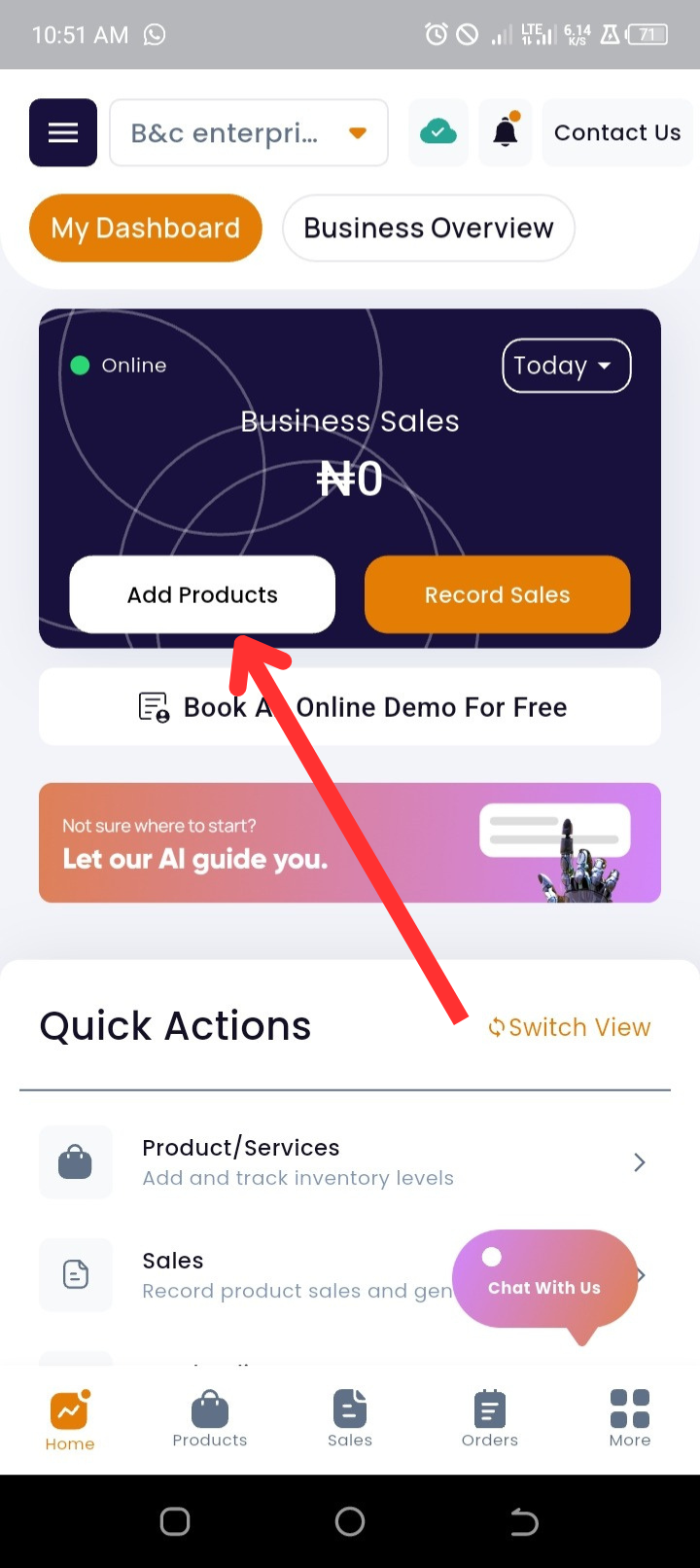
Step 1. Go to Dashboard → tap Add Products
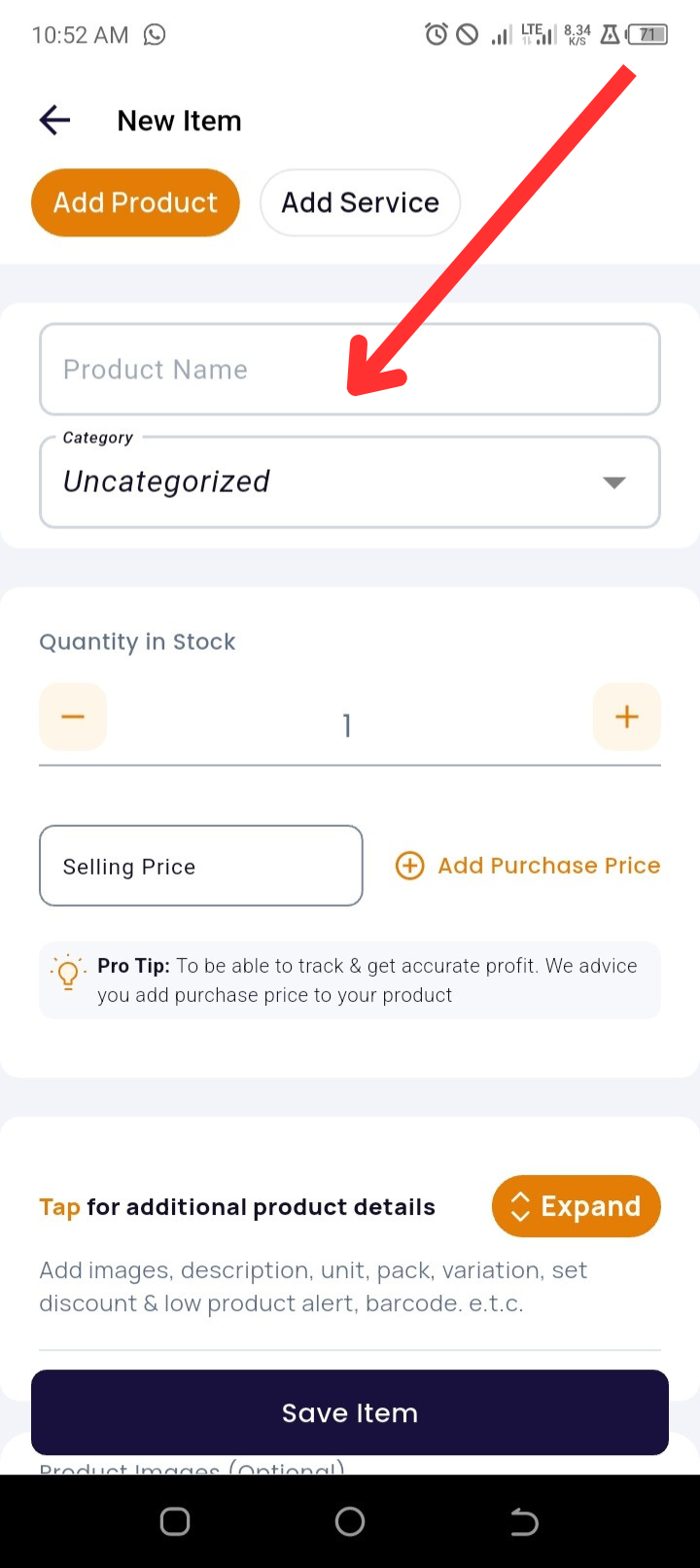
Step 2. Enter the Product Name and select a Category (optional)
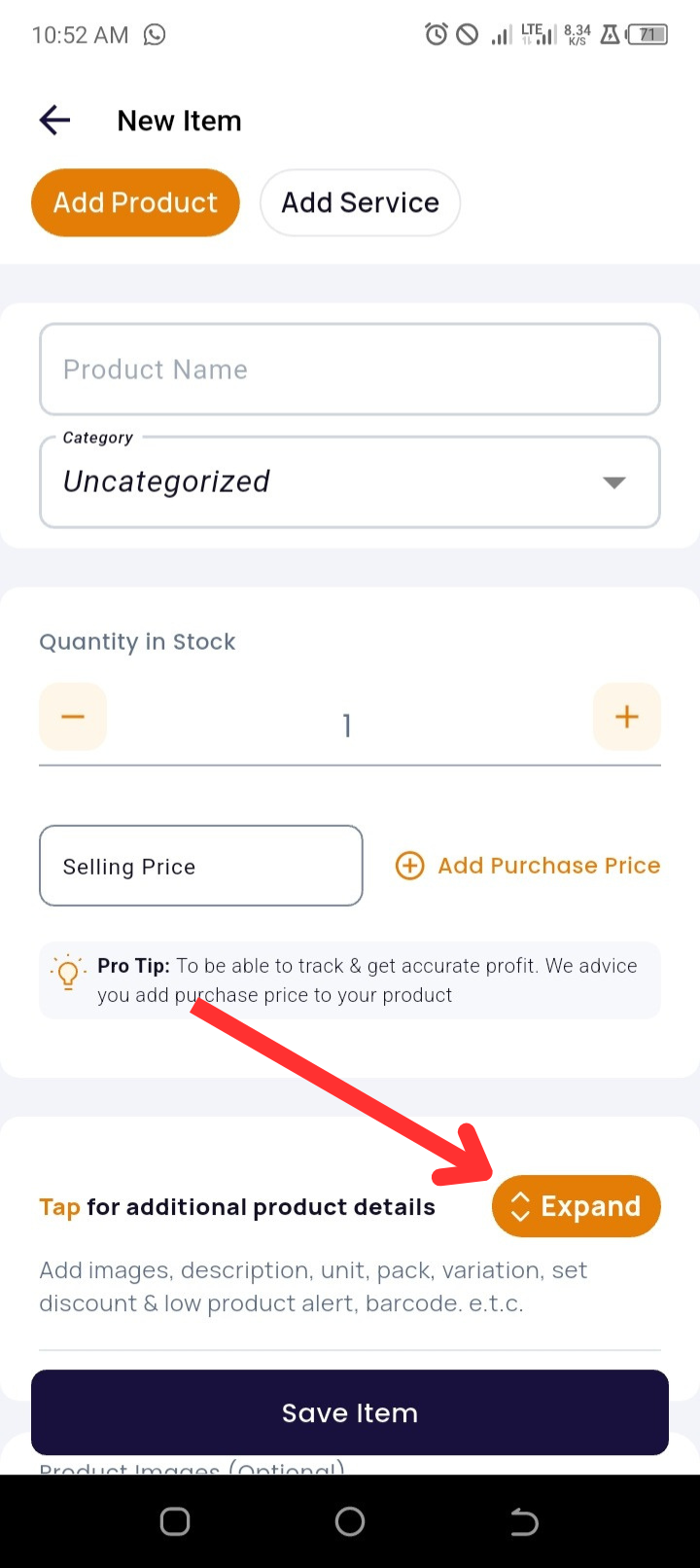
Step 3. Tap Expand to open more product options
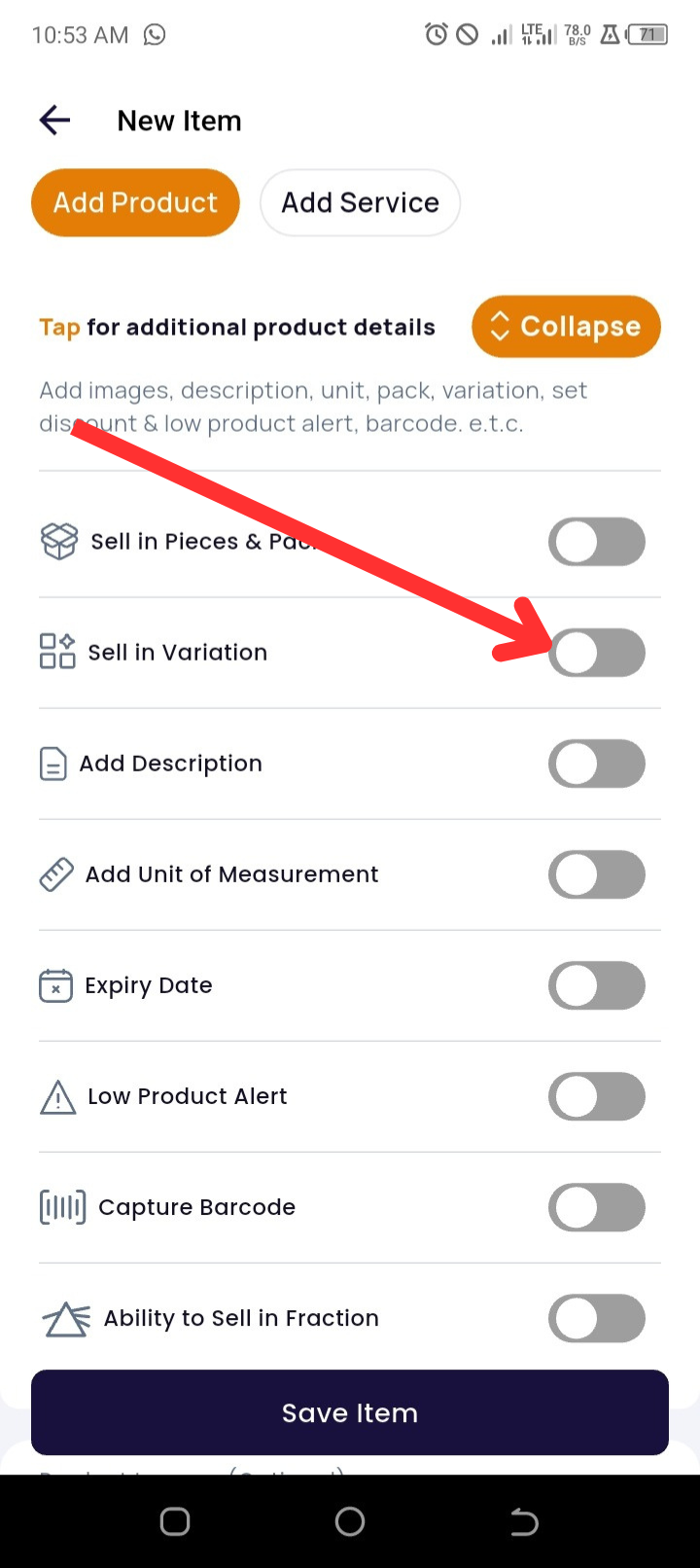
Step 4. Toggle ON the Sell in Variations option
Step 5. Enter your Variation Name (e.g. Color) and values (e.g. Red, Blue)
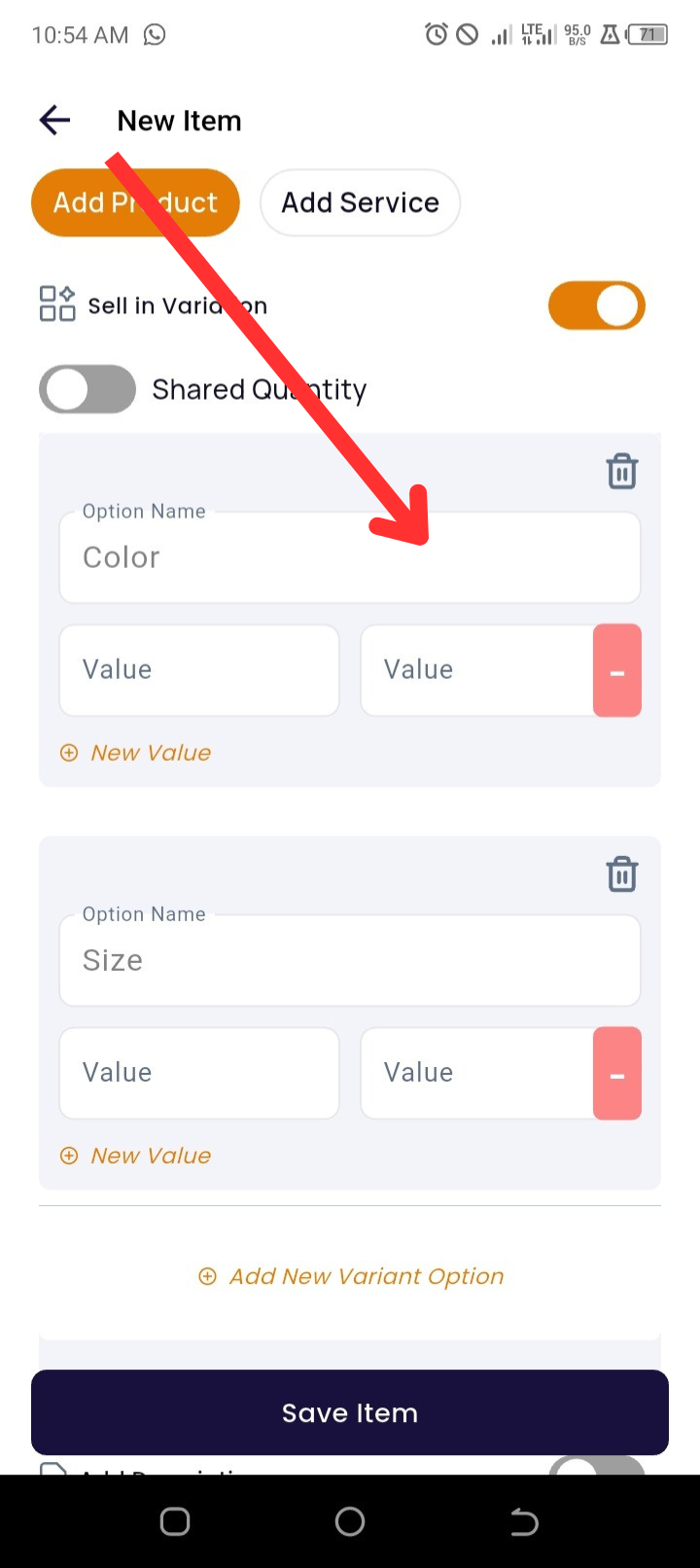
Step 6. Scroll down and fill in for each variation:
-
-
Quantity
-
Selling Price
-
Purchase Price
-
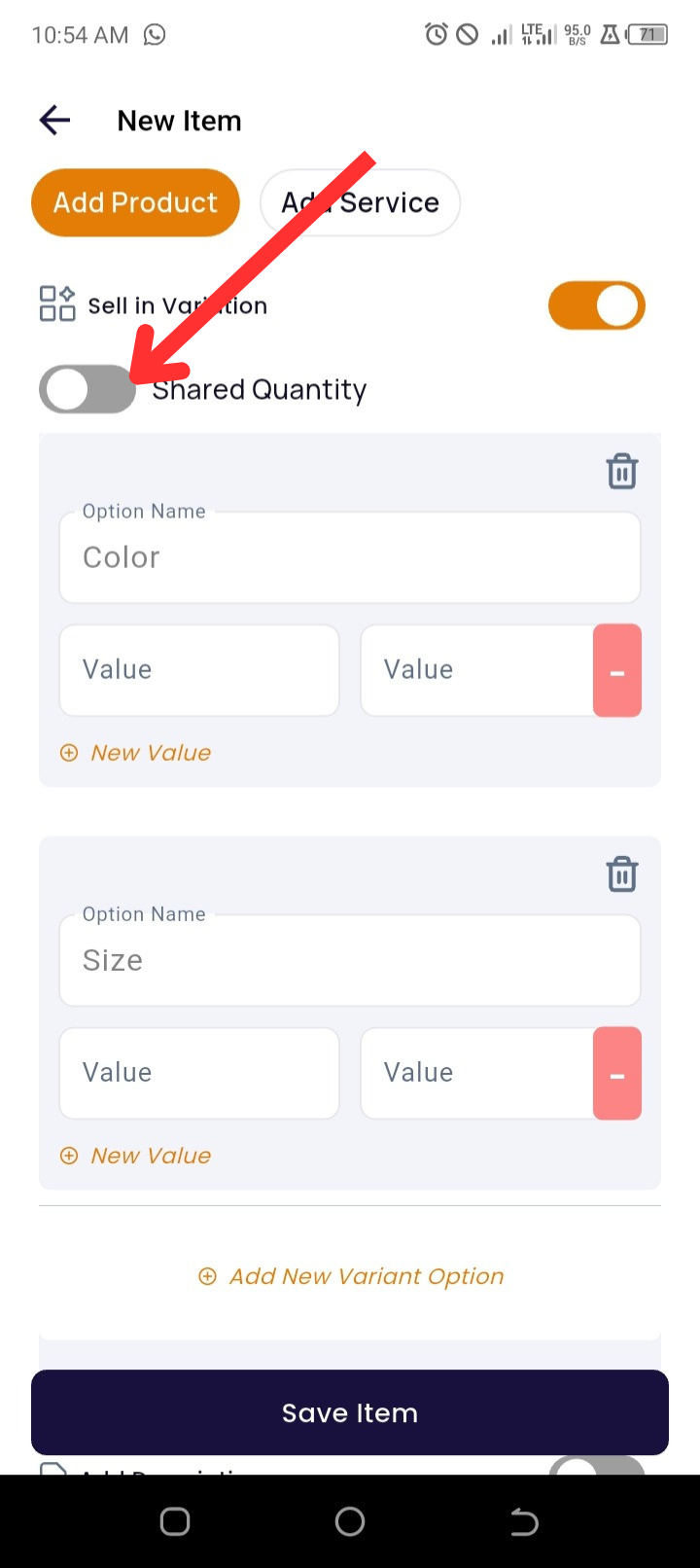
Step 7. If all variations share the same quantity, tap Shared Quantity toggle to enter one value for all
Step 8. Tap Add Images (optional)
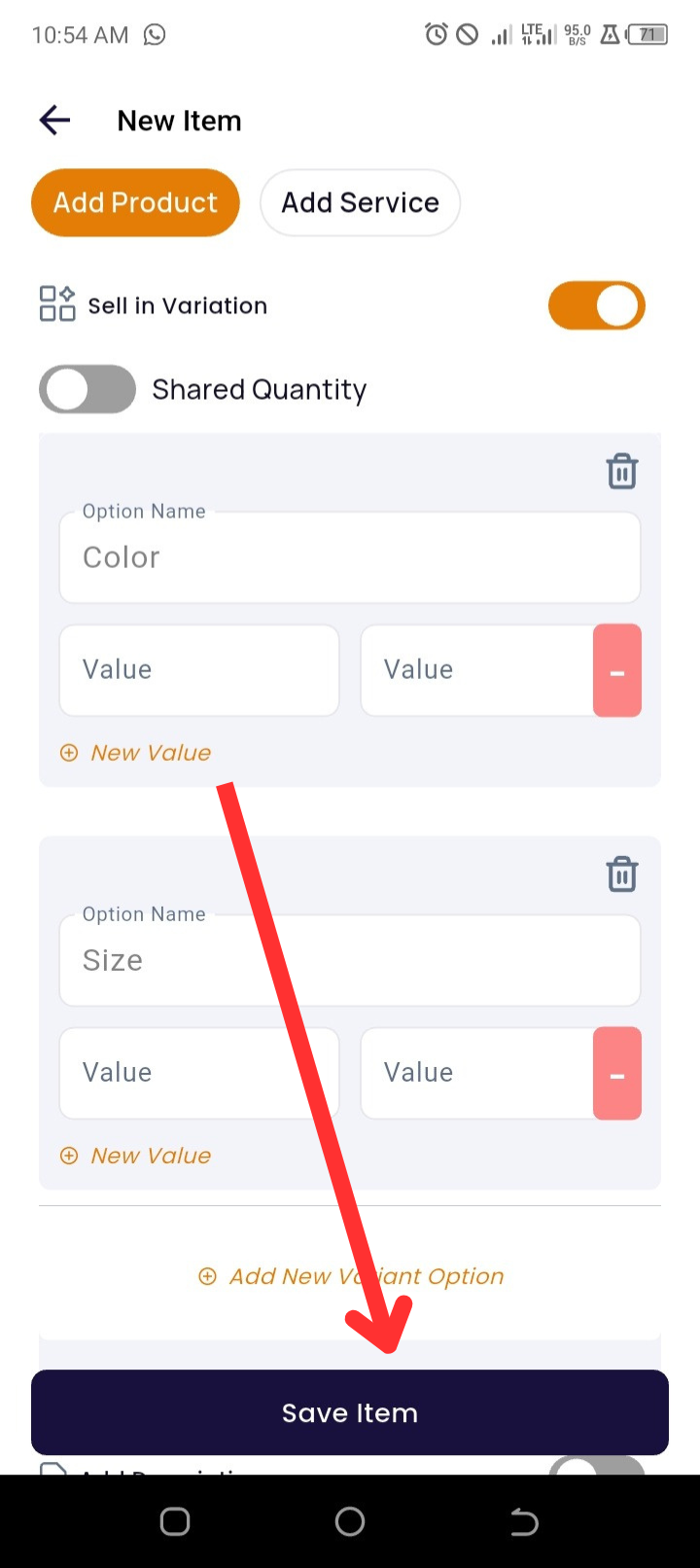
Step 9. Tap Save Item to complete
💡 Why Use Product Variations?
-
Organized Inventory: Keep all versions of the same product under one listing.
-
Custom Pricing: Each variation can have its own price and cost.
-
Efficient Restocking: Easily track which variation sells best.
-
Better Customer Experience: Display product options in a structured, professional way.
🛠️ Need Help?
If you encounter any issues while adding products, try the following:
✅ Ensure your app is up to date
✅ Make sure you're connected to the internet
✅ Restart the app and try again
Still need help? Contact our support team via WhatsApp
❓ Frequently Asked Questions (FAQs)
1. Can I have multiple variation types (e.g. color and size)?
You can have multiple Variations types and Values as well.
2. Can I edit variations after saving?
Yes. Go to the Products Page, select the item, and tap Edit to modify variations.
3. What if I don’t want different prices per variation?
You can enter the same Selling Price and Purchase Price for each value.
4. Will the system track each variation’s stock separately?
Yes. Unless you toggle on Shared Quantity, each variation is tracked independently.