How to Add Products in Pieces and Pack on the Timart Business App (Mobile)
The “Sell in Pieces or Pack” feature allows you to sell your items in individual units and Pack quantities. This gives you greater flexibility in pricing, stock control, and profit tracking.
✅ Step-by-Step: Add Products in Pieces and Pack
-
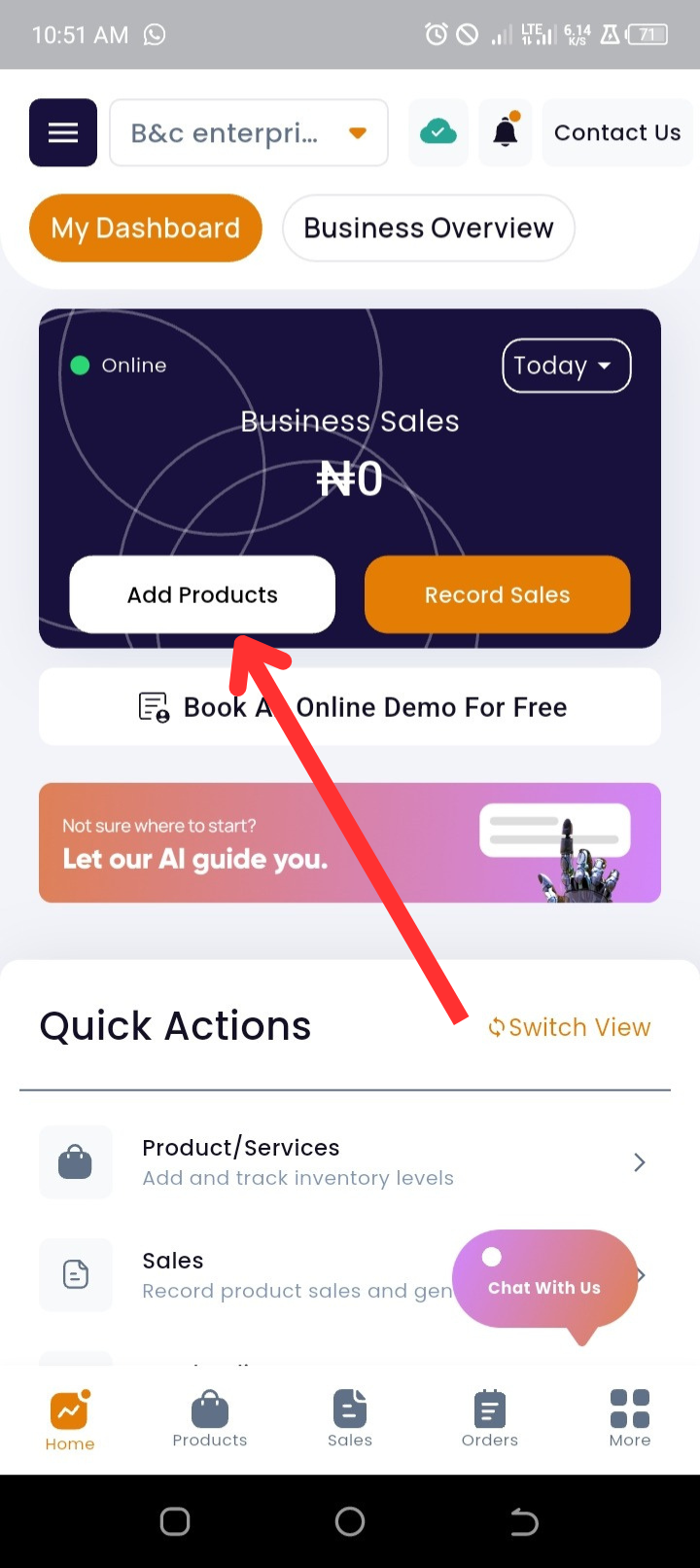
Go to Dashboard → tap Add Products
-
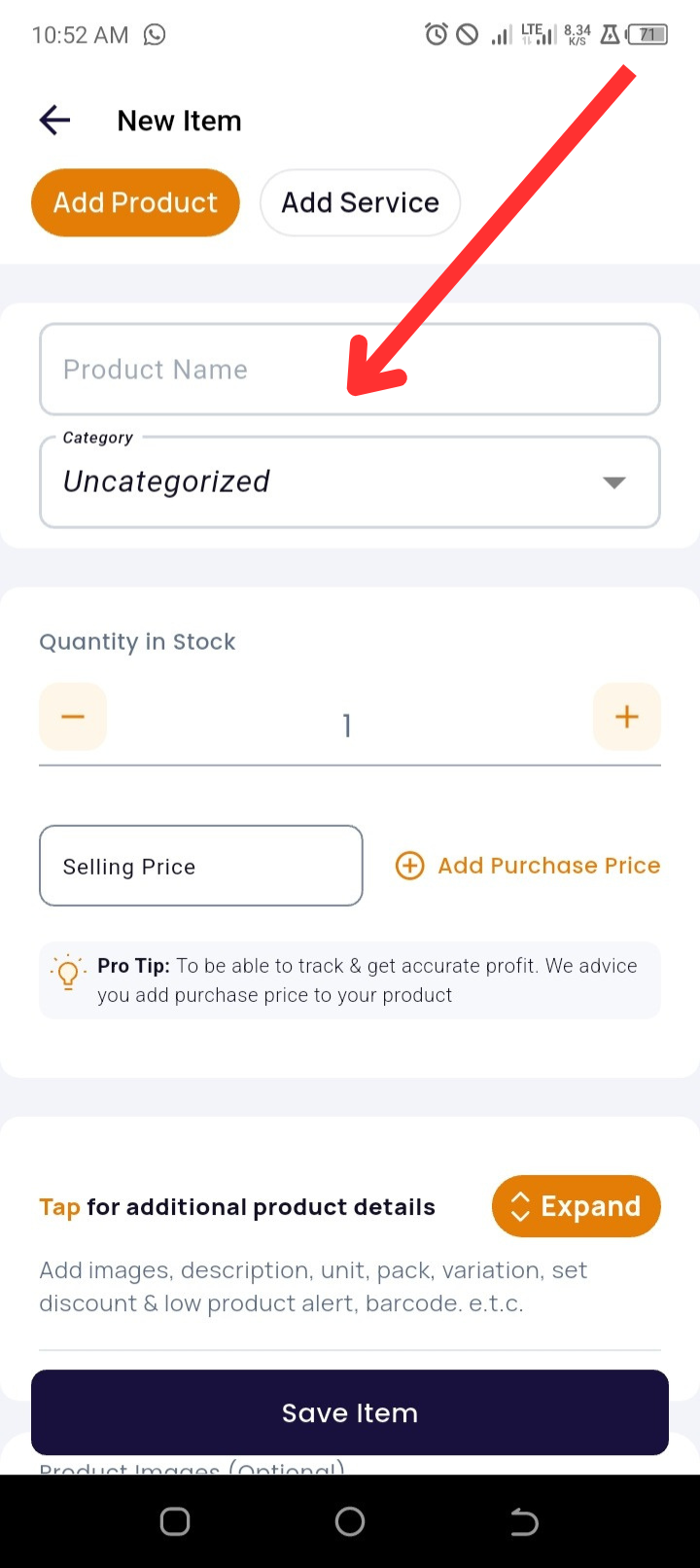
Enter the Product Name and select a Category (optional)
-
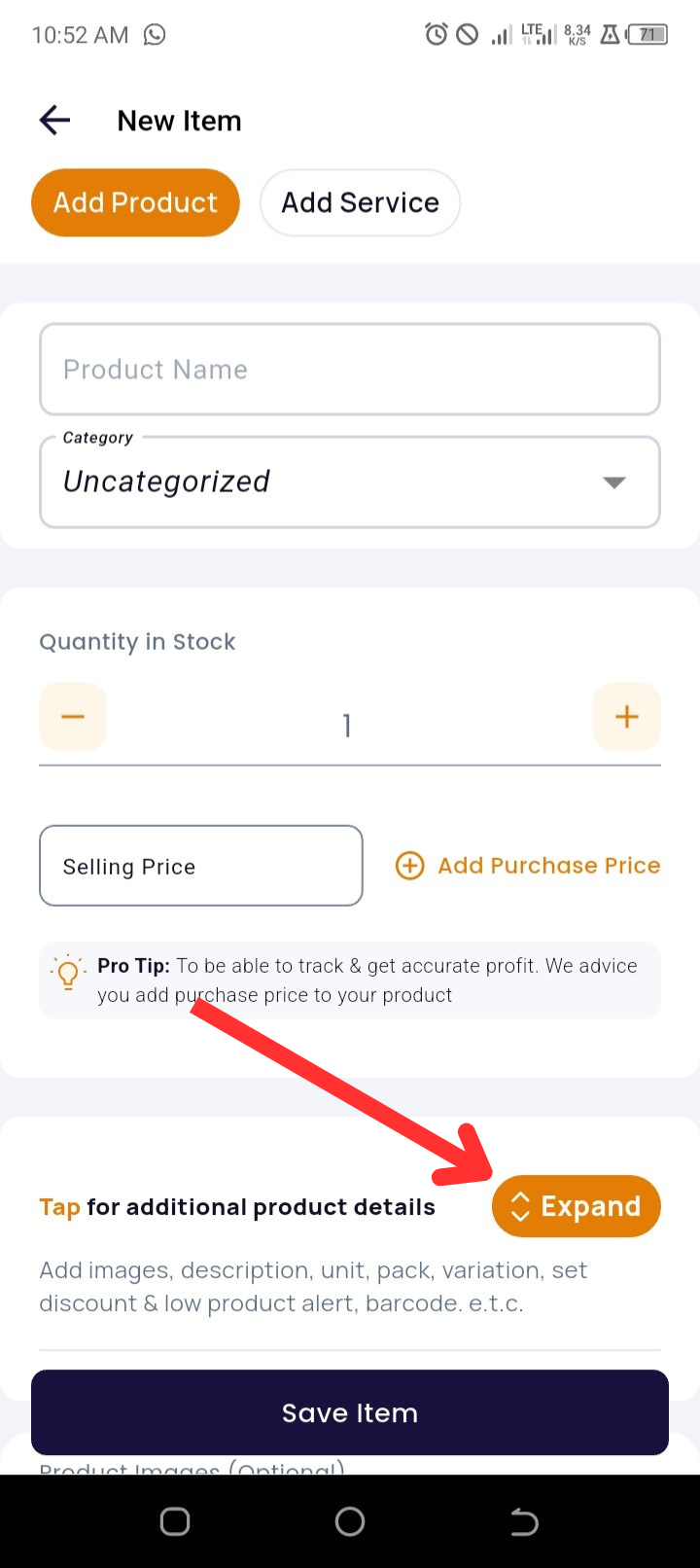
Tap Expand to see more product options
-
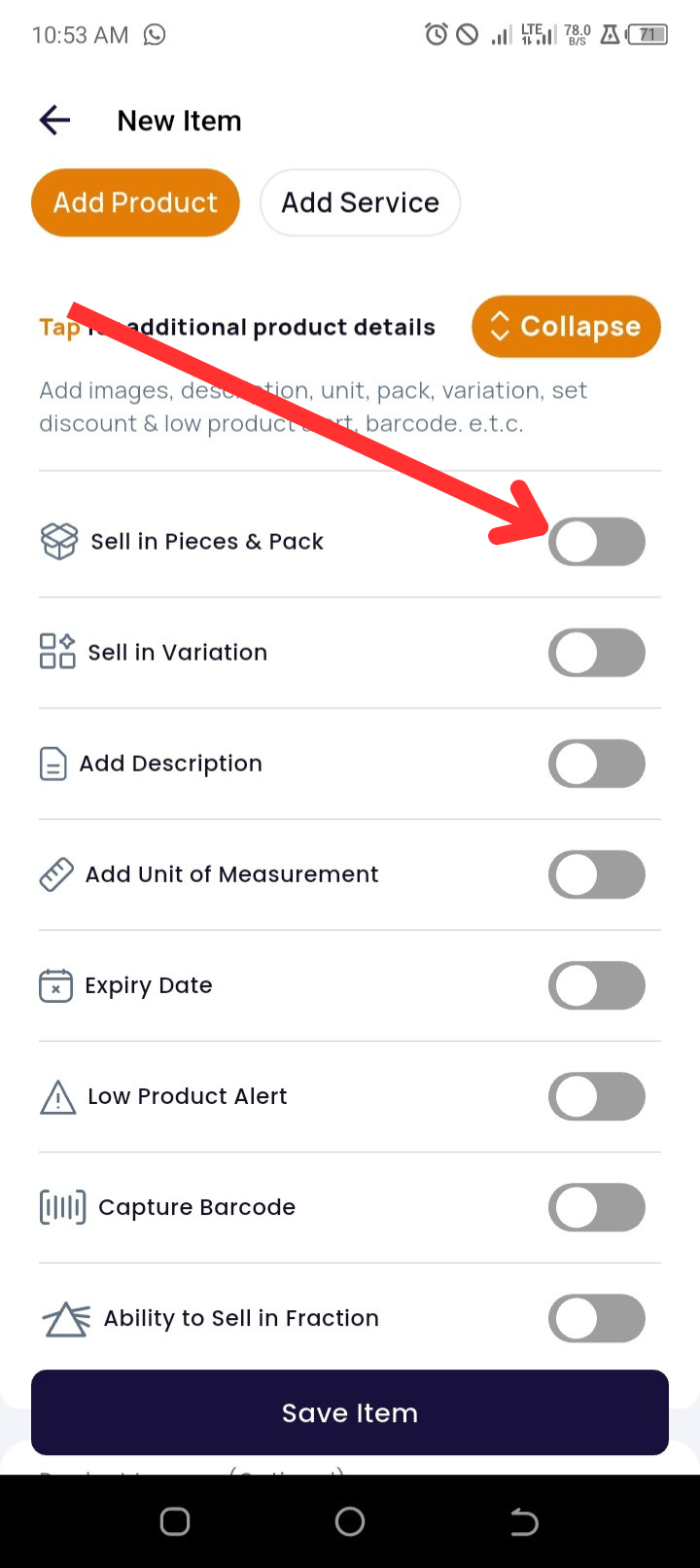
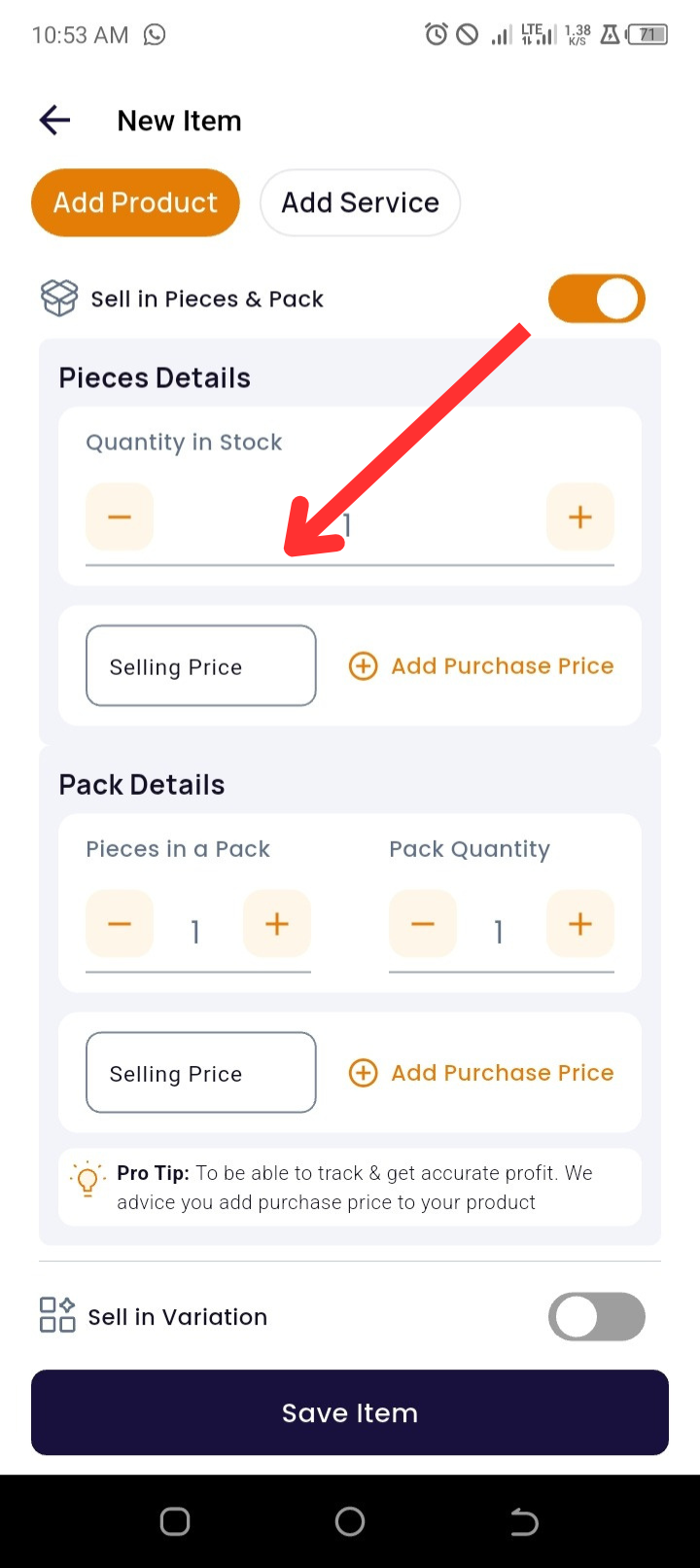
Toggle ON the Sell in Pieces or Pack option
-
Under the Pieces section, enter:
-
Quantity in Pieces
-
Selling Price
-
Purchase Price (optional)
-
-
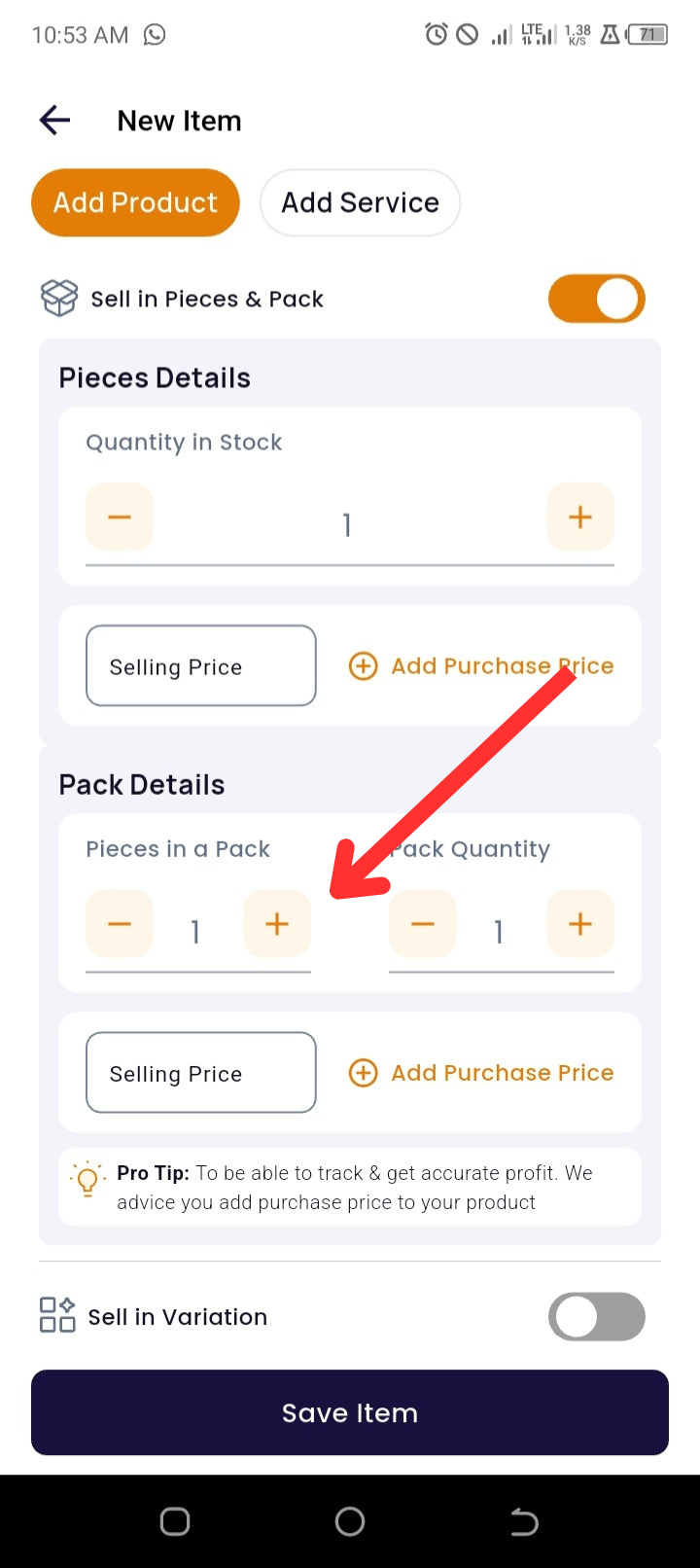
Under the Pack section, add:
-
Quantity in Packs
-
Selling Price
-
Purchase Price (optional)
-
-
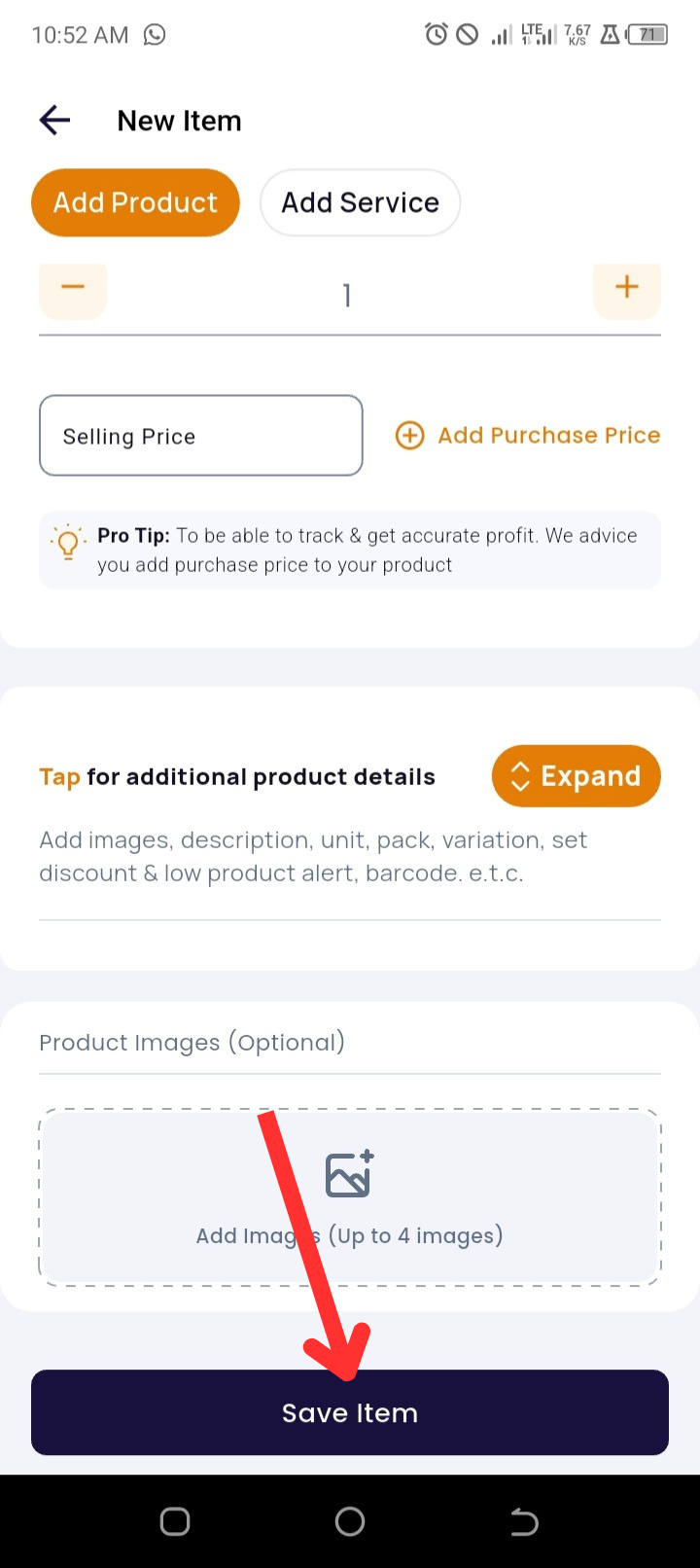
Tap Add Images (optional)
-
Tap Save Item to complete setup
💡 Tip: Using both options helps you manage pricing and stock better for different quantities—perfect for retail and wholesale sales in one inventory system.
🧠 Why Use “Sell in Pieces or Pack”?
-
Dual Pricing Control: Set separate selling and purchase prices for individual and packaged sales.
-
Efficient Inventory Tracking: Automatically manages quantities when either form is sold.
-
Profit Optimization: Track cost-per-unit more accurately.
🔧 Troubleshooting Tips
-
Can’t see ‘Sell in Pieces or Pack’? Make sure you've tapped Expand while adding or editing the product.
-
Quantities not updating? Double-check that you've entered both pieces and pack values correctly.
❓ Frequently Asked Questions (FAQs)
1. Can I enable this for an existing product?
Yes. Go to the Products Page, select the item, tap Edit, then Expand and toggle on Sell in Pieces or Pack.
2. Will the system track both inventory types automatically?
Yes, it does.
3. What if I only sell in packs?
You can leave the pieces section empty and just use the pack settings.
4. Do I need to upload separate images for each type?
No. One image set is shared across both the pack and piece entries.